Reference No: 25474
(V 02.00.16-00)
Table of Contents
Details
In CR2, User View feature is available in the Work Order Search window. This enables you to create and save custom search criteria and filter settings for searching Work Orders. A new User View can be created by typing the name of the view in the User View field and save it by clicking on the Save icon. The created User View can be accessed by clicking on the drop-down arrow of the User View field.
Options the User View Saves
Following are the options that a User View saves:
-
Filter By
-
Search
-
Sort By
Creating and Saving a New User View in Work Order Search Window
Following are the steps for creating and saving a new User View in the Work Order Search window:
-
Type the name of the user in the User View field.
-
Set the Filter By, Search criteria and Sort By settings for the custom view.
-
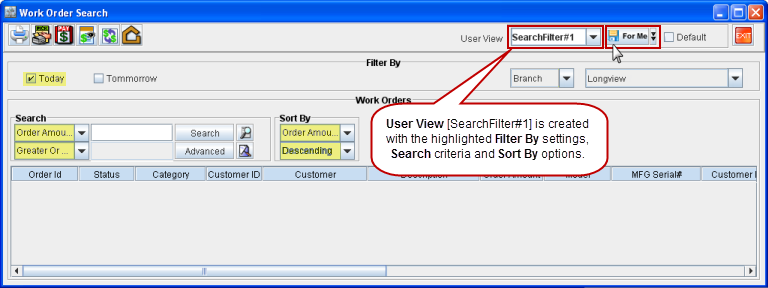
Click on the Save User View icon. The created User View gets saved, as shown in Figure 1.0.
Figure 1.0 Creating a User View
Using the Created User View
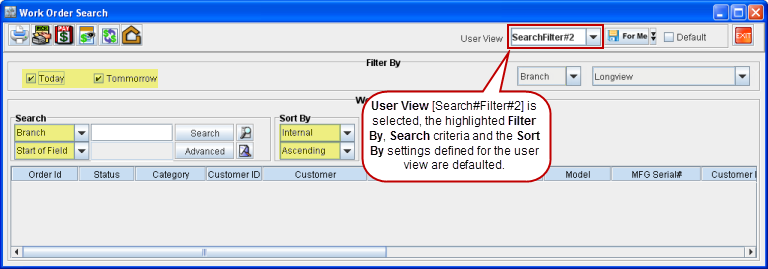
To select the created User View click on the User View drop-down arrow > select the view from the list. On selecting the User View, system defaults the Filter By, Search criteria and the Sort By settings defined for the selected User View, as shown in Figure 1.1.
Figure 1.1 Using the Created User View
Defaulting a User View
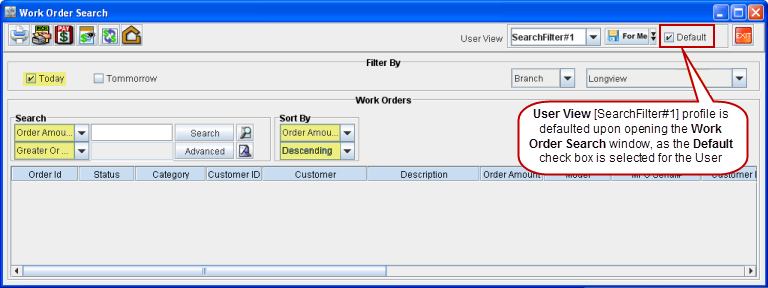
A User View profile can be set as the default profile by selecting the Default check box. When a User View is set as the default view, upon opening the Work Order Search window the settings defined for that User View will be set as the Filter By, Search criteria and Sort By settings, as shown in Figure 1.2.
Figure 1.2 Defaulting a User View