
Reference No: 25048
Details
In CR2, the Needs Service feature is added which will assist you in managing, scheduling, and tracking the periodic maintenance of Assets. This feature will help in the better tracking of Service Due Dates of internal as well as Customer Owned Equipment. This will add value to the Service Department in terms of customer satisfaction.
Asset Service Notifications
The system displays the list of Assets that requires preventive maintenance within the Needs Service window, based on the preset Maintenance Metrics as defined for the Maintenance Group Schedules, which are tagged for the Items. These service notifications will be automatically generated by the system, using a program which is scheduled to be run every midnight.
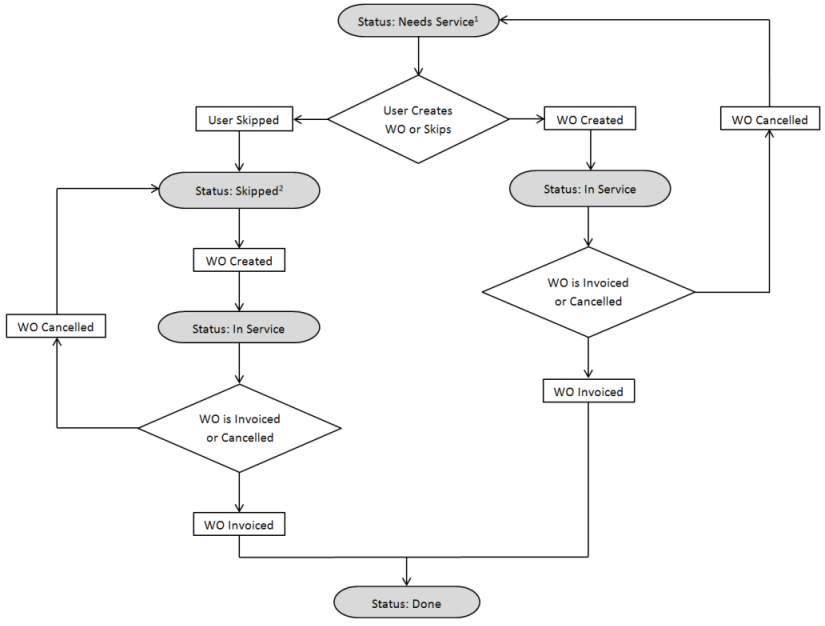
Figure 1.0 Life Cycle of Asset Service Notification
Notes:
-
Asset Service Notification status as Needs Service for a System Defined or User Defined Asset Service Notification.
-
The Asset Service Notification status will remain as Skipped until and unless the user adds it to a Work Order.
Maintenance Group
The Maintenance Groups presently exist at the Item level. Only one Maintenance Group can be selected for an Item. The Maintenance Group Schedule can be created from the Schedule Edit window as shown in Figure 1.0.
Figure 1.1 Maintenance Schedule Edit Window
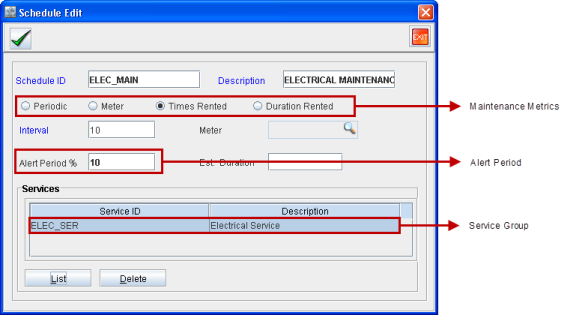
The various fields within the Maintenance Schedule Edit window are:
Metrics
A maintenance group can have one or more Maintenance Schedules defined for it based on one of the Maintenance Metrics, as defined below:
-
Periodic &endash; based on a set duration.
-
Meter - based on the meter reading.
-
Times Rented &endash; based on the number of times the Asset was rented and returned on Rental Orders.
-
Duration Rented &endash; based on the total elapsed rented time.
Service Groups
One or more Service Groups can be tagged to each of these Maintenance Schedules.
Alert Period
A new feature named as Alert Period is provided under the Maintenance Schedule Edit window. The Alert Period is defined as a percentage of the Maintenance Metric that is being used (for example, a percentage of the value defined for Periodic, Meter, Duration Rented or Times Rented) for creating the Maintenance Group Schedule.
A field named Alert Period is hence provided in the Schedule Edit window where a percentage can be set by the user as the Alert Period for the selected Metric.
Once an Asset is within the Alert Period, system will auto-generate the Asset Service Notification for the Asset and this Asset Service Notification will get displayed within the Needs Service window > Open tab with the status set as Needs Service. This will help the user to track the list of Assets that needs to be serviced in the immediate future and as such plan for servicing the Asset.
Needs Service Window
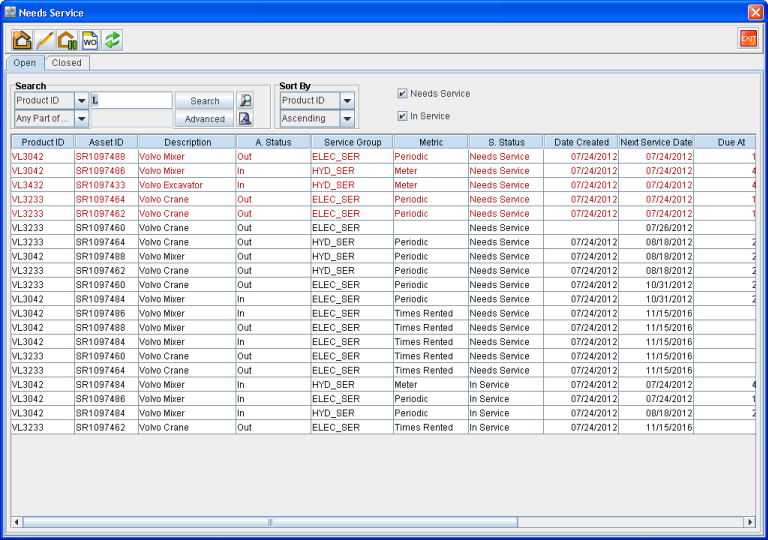
The Needs Service window, as shown in Figure 2.0, will list all the Asset Service Notifications for all the Assets for which service is due, along with their current service statuses.
Figure 2.0 Needs Service Window
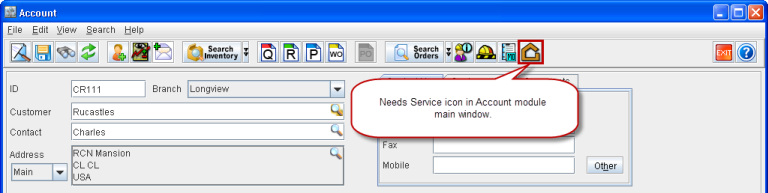
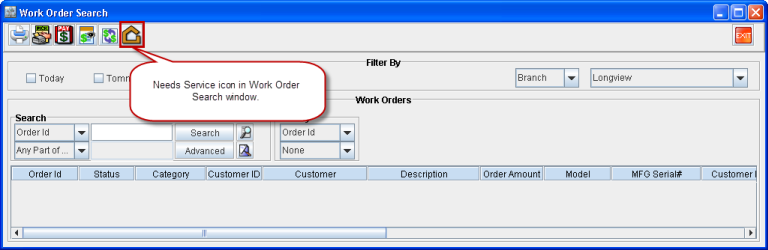
The Needs Service window can be accessed by clicking on the Needs Service 
-
Account window - as shown in Figure 2.1.
Figure 2.1 Needs Service Icon within the Account Window
-
Work Order Search window - as shown in Figure 2.2.
Figure 2.2 Needs Service Icon within the Work Order Search Window
The Needs Service window comprises of two tabs namely the Open and Closed tabs. The types of Asset Service Notifications which gets displayed in each of these tabs is as described in Table 2.0.
Table 2.0 Needs Service Window Tabs &endash; Asset Service Notification Statuses
|
Tab Name |
Statuses of Asset Service Notifications displayed in this tab |
|
Open |
Needs Service, In Service |
|
Closed |
Skipped, Done |
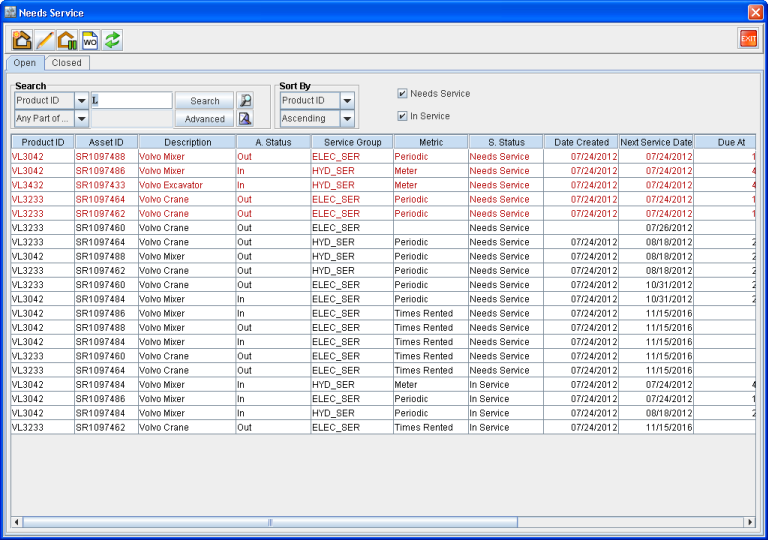
The Asset Service Notifications with statuses as Needs Service will get displayed in three different colors based on their Next Service Date as described below:
-
Red - If Next Service Date of the Asset Service Notification is earlier to the current system date.
-
Orange - If Next Service Date of the Asset Service Notification is coinciding with current system date.
-
Black - If Next Service Date of the Asset Service Notification is after the current system date.
Icons in Needs Service Window
The various icons present in the Needs Service window are as described in Table 2.1.
Table 2.1 Icons in Needs Service Window
|
Icon |
Name |
Description |

|
New User Defined Service |
Click this icon to open up the User Defined Service window to create a new User Defined Service for an Asset. |

|
Edit Needs Service |
Select an Asset Service Notification (either System generated or User Defined) and click this icon to customize the Asset Service Notification. This opens up the User Defined Service window with its constituent fields populated with the data from this Asset Service Notification. |

|
Skip Service |
Double-click and select one or more Assets Service Notifications listed in the Open tab and click this icon to skip the service that is due for the notified Assets. By doing this you are manually overriding the scheduled service for the Assets and its Service Notifications won’t be listed any more in the Open tab of the Needs Service window. But it will get listed in the Closed tab with status set as Skipped. This icon is active only for the Open tab. Note: The purpose of the skip feature is to allow the user to manually skip the servicing of an Asset which they feel is unnecessary at that point of time. |

|
Create WO |
Double-click and select one or more Assets in the Open tab or Closed tab of the Needs Service window and click this icon to create a Work Order with the Asset tagged to it. The Work Order will be created without the customer tagged to it and will be in the Estimate status. Upon creating the Work Order, the service notification for which the Work Order was created will change to In Service status. If the same Work Order is cancelled/lost at a later time without invoicing, then the service status will change back to Needs Service for all of those Asset Service Notifications for which the Work Order was created. Note: You can select and tag multiple Asset Service Notifications to a Work Order if and only if they all belong to the same Asset. |

|
Regenerate |
Click this icon to regenerate the list of Asset Service Notifications. Note: If an Asset gets into the Alert Period of a particular Service at intra-day then that will not get populated into the Needs Service window till the next mid-night process runs. But by clicking the Regenerate icon the user runs the process then and the system will regenerate the Asset Service Notifications list which will include all the Asset Service Notifications which were triggered till that point of time. |
Tabs of Needs Service Window
The Needs Service window has two tabs namely:
Open Tab of Needs Service Window
The Open tab of the Needs Service window lists out all the Assets Service Notifications for Assets whose service is due, in the ascending order of their Date Created, as shown in Figure 2.1.
Figure 2.1 Needs Service Window &endash; Open Tab
Columns in Needs Service Window - Open Tab
The details regarding an Asset and its service status displayed within the Open tab are as described in Table 2.2.
Table 2.2 Needs Service Window Open Tab &endash; Column Details
|
Column Name |
Description |
|
Product ID |
The Product ID of the Asset needing service. |
|
Asset ID |
Asset ID of the Asset needing service. |
|
Description |
Description of the Asset. |
|
A. Status |
Current Status (In, Out and so on) of the Asset. |
|
Service Group |
The name of the Service Group, tagged to the Maintenance Group of this Item, which triggered the service for this Asset. |
|
Metric |
The unit by which (the Maintenance Metric) the system generated the Asset Service Notification. Refer below for the list of possible values that will be displayed for this column.
|
|
Date created |
Date on when the Asset Service Notification got created. |
|
Next Service Date |
|
|
Due at |
This column shows the point at which Service is due based on the metric:
|
|
Branch Name |
The name of the branch where the Asset is currently located at. |
|
S. Status |
Service Status (Need Service and In Service) of the Asset Service Notification. |
|
Mfr. Serial No. |
Manufacturer Serial Number of the asset needing service. |
|
Last Order No. |
Order number of the last order in which the Asset was used on. |
|
Reason for Service |
|
|
S |
If the check box in this column is selected, it means that this is a System Defined Service Notification. If this check box is not selected it means this is a User Defined Asset Service Notification. |
The two check boxes within the Open tab are:
-
Needs Service &endash; This check box will be selected by default. As such all the Asset Service Notifications with status as Needs Service will be listed within the Needs Service window > Open tab by default.
-
In Service &endash; This check box will be cleared by default. If this check box is selected then all the Asset Service Notifications with status as In Service will get listed within the Needs Service window > Open tab.
Closed Tab of Needs Service Window
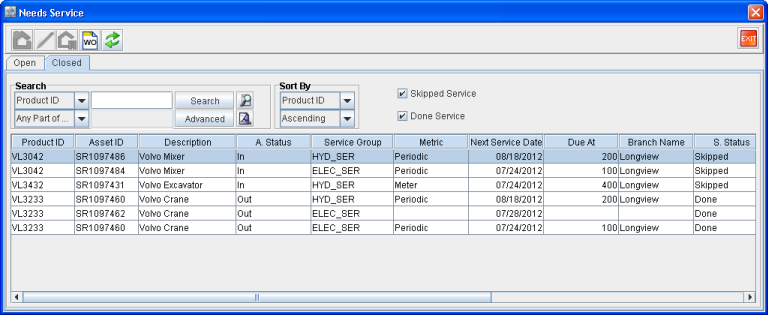
The Closed tab of the Needs Service window lists out all the Assets whose service was either performed or manually skipped, in the descending order of their Status Date, as shown in Figure 2.2. Thus the user can see the recently completed/skipped Asset Service Notifications on the top.
Figure 2.2 Needs Service Window &endash; Closed Tab
Columns in Needs Service Window - Closed Tab
The details regarding an Asset and its service status displayed within the Closed tab are as described in Table 2.3.
Table 2.3 Needs Service Window Closed Tab &endash; Column Details
|
Column Name |
Description |
|
Product ID |
The Product ID of the Asset needing service. |
|
Asset ID |
Asset ID of the Asset needing service. |
|
Description |
Description of the Asset. |
|
A. Status |
Current Status (In, Out and so on) of the Asset. |
|
Service Group |
The name of the Service Group, tagged to the Maintenance Schedule, which triggered the service for this Asset. |
|
Metric |
The unit by which system generated the service notification. Refer below for the list of possible values that will be displayed for this column.
|
|
Next Service Date |
|
|
Due at |
This column shows the point at which Service is due based on the metric:
|
|
Branch Name |
The name of the branch where the Asset is currently located at. |
|
S. Status |
Service Status (Skipped and Done) of the Asset Service Notification. |
|
Mfr. Serial No. |
Manufacturer Serial Number of the asset needing service. |
|
Reason for Service |
|
|
S |
If the check box in this column is selected, it means that this is a System Defined Service Notification. If this check box is not selected it means this is a User Defined Asset Service Notification. |
|
Work Order |
|
|
Employee |
Displays the name of the Employee who either created the Work Order or skipped the Asset Service notification. |
|
Status Date |
Displays the date when either the Work Order was created for this Asset Service Notification or when it was skipped. |
User Defined Service Window
It can be used to create a new User Defined Service for the internal or MOF whose Asset Service Notification is listed in the Needs Service Window. The User Defined Service window can be accessed by clicking the New User Defined Service 
-
Needs Service window.
-
Work Order window.
Here all the fields within the User Defined Service Window are editable.
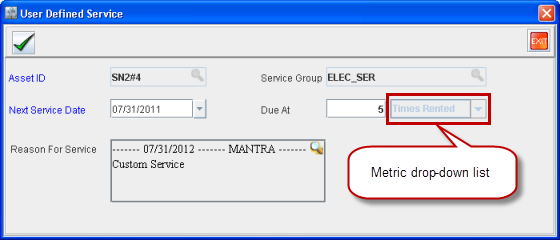
Clicking on the Edit icon after selecting an Asset Service Notification within the Needs Service window will also open up the User Defined Service window, as shown in Figure 3.0.
Figure 3.0 User Defined Service Window
Notes:
-
When editing system generated Asset Service Notification - Asset ID, Service Group, and Metric drop-down list is not editable.
-
When editing User Defined Asset Service Notification all the fields within the User Defined Service window are editable.
The User Defined Service Notification of an Asset will appear in the Needs Service window > Open tab and works similarly to the system generated Asset Service Notifications.
Columns in User Defined Service Window
The fields within the User Defined Service window are as described in Table 3.0.
Table 3.0 Details of User Defined Service Window
|
Field Name |
Description |
|
Asset ID |
The Asset ID of internal Asset or MOF ID. |
|
Next Service Date |
The date which decides as to when this Asset should show up in the Needs Service window > Open tab. |
|
Due at |
Decides when the Asset Service Notification should get created based on the Metric defined in the Metric drop-down list. |
|
Service Group |
The name of the Service Group added to the Maintenance Schedule which is tagged to this Asset. |
|
Reason for Service |
To enter comments regarding the scheduled service for this Asset. |
Asset Service Notifications Window
The Asset Service Notifications window lists all the due and skipped Asset Service Notifications for the selected Asset, as shown in Figure 4.0.
Figure 4.0 Asset Service Notifications Window
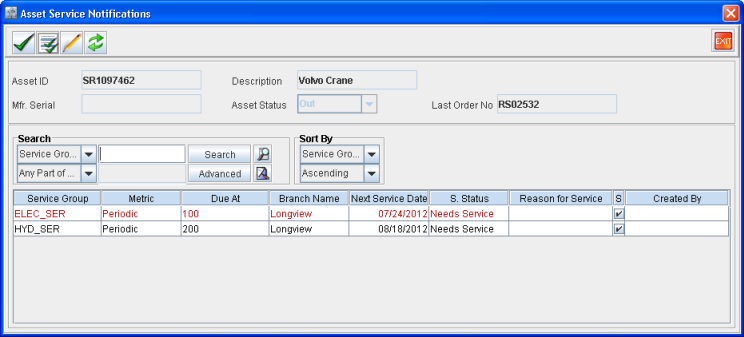
This window will get automatically displayed when any asset, with one or more active Asset Service Notifications, is tagged to a Work Order.
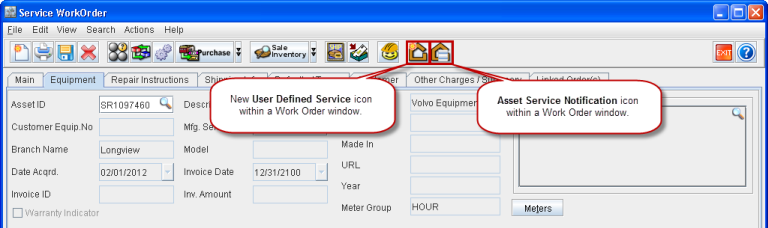
The users can also view this window by clicking the Asset Service Notification 
Figure 4.1 Asset Service Notification and New User Defined Service Icons in an Open Work Order Window
Icons in Asset Service Notifications Window
The various icons present in the Asset Service Notifications window are as described in Table 4.0.
Table 4.0 Icons in Asset Service Notifications Window
|
Icon |
Name |
Description |

|
OK |
Click this icon to save the selections made within this window. |

|
Tag All |
This icon works as described below. Before clicking on tag all icon: None are tagged. All will be tagged. One or more are tagged. After clicking on tag all icon: All will be tagged. All are tagged. None will be tagged. |

|
Edit Needs Service |
Select an Asset Service Notification displayed here and click this icon to customize the Asset Service Notification. This opens up the User Defined Service window with its constituent fields populated with the data from this Asset Service Notification. |

|
Regenerate |
Click this icon to regenerate the list of Asset Service Notifications for the Asset tagged in the Work Order. Note: If the Asset gets into the Grace Period of a particular Service at intra-day then that will not get populated into the Asset Service Notifications window till the next mid-night process runs. But by clicking the Regenerate icon the user runs the process then and the system will regenerate the Asset Service Notifications list which will include all the Asset Service Notifications which were triggered till that point of time. |
Header Fields in Asset Service Notifications Window
The various fields present in the Asset Service Notifications window are as described in Table 4.1.
Table 4.1 Fields in Header of Asset Service Notifications Window
|
Field Name |
Description |
|
Asset ID |
The ID of the Asset whose Asset Service Notifications are listed in this window. |
|
Description |
The Asset's description. |
|
Mfr. Serial |
The Asset's Manufacturer Serial. |
|
Asset Status |
Current Status (In, Out and so on) of the Asset. |
|
Last Order No. |
The last order in which Asset was out. |
Columns in Asset Service Notifications Window
The details regarding an Asset and its Service status displayed within this window are as described in Table 4.2.
Table 4.2 Asset Service Notifications Window &endash; Column Details
|
Column Name |
Description |
|
Service Group |
The name of the Service Group, tagged to the Maintenance Schedule, which triggered the service notification for this Asset. |
|
Metric |
The unit by which system generated the service notification. Refer below for the list of possible values that will be displayed for this column.
|
|
Due at |
This column shows the point at which Service is due based on the metric:
|
|
Next Service Date |
|
|
Branch Name |
The name of the branch where the Asset is currently located at. |
|
S. Status |
Service Status (Needs Service and Skipped) of the Asset Service Notification. |
|
Reason for Service |
|
|
S |
If the check box in this column is selected, it means that this is a System Defined Service Notification. If this check box is not selected it means this is a User Defined Asset Service Notification. |
|
Created By |
Displays the name of the Employee who skipped the Service Notification. |
Processed Asset(s) - Needs Service Window
When an Asset added to a Rental Order is Filled, Dispatched, or Returned to the Rental Order and if it has one or more Asset Service Notifications with Service Status as Needs Service or Skipped then the system opens up the Processed Asset(s) - Needs Service window while performing the above said operations, as shown in Figure 5.0.
Figure 5.0 Processed Asset(s) - Needs Service Window
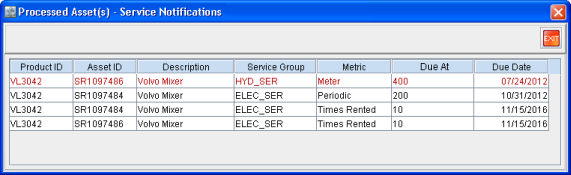
Note: You cannot perform any operation with the Asset Service Notifications listed in this window.
This window will display the Asset Service Notifications of one or more Asset(s) on whom the current operation (Fill, Dispatch, or Return) is performed on.
Columns in Processed Asset(s) - Needs Service Window
The details regarding an Asset and its Service status displayed within this window are as described in Table 5.0.
Table 5.0 Processed Asset(s) - Needs Service Window &endash; Column Details
|
Column Name |
Description |
|
Product ID |
The Product ID of the Asset needing service. |
|
Asset ID |
Asset ID of the Asset needing service. |
|
Description |
Description of the Asset. |
|
Service Group |
The name of the Service Group, tagged to the Maintenance Group of this Item, which triggered the service for this Asset. |
|
Metric |
The unit by which system generated the service notification. Refer below for the list of possible values that will be displayed for this column.
|
|
Due at |
This column shows the point at which Service is due based on the metric:
|
|
Due Date |
|
Usage Scenarios
Given below are the possible scenarios that might arise in the usage of the Needs Service feature.
Scenario &endash; 1
-
Click the Needs Service icon .
This opens up the Needs Service window > Open tab, listing all the open Asset Service Notifications for both internal and customer owned Assets.
-
Click the Create WO icon, after tagging one or more listed Asset Service Notifications.
-
More than one Asset Service Notifications can be added to a single Work Order if and only if they all belong to the same Asset.
-
This opens up a Work Order with the Asset tagged to it under the Equipment tab > Asset ID field.
-
The Service Groups tagged to the Service Notification(s), if any, will get listed in the Work Order item line grid.
The work flow after creating a Work Order is as described in Table 5.0.
Table 6.0 Work Flow of an Asset Service Notification After Creating a Work Order
|
Operation Performed |
Effect on the Asset Service Notification Listed in the Needs Service Window |
|
Work Order created and saved |
Note: By default the In Service check box will be in the cleared form. |
|
Work Order Cancelled |
Note: The Needs Service check box will be selected by default. |
|
Work Order is Done or Invoiced |
Note: The Done Service check box will be selected by default. |
Scenario &endash; 2
-
Create a new Work Order.
-
Select the Customer.
-
Select and tag the MOF.
System will now automatically open up the Asset Service Notifications window, listing all the Asset Service Notifications for the selected Asset.
-
Tag one or more of the listed Service Notifications from the Asset Service Notifications window. This adds the corresponding Service Groups to the Work Order Item Line.
Scenario &endash; 3
-
Create a new Work Order.
-
Select the Customer.
-
Select and tag the MOF.
Note: Since no Service Notifications exist for this Asset and as such the Asset Service Notifications window doesn’t pop-up.
-
Click the icon to create new User Defined Service Notification for this Asset. User Defined Service window will be opened up by the system with the Asset ID pre-populated from the Work Order.
-
Define the Metric and the Due at.
-
Tag a Service Group to this User Defined Service Notification, if need be.
-
Enter all the other requisite information for the User Defined Service Notification.
-
Save and exit.
Scenario &endash; 4
-
Open the Needs Service window.
-
Select the Closed tab.
-
Search by an Asset ID. For example, search by the Asset ID 600529.
All Done and Skipped Asset Service Notifications for the Asset 600529 will get listed here in the descending order of their Status Date.
-
Tag one or more Skipped Asset Service Notifications listed for the Asset.
-
Click the Create WO icon. This creates a new Work Order with the Asset 600529 tagged to it. All the applicable Service Groups will get added to the Work Orders Item Line.
Notes:
The Skipped Asset Service Notifications’ statuses, which were tagged to a Work Order, changes to In Service when the Work Order is created.
These In Service Asset Service Notifications will get listed in the Needs Service window > Open tab.
If the Work Order is cancelled before invoicing then, these In Service Asset Service Notifications will revert to Skipped status and will appear in the Needs Service window > Closed tab.
-
Continue with the Work Order flow as described in Scenario-1 listed above.
Scenario &endash; 5
Given below are the various scenarios that might arise when Assets which are in the Alert Period of a Service, and as such has Asset Service Notifications, are added to a Rental Order.
Table 6.1 Scenarios - Asset with Asset Service Notification is Added to a Rental Order
|
Rental Order Operation |
Flow Change |
|
An Asset is added to a Rental Order (RO) which is in the Alert Period of one or more Service(s) and as such which has Service Notifications. |
System opens up the Processed Asset(s) - Needs Service window listing the Asset Service Notifications with Needs Service and Skipped statuses for the Asset(s) on which the current operation is performed. This window just displays the said information and no further operation can be perofrmed on the Asset Service Notifications listed there from this window. You can only exit from this window. |
|
An Item is added to a RO. When the Asset is chosen for the Item while performing Fill/Dispatch operation from the RO. |
|
|
When an Asset is Returned to a RO. |
Scenario &endash; 6
-
Create a new Work Order (WO) from within a Rental Order (RO).
-
Work Order’s Description field will have the Rental Order’s ID from where it was created.
-
Work Order > Equipment Tab will have the Asset tagged to it under the Asset ID field.
-
If Asset on the Rental Order has status of Out or Off Rent then set the Work Order’s Shipping Address to that of the Rental Order. If Asset on the Rental Order has status other than Out or Off Rent then set the Work Order’s Shipping Address to that of the local branch which is creating the Work Order.
-
The Asset Service Notifications window will be opened up by the system and you can tag one or more Asset Service Notification(s) of the Asset to the Work Order.
-
The Work Order will open up with the Repair Instructions tab in front, so that you can immediately begin entering comments for performing the service(s).