
Asset details can be viewed and edited from the account module. Details include purchase order information, last order information, service history, acquired date, status, service status, manufacturer serial # and others.
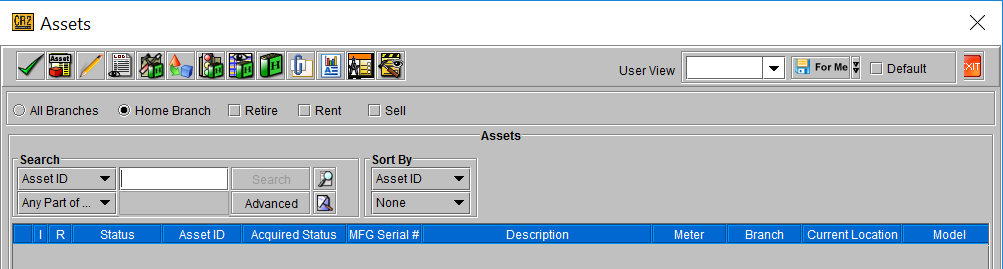
To view asset details from the account module go to Account >Search > Assets. Assets can be searched Product ID, Asset ID, Date Acquired and other available criteria.
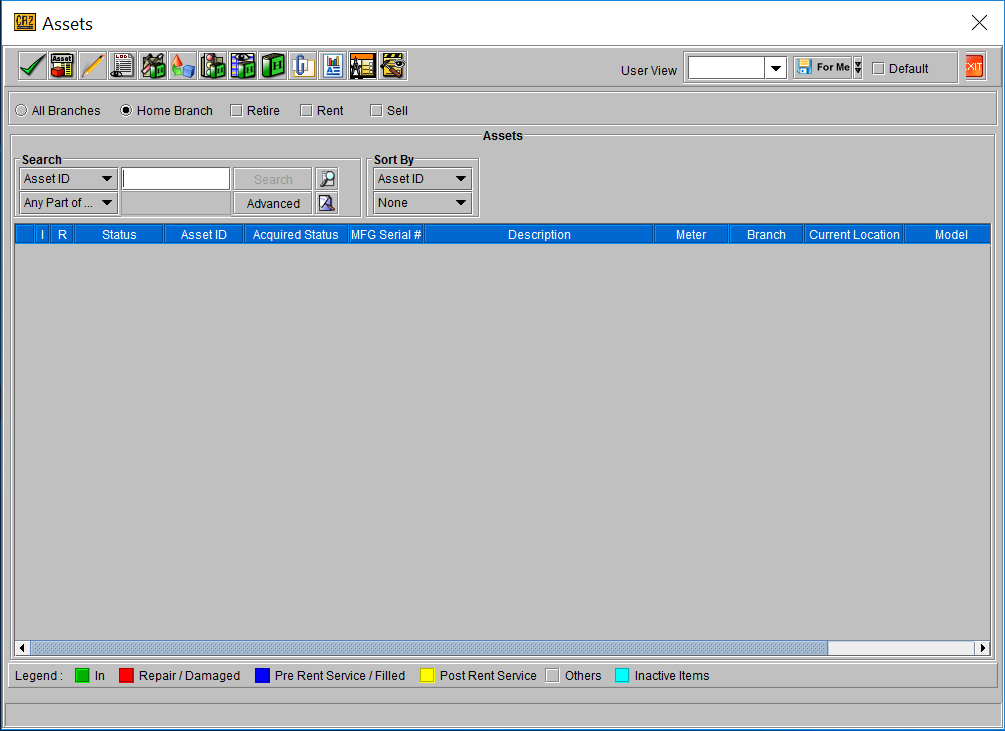
Click this button to view asset details 
Click this button to view usage status 
Click this button to view status history 
Click this button to view asset history 
By default, retired, sold and lost assets will not display in the search results. To search for assets having any of these statuses, check the box of the desired status in the Filter By area.
Search for the desired asset, select it and click the Edit button 
The details are unique to the asset selected. Some details, if not populated, adopt the details of the Product ID such as description.
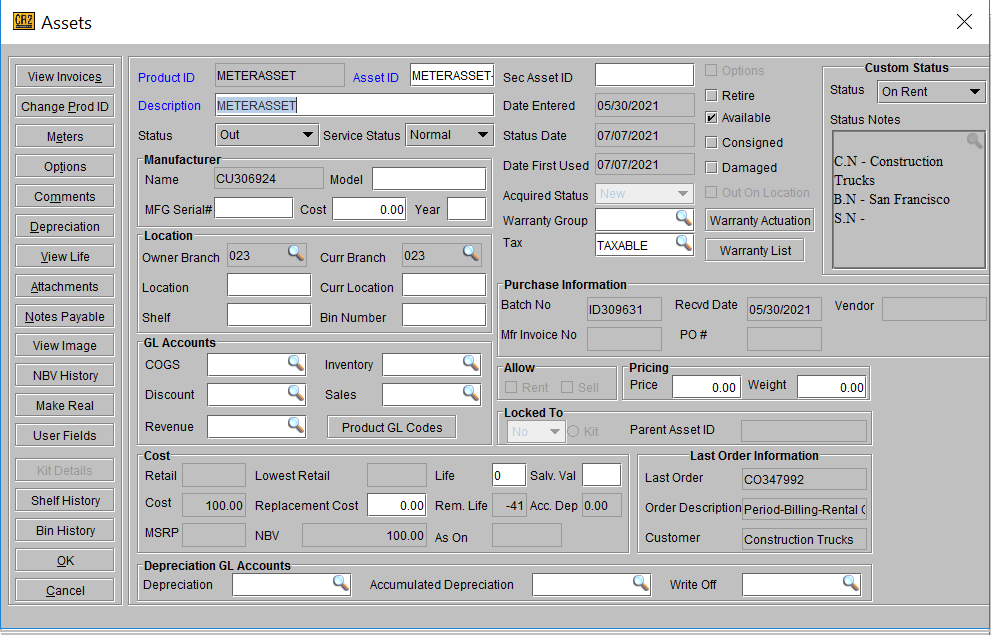
From the above screen, the user can add or update the manufacturer serial number, Retire the asset (to deduct it from stock), mark it damaged, mark it Available (if unchecked, availability will be deducted).
Enter warnings specific to the asset such as missing mouse and pen for a tablet.