
Reference: 22859
(V 02.00.04-00)
Details
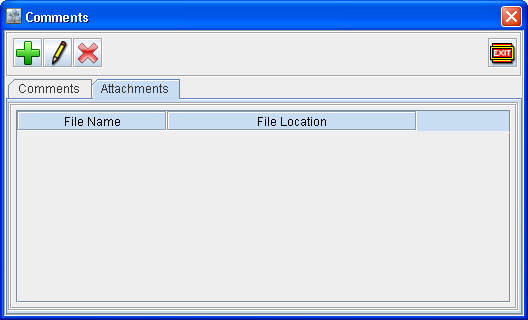
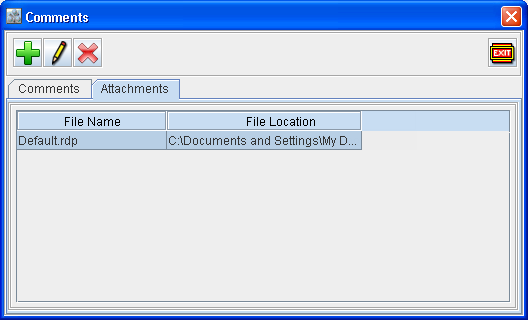
In Comments window, in addition to text comments feature, you can attach files having additional information using Attachments tab as shown below.
Steps to add A Attachment
-
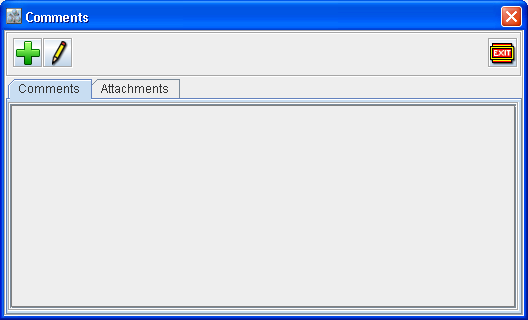
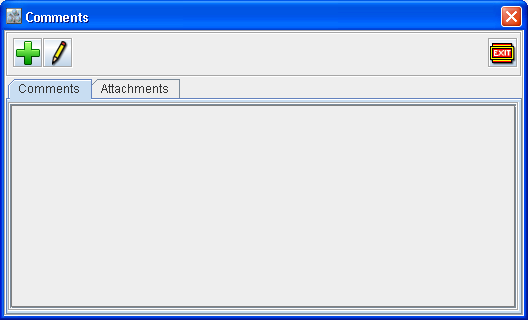
Access Comments window.
-
Click Attachments tab.
-
System will display the Comments window.
-
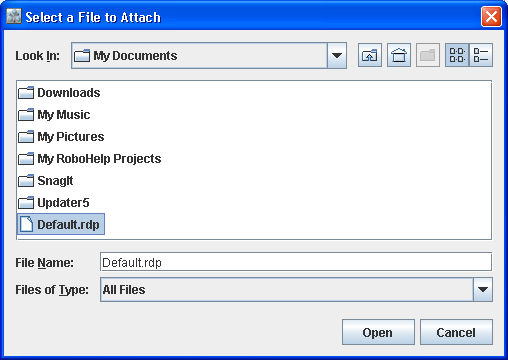
Click Add

-
Select the file to attach and click Open button.
-
System displays the Attached File name in the File Name field and the file location path in File Location field in the Comments window.
-
Click Exit icon to close the Comments window.
Note: On opening the Comments of an order which is in Read Only mode, system will display the Comments in Read Only mode.