
Reference: 21169
(V 01.00.94-00)
Details
The Approve feature allows you to approve credit for the Work Order segments for which Charge To is set as either Customer or Warranty, when the segments exceed the credit limit of the segment customer.
-
The enhancement addressed in the document will be also applicable for the Order Types such as Rental Orders, Equipment Sale Orders, and Part Sale Orders. However, the Equipment Sale Orders will be considered for credit limit validation based on configuration setting (See Credit Limit Validation for Equipment Sale Orders for more info)
-
With effect to the implementation of this enhancement, the menu ”Approval” and its sub options will not be present in the Work Order. However, you will be able to view the approval for the segments from within Work Order using the option Approval from the View menu.
Approving Work Order Segments
For a Work Order having Segments, the segment credit will be approved/allowed to approve using System Approval method or by User Approval Method.
System Approve
-
Credit Limit will be automatically approved (System Approved) for the work order segments while saving the order, if the segment customer has required credit limit available to satisfy the segment amount.
-
If the work order has any segments with Authorization Limit defined, then system will automatically approve the segment, only if the credit limit is available for the segment customer to satisfy the Authorization Limit defined for the segment.
-
You will be able to view the system approved segments from within the Approve window, which can be accessed from within the Work Order by selecting the option Approvals from the View Menu.
-
For a system approved segments, system will automatically adjust the approved amount, if any changes are made for the Authorization Limit defined for a segment or for the segment lines without Authorization Limit defined. (Refer below Illustration)
Illustration
Customer: Cust #1 Credit Limit: 5000
Order Info Order Amount ORD#1: 5000 ORD#2: 3000 ORD#3: 2000
Case 1: If Order Amount present on Order [ORD#1] is reduced
For example, if the amount on the Order [ORD#1] is reduced to 3000, then system will adjust the system approved amount to 3000. Illustration (If the Order amount is reduced to 3000) Balance Credit Available for the Customer will be 2000.
Case 2: If Order Amount present on Order [ORD#1] is increased
|
Updation of Credit Details in Customer Edit Window
In Customer Edit window, the ”Credit Details section” field system will display the details of the Credit which is used on Orders and Invoices.
Figure 1.0
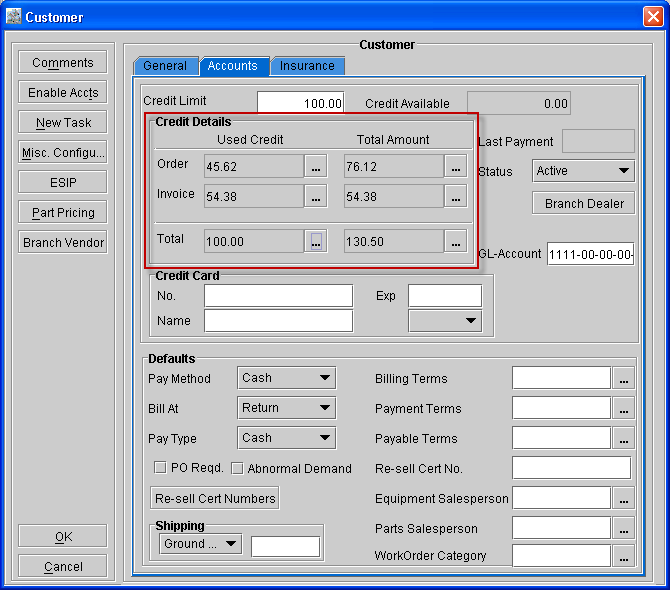
Table 1.0 Fields Information
|
|
Used Credit |
Total Amount |
|
Order |
Displays the Total System Approvals amount in the Un-invoiced Orders |
Displays the Total Amount on all Orders which is not Invoiced |
|
Invoice |
Displays Total of System Approved amount which is Invoiced |
Displays Total Invoiced Amount on all Orders. |
|
Total |
Displays sum of (Used Credit Order + Used Credit Invoice) |
Displays sum of (Total Amount Order + Total Amount Invoice) |
Illustration
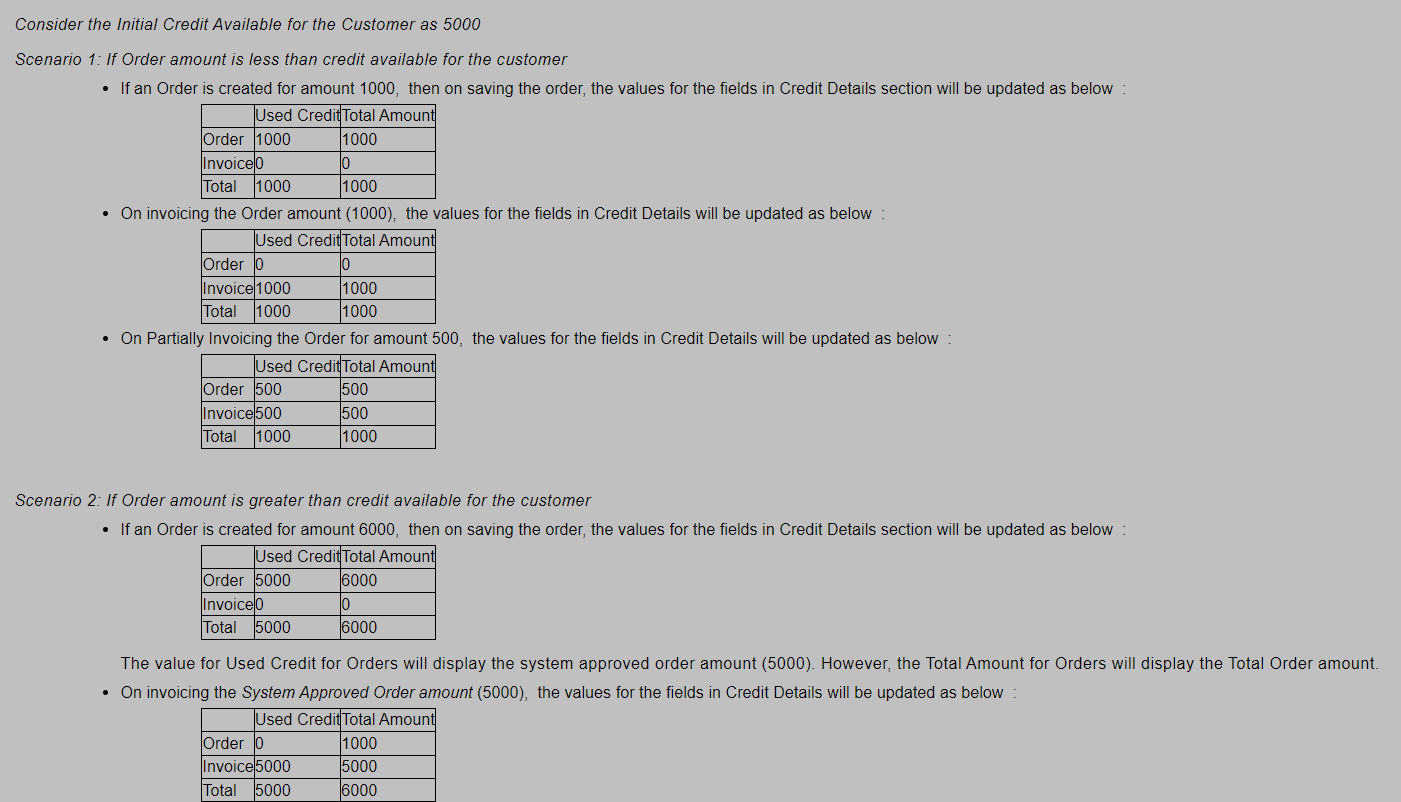
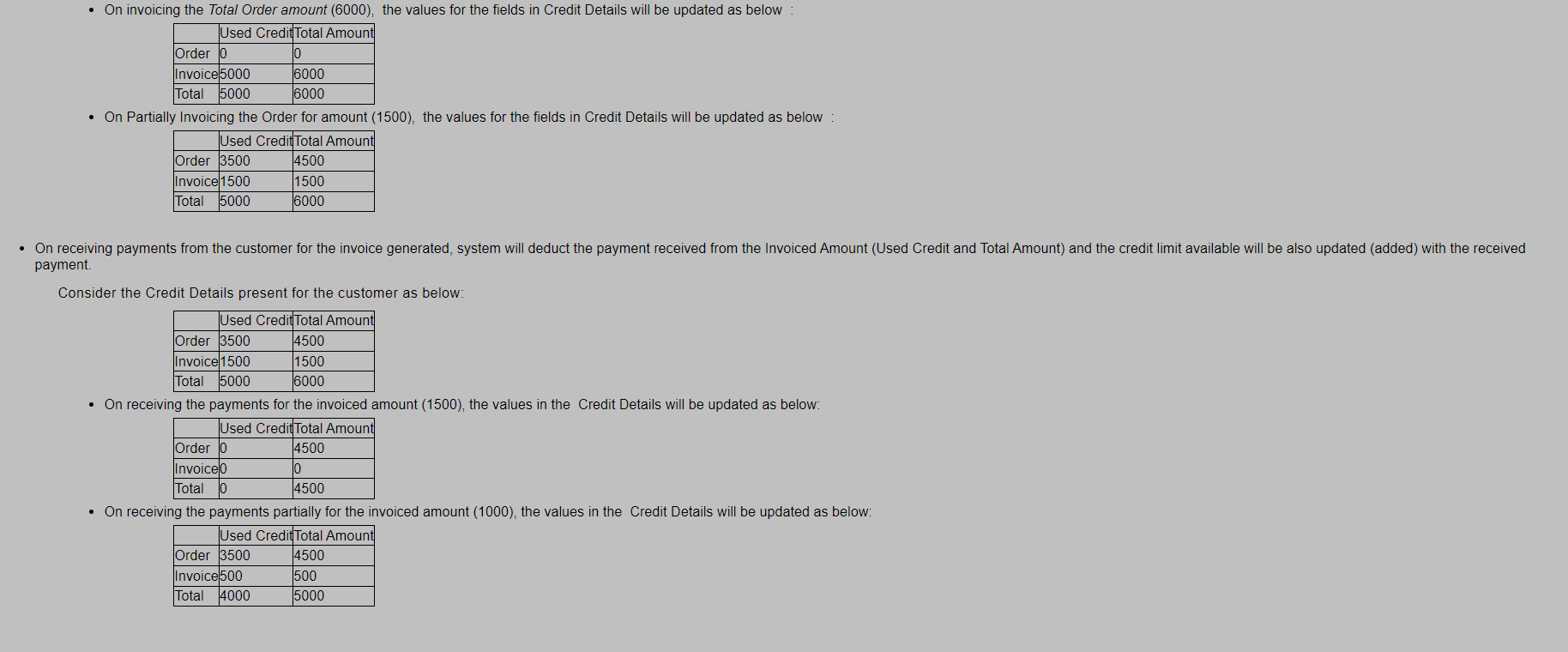
-
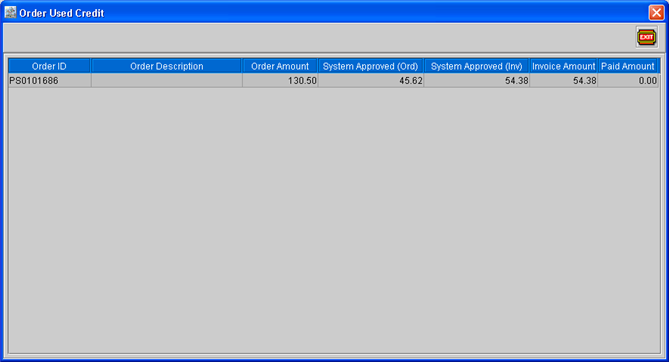
On clicking the importable button in Used Credit - Order field, system will display the Order Used Credit dialog as shown in Figure 1.1, which will give the distribution of the amount displayed in the Used Credit - Order field.
Figure 1.1 Order Used Credit Dialog
-
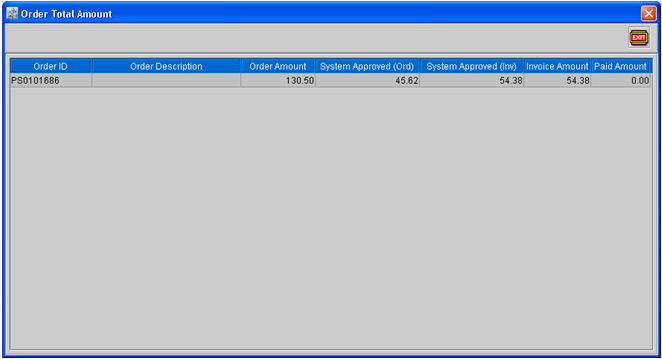
On clicking the importable button in the Total Amount - Order field, system will display the Order Total Amount dialog as shown in Figure 1.2, which will give the distribution of the amount displayed in the Total Amount - Order field.
Figure 1.2 Order Total Amount Dialog
-
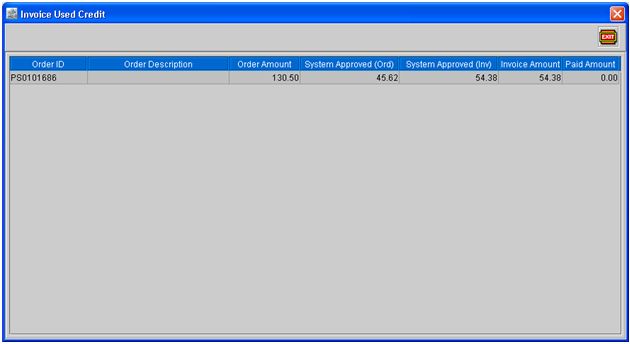
On clicking the importable button in the Used Credit - Invoice field, system will display the Invoice Used Credit dialog as shown in Figure 1.3, which will give the distribution of the amount displayed in the Used Credit - Invoice field.
Figure 1.3 Invoice Used Credit Dialog
-
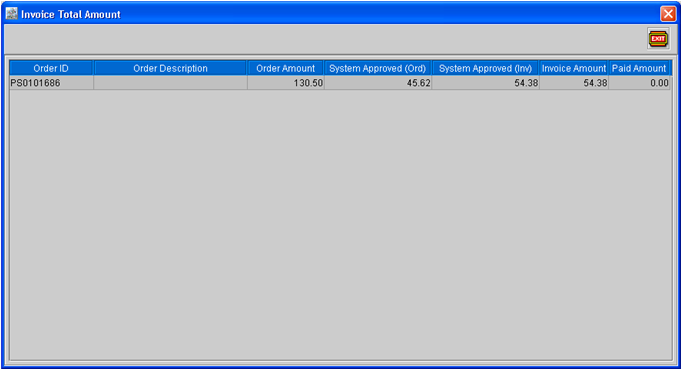
On clicking the importable button in the Total Amount - Invoice field,system will display the Invoice Total Amount dialog as shown in Figure 1.4, which will give the distribution of the amount displayed in the Total Amount - Invoice field.
Figure 1.4 Invoice Total Amount Dialog
-
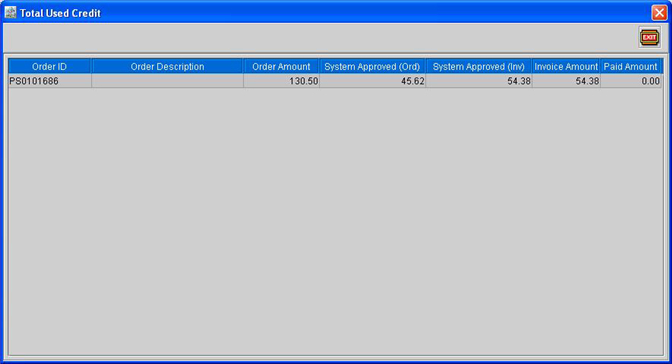
On clicking the importable button in the Used Credit - Total field, system will display the Total Used Credit dialog as shown in Figure 1.5, which will give the distribution of the amount displayed in the Used Credit - Total field.
Figure 1.5 Total Used Credit Dialog
-
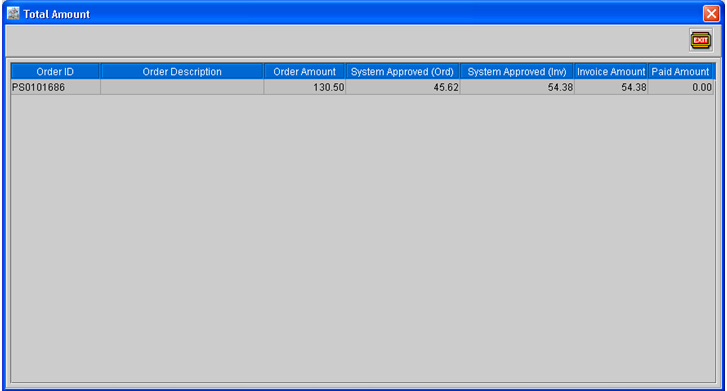
On clicking the importable button in the Total Amount - Total field, system will display the Total Amount dialog as shown in Figure 1.6, which will give the distribution of the amount displayed in the Total Amount - Total field.
Figure 1.6 Total Amount Dialog
User Approve
The User Approval method is used to approve credit limit for work order segments, based on the below scenarios:
-
If Authorization Limit is defined for the work order segments and the defined value exceeds the Segment Customer Credit Limit (excluding the previously System Approved amount, if any).
-
If segment total amount exceeds the segment customer credit limit (excluding segment lines having authorization limit defined)
If any of the conditions mentioned above occur, then on saving the Work Order, system will display a message prompt (as shown below).
Figure 2.0
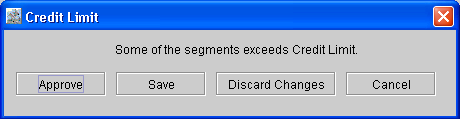
You will be allowed to further proceed on the Work Order either by manually approving (User Approve) the segments, saving the Order without Approval or close the Order by discarding any changes made to the order. This can be done using the options present in the Message dialog box (Refer below table for more information)
Note: For Work Order having any segments pending for credit approval, system will not allow you to Ship Items present on the order or Invoice the Order. However, system will allow you fill the items on the order.
Table 2.0
|
Option |
Description |
|
Approve |
This option can be used to display the Approve window, wherein you will be able to Approve the Segments, View existing Approvals and also Revoke already approved Segments. (See Also : Approve Window) |
|
Save |
On selecting this option the Order will be saved without the approval of the segment lines and also marking the work order as pending for approval. |
|
Discard Changes |
This option can be used to discard any changes made to the order and exit the order without saving. |
|
Cancel |
This option can be used to close the Message dialog and return to the Order window. |
Approve Window
The Approve Window can be invoked for a Work Order either by selecting the option Approve from the Message window displayed for alerting credit limit (Refer Fig 1.0) or by selecting the option Approvals from the Work Order View menu.
Note: On invoking the Approve Window, system will automatically create a segment line for the non-segmented lines (Orphan Lines) and will display in the Approve window.
On selecting either of the options, system will display the Approve window as shown below:
Figure 2.0
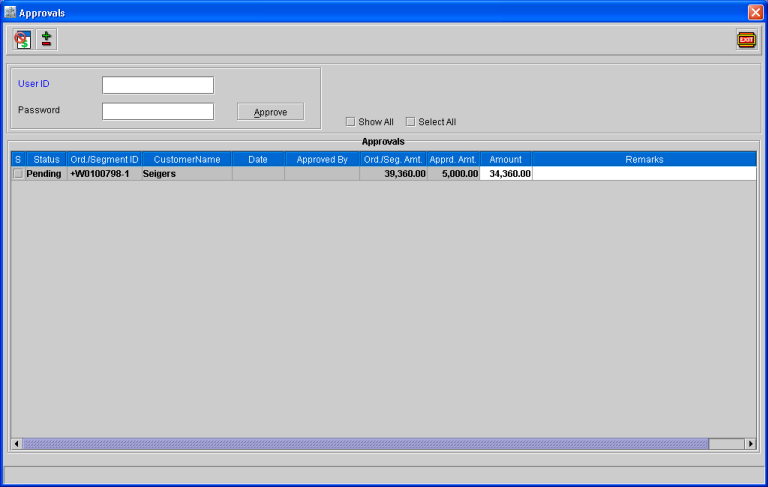
In the Approval Window, by default system will display all the segments for which the credit approval is pending. You can also view the any segments which are already approved by selecting the option ”Show All”.
Table 2.0 Approve Window Field Information
|
Field |
Description |
|
Status |
The value present in status notifies the approval status of the segment lines.
|
|
Segment ID |
Displays the Unique ID of the Work Order Segment |
|
Customer Name |
Display the name of the segment customer |
|
Seg.Amount |
Displays the total segment amount |
|
Appr.Amount |
Displays the total credit amount approved for the order |
|
Amount |
This field can be used to enter the approved credit amount for a segment line |
|
Remarks |
This field can be used to enter Remarks for the approval transaction. |
|
S |
Displays as selected if credit limit for the segment is System approved. |
|
Approve |
To approve a segment after entering the approved credit amount, select the check box for the segment (Pending to be approved) and click on the Approve button after entering the User ID and Password. |
Steps to approve credit amount for Segments
-
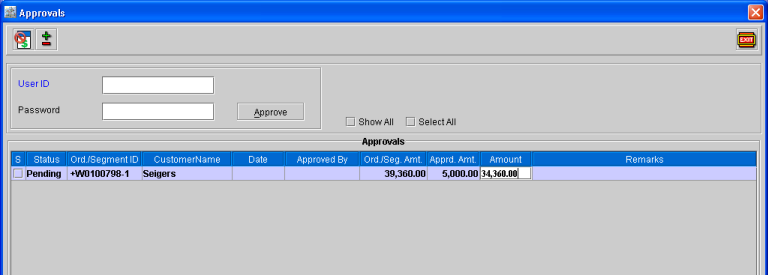
In the Approve Window highlight the segment line which has to be approved.
-
Double-click inside the Amount Column of the Segment.
-
Enter the approved amount in the Amount field.
Figure 3.0
-
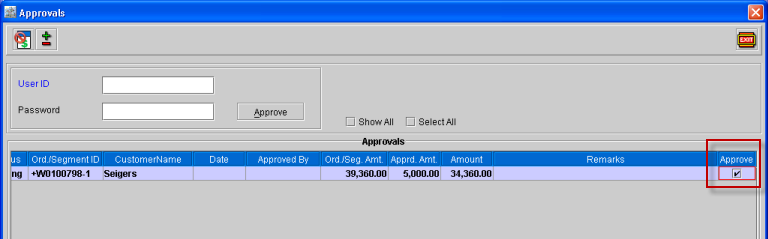
Select the check box present in the Approve column for the segment.
Figure 3.1
-
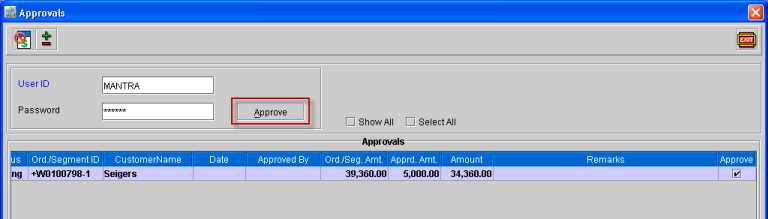
Enter the User ID and Password in the respective fields.
-
Click on Approve button.
Figure 3.2
-
On clicking on Approve button, system will refresh the Approve window and will display only the Segments which are now pending for approval. However, if the segment is only partially approved, then the segment will be displayed in the Approve window with the status as ”Pending”.
Notes:
-
You can also approve credit for multiple segments for a work order from within Approve window. This can be done by entering the approved amount in the Amount column for each of the segments and followed by selecting the option ”Select All” to select Approve check box for all the segment lines and then clicking on the Approve button by entering the User ID and Password in the respective fields.
-
On approving the segment lines, if the segment is completely approved and the option ”Show All” is kept selected then system will retain the approved segment in the displayed list of segments.
Viewing Approved Segments
In the Approve Window, by default system will display all the segments which are in pending status (Segments which are never approved and Segments which are partially approved). You can view the segment lines which are already approved (completely approved) by selecting the option ”Show All”, which is present in the header.
Figure 4.0

On selecting the option, system will automatically refresh the Approve window to display the segments which are already approved.
Figure 4.1
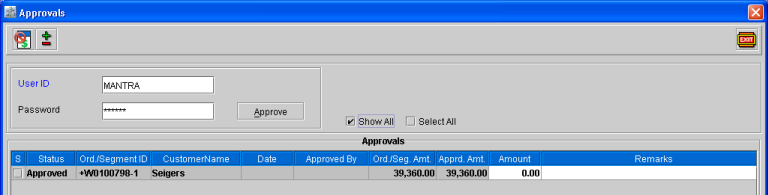
The segment lines which are already approved will be displayed as bold with an expandable symbol (+) present in the field Segment ID.
Viewing System Approved Lines
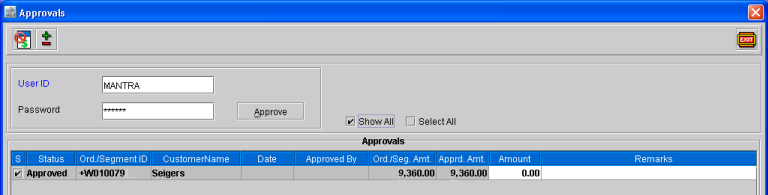
In the Approve Window, system will also display the segment lines of which credit limit is approved by system. The system approved lines can be viewed by selecting the option ”Show All” present in the order header (System approved segment lines will be updated with the status ”Approved” as it approved the entire amount present on the segment).
In the Approve window, the system approved lines will be displayed with the column ”S” selected for the segment line (as shown below).
Figure 5.0
Viewing Approval Details for Segment Lines
You will be able to view the approval details of a segment by expanding the approved segment or partially approved segment. This can be done by using the option ”Expand/Collapse” which is present in the right-click menu of the segment.
Figure 6.0
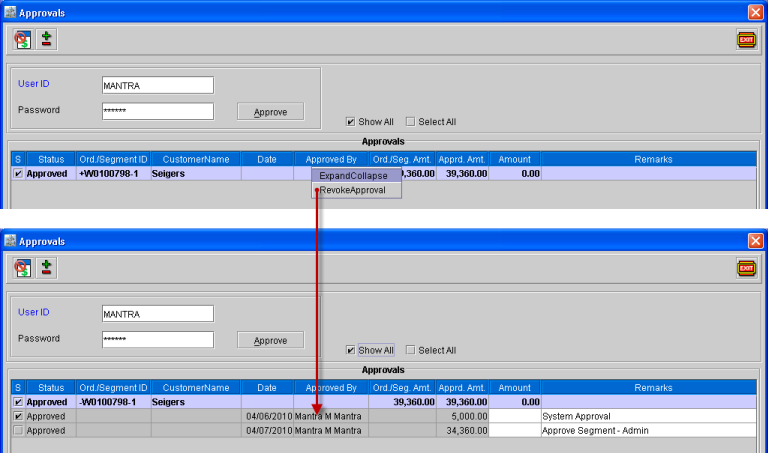
You can also use the option Expand/Collapse icon present in the Tool Bar, to expand the approved Segments to view its approval details
Revoking Credit Approval for a Segment
In the Approval window, you will be allowed to revoke the credit which is already approved for a Segment (System Approved and User Approved). This can be done by highlighting either a Approved Segment header or selecting an Approval Detail of the segment (after expanding Segment Header) and following on selecting either the Revoke Approval option present in the right-click menu or by using the Revoke icon 
-
On selecting the Revoke option by highlighting a Segment header, system will revoke all the approval present for the selected segment.
-
On selecting the Revoke option by highlighting an Approval Detail of the segment (a segment may have more than one Approval Detail, if the credit approval is done in partial basis (Refer below illustration)) system delete only the selected approval detail and will also update the value present in the Appr.Amount field by deducting the amount present in the deleted Approval Detail.
Figure 7.0 Segment with Multiple Approval Details
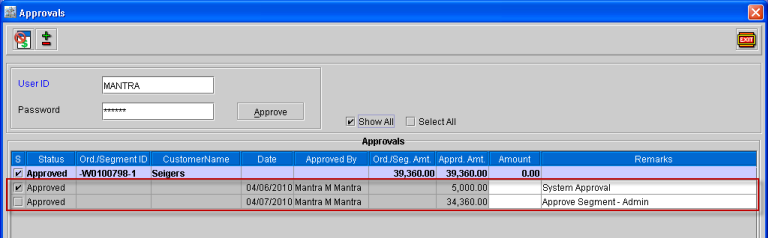
On revoking a segment approval, system will update the credit amount available for the segment customer accordingly and you will be able to approve any other segment for the credit amount currently available for the segment customer.
Segment Credit Approvals in Work Order Search Window
In Work Order search window, you will be able to identify the work orders for which credit approval is pending for segments and also initiate the process of approval for the same.
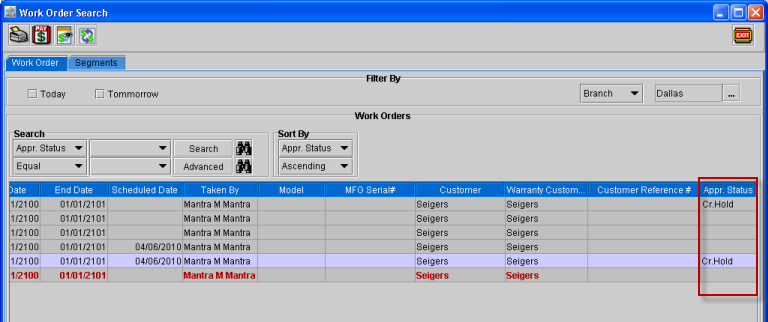
A new column ”Appr.Status” is added in the Work Order search window which will display the status ”Cr.Hold” for the Work Orders having any segments which is pending for credit approval. The column ”Appr.Status” will be displayed as Blank, if all the segments present in the Work Order is approved.
Figure 8.0 Work Order Window
-
From within the Work Search Order window, you will be able to approve the segments for work order which is pending for approval. This can be done by highlighting a Work Order having Appr. Status as ”Cr.Hold” followed by selecting the option ”View Approval” from the right-click menu or by selecting the View Approval icon present in the Tool Bar.
-
On selecting the option ”View Approval”, system will open the Approvals Window displaying the segments which are pending for credit approval. You will be able to then approve credit for the segments from within the Approve Window.
-
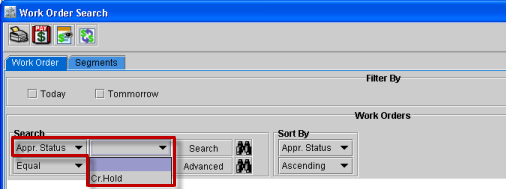
In the Work Order Search Window, you will be allowed to search and filter the work orders based on its segment approval status. This can be done by performing search using the field "Appr.Status”, using which you will be able to search and filter the Work Orders based on its status ”Cr.Hold”.
Figure 8.1 Searching based on Appr. Status in Work Order Search Window
Refreshing Order Credit Limit for System Approval
You will be allowed to refresh credit limit for system approval for the Work Orders of which credit limit is exceeded. This can be done from within Work Order Search window, by highlighting a Work Order(s) having the status ”Cr.Hold” and following by selecting the option ”Refresh Credit Limit” from the right-click menu or using the ”Refresh Credit Limit” icon 
Figure 9.0 Refresh Credit Limit Command in Right-click Menu in Work Order Search Window
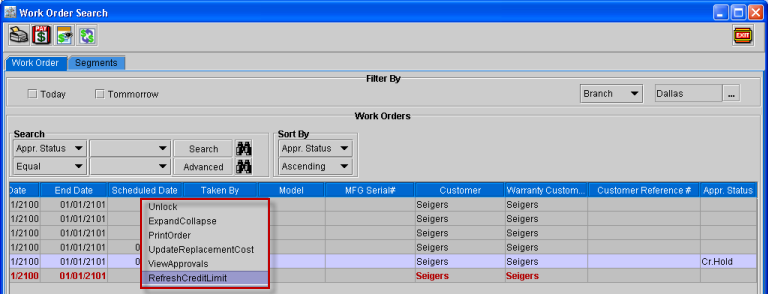
On selecting the option ”Refresh Credit Limit”, system will check if credit is available for the Segment Customer to satisfy the Order Amount (This may happen due to cancellation of orders or due to reduction of order amount).If credit is available for the order customer, then system will automatically approve the order with the available credit.
Credit Limit Validation for Equipment Sale Orders
In Cr2, the Equipment Sale Orders, credit limit will be validated based on the option ”Auto Approve Equipment Sale Order” present in the Configuration (as shown below).
Figure 10.0 Auto Approve Equipment Sale Orders Check Box in Configuration Module
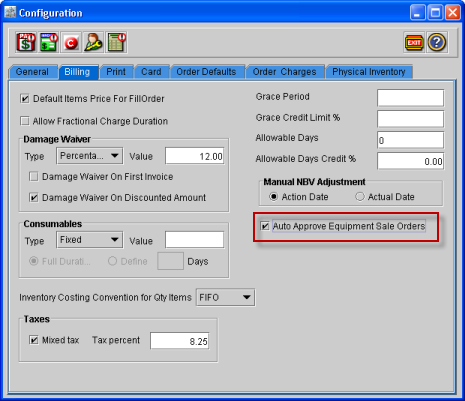
If the "Auto Approve Equipment Sale Order" option is selected, system will automatically approve the entire Equipment Sale order by creating a manual approval record.