
Reference No: 23070
Table of Contents
Details
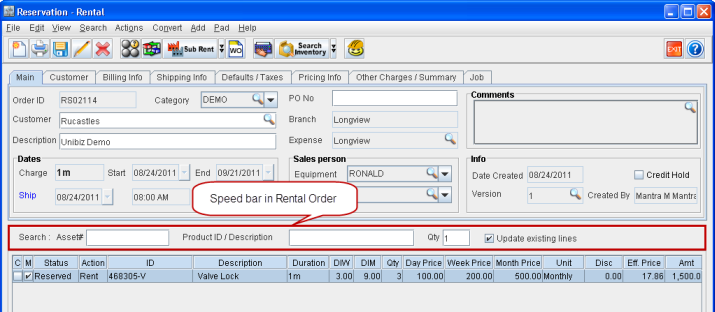
In Cr2, you can now search and add Assets, Items, Misc.Charges, and Kits using the Speed bar feature as shown in Figure 1.0 present in the Rental order window. This can be done by entering a keyword within the Speed bar fields - Asset# or Product ID/Description and then entering an appropriate quantity within Qty field and pressing ENTER.
Figure 1.0 Speed bar in Rental Order
Fields in the Speed Bar
Asset#
You can search and add Assets using the field Asset# which is present in the Speed bar. On performing search for assets, system will search for the asset which exactly matches with the entered search criteria.
-
If any asset is found with Asset ID as the exact match of the entered search criteria within Asset# then, the system will add the asset to the order automatically.
-
If exact match for the Asset is not found, then system will search for all the assets for which Asset ID contains the entered search value.
-
If only one asset is found while performing the search, then system will add the asset to the order automatically.
-
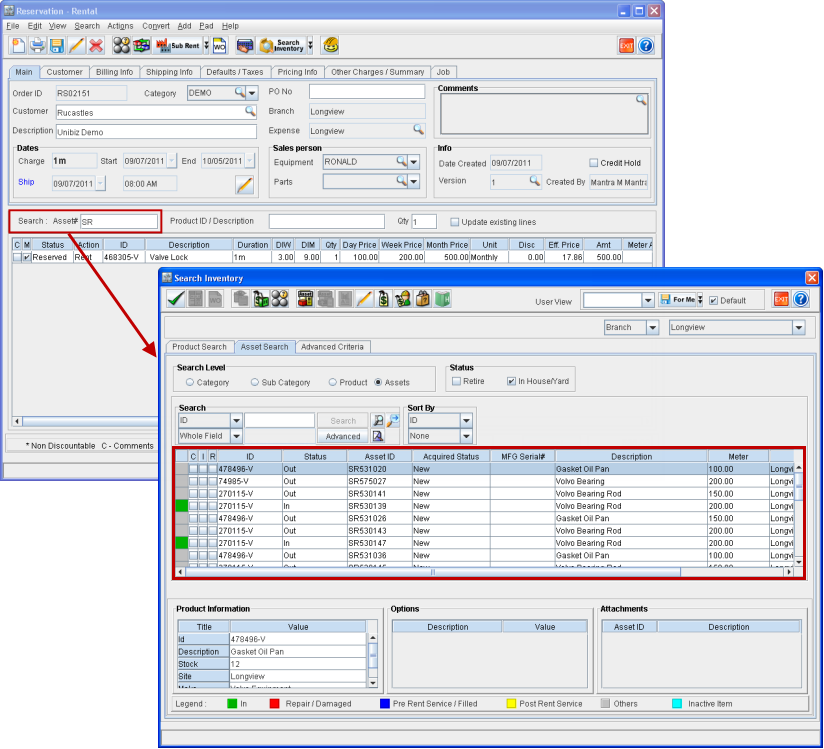
If multiple assets are found while performing the search, system will display the Search Inventory window with focus on Asset Search tab as shown in Figure 1.1 with the list of assets, from where the required asset can be manually selected and added to the order.
Figure 1.1 Search Inventory Window
-
If no assets are found matching the search criteria, then the system will display the prompt - No Records Found. Do you want to search ?. Press Yes to open the Search Inventory window with focus on the Asset Search tab, from where assets can be manually searched and added to the order.
Product ID / Description
You can search and add Items/Misc.Charges/Kits using the field Product ID / Description which is present in the Speed bar. On performing the search, system will search for the Items/Misc.Charges/Kits which exactly matches with the entered search criteria.
-
On performing search for Items/Misc.Charges/Kits by entering a keyword in the Product ID / Description field, system will first search for the Items/Misc.Charges/Kits whose Product ID exactly matches with the entered search criteria. If any Items/Misc.Charges/Kits is found with the exact match of the entered search criteria, system will add it automatically to the order and stop searching for more.
-
If exact match of the search criteria with Product ID of an Items/Misc.Charges/Kits is not found, system will then search for the Items/Misc.Charges/Kits whose Description exactly matches with the entered search criteria. If any Items/Misc.Charges/Kits is found with the exact match of the entered search criteria to its Description, then system will add it automatically to the order and stop searching for more.
-
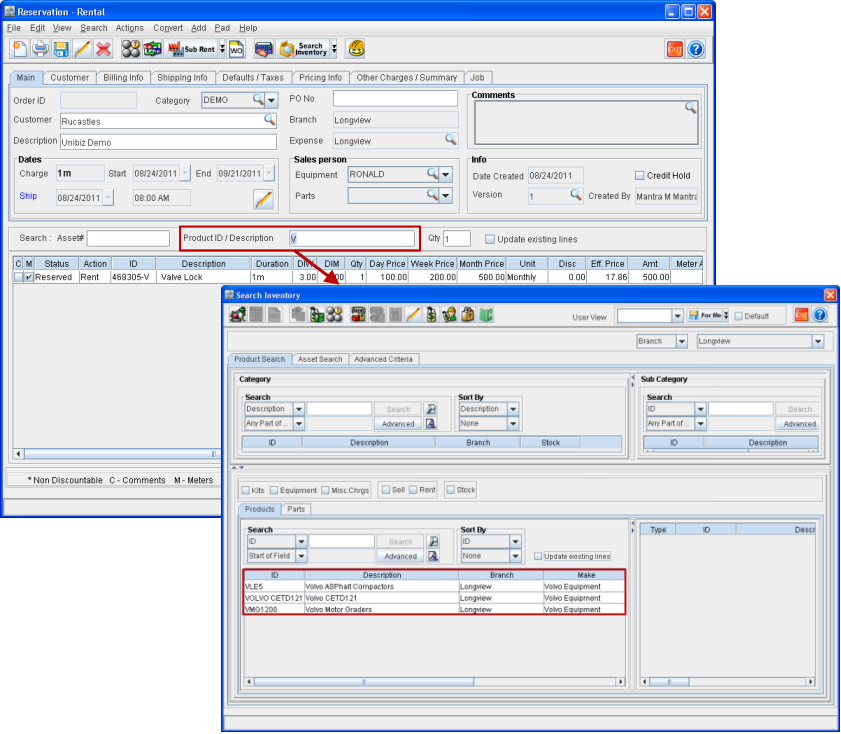
If exact match of the search criteria with neither Product ID or Description of any Items/Misc.Charges/Kits is found, then the system will display the Search Inventory window, as shown in Figure 1.2 listing the Item/Misc.Charges/Kit whose Product ID contains the entered search criteria and stops searching.
-
If exact match of the search criteria with neither Product ID or Description of any Items/Misc.Charges/Kits is found, and if no Items/Misc.Charges/Kits is found whose Product ID contains the entered search keyword also then, system will display the Search Inventory window, as shown in Figure 1.2 listing the Item/Misc.Charges/Kit whose Description contains the entered search criteria.
Figure 1.2 Search Inventory Window
-
If no Items/Misc.Charges/Kits are found with above search criteria, then system will display the prompt - No Records Found. Do you want to search ?. Press Yes to open the Search Inventory window with focus on the Product Search tab, from where Items/Misc.Charges/Kits can be manually searched and added to the order.
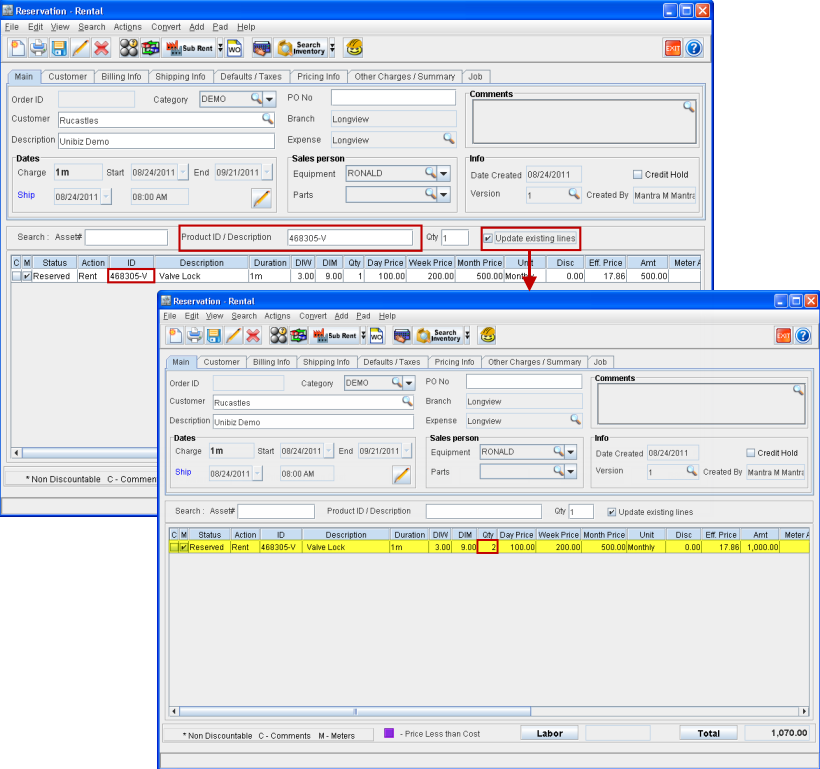
Note: If an Item was already once added to the order and if the Update existing lines check box is selected either from the Speedbar or from the Search Inventory window's product tab, then the quantity now selected will get added to the existing quantity of this Item within the existing order line, as shown in Figure 1.3. This is applicable only for Items and not for Assets/ Misc.Charges/ Kits.
Figure 1.3 Updating Existing Order Lines
Qty
This field can be used to determine the quantity of a successfully searched Item/Misc.Charges/Kits that will be added to the order.
Update existing lines
If an Item was already once added to the order and if the Update existing lines check box is selected, then the quantity now selected will get added to the existing quantity of this Item within the existing order line, as shown in preceding Figure 1.3. This is applicable only for Items and not for Assets/ Misc.Charges/ Kits.
This feature has been updated. For updated information, click here.