Reference No: 25328
(V 02.00.15-00)
Table of Contents
Details
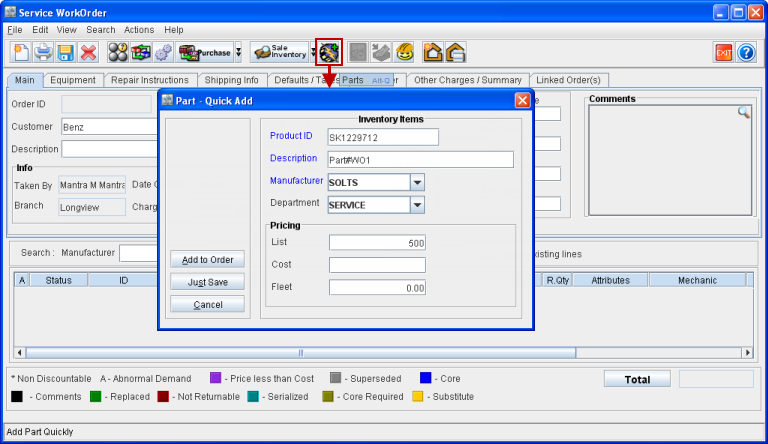
Parts can be created directly from Part Sales Order and from Work Order by clicking on Add Parts Quickly icon or by selecting ALT and Q keys, as shown in Figure 1.0 and 1.1.
Figure 1.0 Adding Part Quickly from Part Sales Order
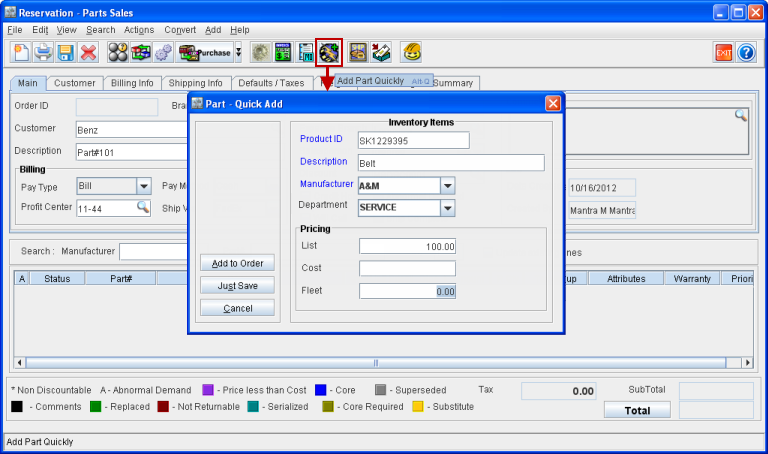
Figure 1.1 Adding Part Quickly from Service Work Order
Fields within Part Edit Dialog
Details of the fields within Part Edit dialog is given in Table 1.0.
Table 1.0
|
Field |
Description |
|
Product ID |
Part Identification Code. |
|
Description |
Description given to Part. |
|
Manufacturer |
Name of the part manufacturer. |
|
Department |
Name of department the part belongs. |
|
List |
List price of the part. |
|
Cost |
Cost defined for a Part. |
|
Fleet |
Fleet price. |
Department defaulted from Defaults tab
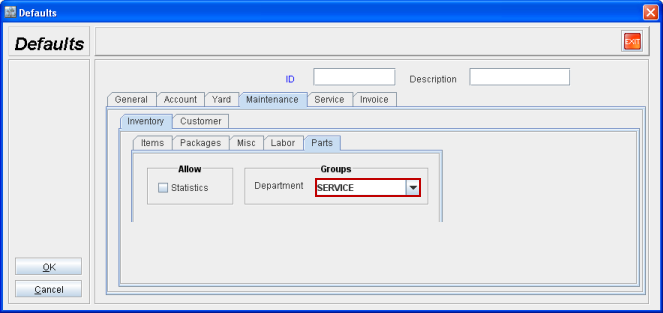
The Department set in Defaults tab is defaulted in Part Edit window and QuickAdd Part window.
Following are the steps to set Department in Defaults:
-
Select System from Maintenance module.
-
Create a new Employee, in the Employee window click on Import icon of Defaults ID field.
-
Click Add in Defaults dialog box.
-
Select Maintenance and the click on Parts.
-
Select a Department from the drop-down list of Department field.
Figure 1.2 Department set in Defaults Tab
Options within Part Edit Dialog
Add to Order
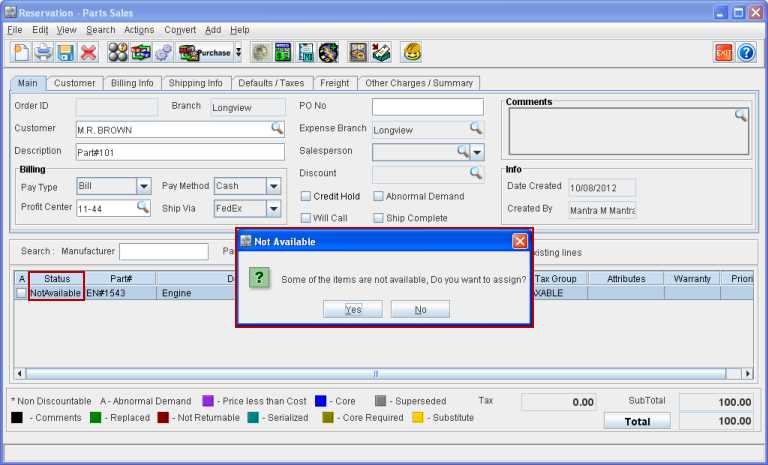
On selecting Add to Order option, the Part is saved in the Inventory and added to the Order with status as Not Available and system displays a prompt message "Some of the Items are not available, Do you want to assign?", as shown in Figure 1.3.
Figure 1. 3 Prompt Message on Selecting Add to Order Option
Just Save
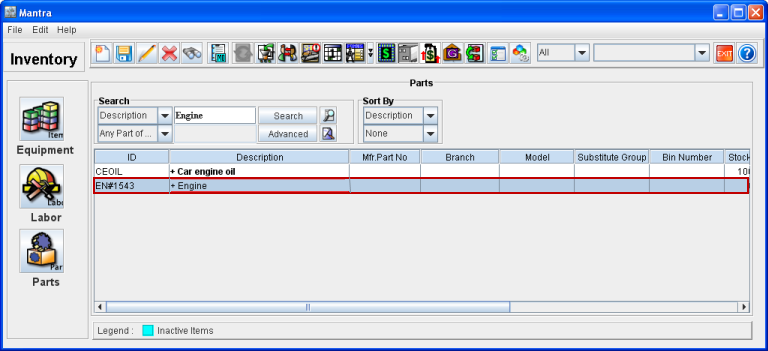
On selecting Just Save option, the Part is added to the Inventory and it is not added to any Order. It is viewed from the Inventory search window, as shown in Figure 1.4.
Figure 1.4 Part Added to the Inventory on Selecting Just Save Option
Cancel
On selecting Cancel, the Part Edit window is closed without saving the Part.
Creating Part from Part Search Window
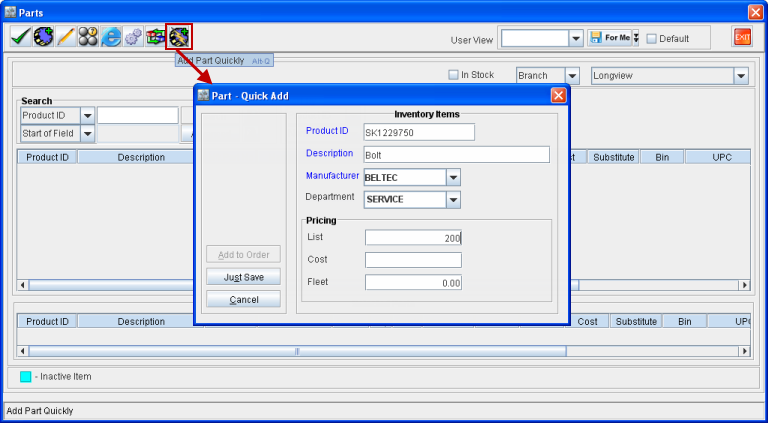
Part can also be quickly created from the Part Search window with Add to Order option disabled in the Part Edit dialog. The Part can be created and saved in the Inventory or the created Part can be cancelled, as shown in Figure 1.5.
Figure 1.5 Add Part Quickly from Part Search Window