Reference: 22398
(V 02.00.03-00)
Details
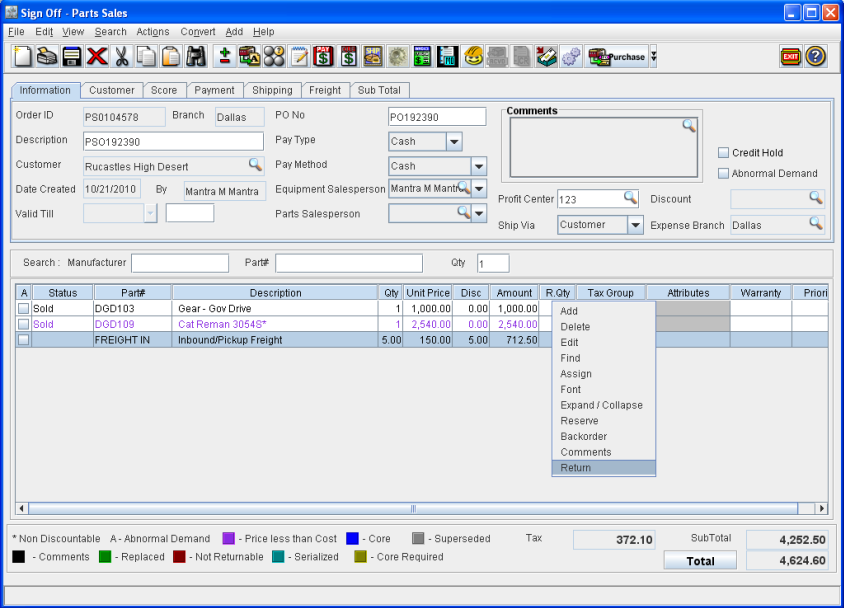
In Cr2, you can return a Misc. Charge Item which is added to a Part Sale Order and Work Order, using the right-click option "Return" (Refer Figure 1.0 and Figure 1.1) present in the respective order windows. You can select the option "Return" from within a Part Sale Order and Work Order window by highlighting a Misc. Charge line, by which system will display the Return Items dialog wherein the quantity that needs to be returned can be entered for the Misc. Charge Item.
Note : The functionality explained below is an added feature to the support for returning item/parts using Right-click option. Refer Return Sold Quantity using Right-Click Menu option for more details.
Figure 1.0 Return option in Service Work Order
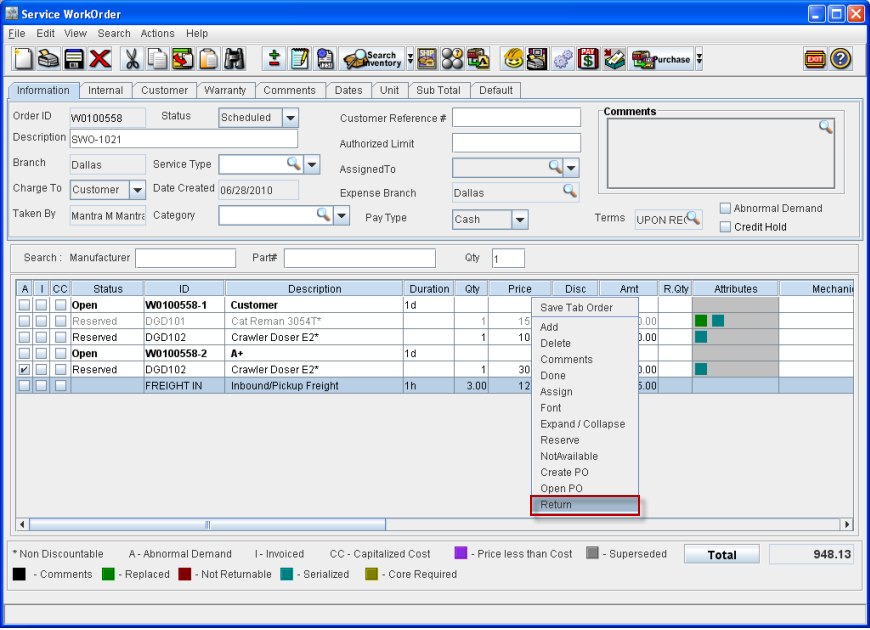
Figure 1.1 Return option in Part Sale Order
Steps to return Misc. Charge Items using the Right-Click option "Return"
Note : The below illustration is based on returning items in Part Sale Order. The same steps can be followed for Service Work Orders also.
-
Open a Part Sale Order having Misc. Charge items added.
-
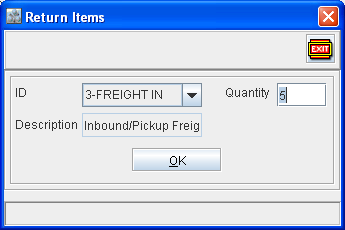
Highlight a Misc. Charge line and invoke the right-click option "Return" to display the Return Items window as shown in Figure 2.0.
Figure 2.0
-
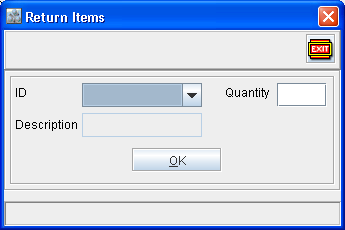
On selecting the right-click option "Return" by highlighting a line, system will display the ID, Description of the item along with the pending quantity to be returned in the Quantity field. However, if no quantity is pending to be returned for the selected item, then the ID, Description and Quantity field will be displayed as blank as shown in Figure 2.1.
Figure 2.1
-
Enter the Quantity to be returned in the Quantity Field and click OK button
-
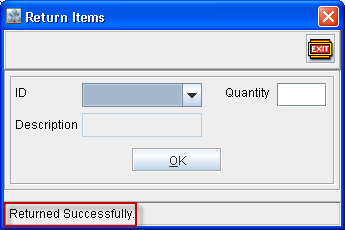
The entered quantity will be returned and the Return Items dialog will be displayed as shown in Figure 2.2, with the status bar message "Returned Successfully ".
Figure 2.2
-
Click Exit button to exit from the Return Items dialog box and return to the Part Sale Order.
-
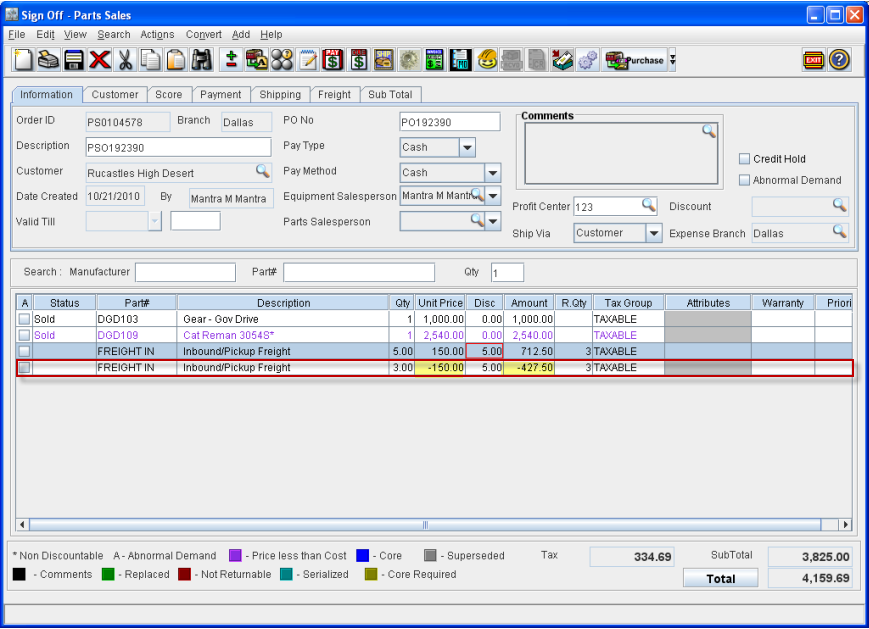
In Part Sale Order, the Misc. Charge a new line will be displayed for which quantity that has been returned with the Unit Price and Amount displayed as negative value. On returning Misc. Charge quantity, system will also update the value in R.Qty field (displays total quantity that is returned) for the Misc. Charge Line, as shown in Figure 2.3.
Figure 2.3
Points To Note:
-
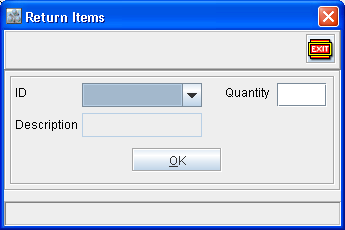
On selecting the right-click option "Return" by highlighting a Misc. Charge line, if no quantity is pending to be returned for the selected Misc. Charge Line, Description and Quantity field will be displayed as blank, as shown in Figure 3.0 in Return Items window.
Figure 3.0
-
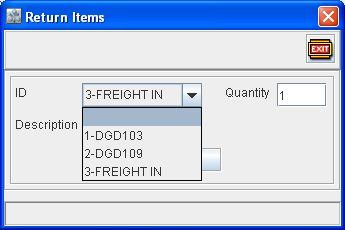
On invoking the Return item window, system will by default display the ID, Description and pending quantity to be returned for the selected line (all the fields will be displayed as blank, if no quantity is pending to be returned). You can also select any other item/part/Misc. Charge Item for returning quantity by clicking on the drop down menu present in the ID field (Refer Fig 3.1). See also Return Sold Quantity using Right-Click Menu option
Figure 3.1
-
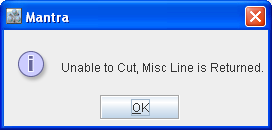
In Work orders, If a Misc. Charge line does have any returned quantity present, then system will not allow the Misc. Charge line to be Migrated to another Work Order using Migrate - Cut feature. On attempting to Migrate- Cut a Misc. Charge Line having returned quantity present system will display message 'Unable to Cut, Misc Line is Returned' as shown in figure 3.2.
Figure 3.2