
Reference: 23144
(V 02.00.05-00)
Table of Contents
Details
Currently in Rental and Sale Orders, to change the Order Customer (using Customer Tab – Customer field) and Billing Customer (using Payment tab – Customer), you need to select a Customer from within Contact-Customer window which is invoked by clicking the import button present in respective Contact or Customer field.
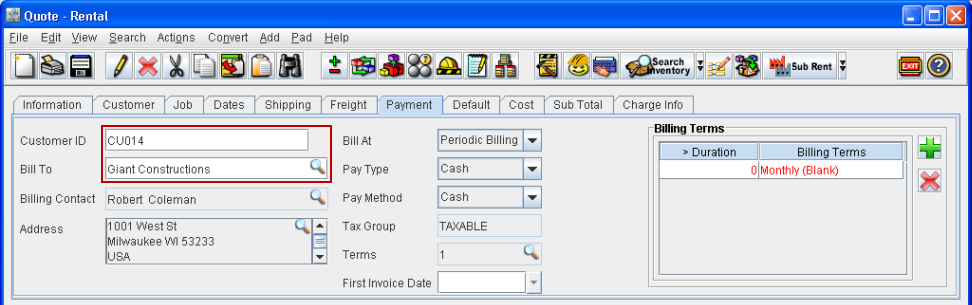
Henceforth in Rental and Sale Orders, in addition to the above method, you can change the Customer from within the Customer and Payment tab either by keying in the Customer ID in the respective ID field or by keying in the Customer Name in the respective Customer field. (Refer Fig 1.0 and 1.1)
Fig 1.0
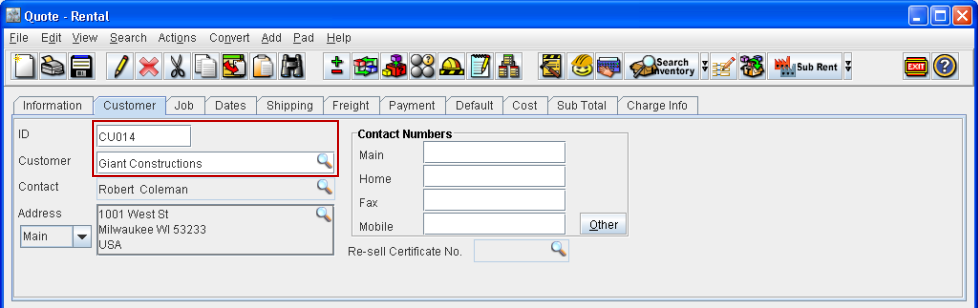
Fig 1.1
Changing Customer from within Customer Tab
-
Click inside the ID field or Customer field (based on which field you want to use for changing the customer).
-
Key-in the customer ID / Customer name as per the selection made above.
-
Press Enter or tab out from the field.
-
System will update the ID, Contact, Customer, Address fields with the changed customer details, if any exactly matching record is found.
Changing Customer from within Payment Tab
-
Click inside the Customer ID field or Bill To field (based on which field you want to use for changing the customer).
-
Key-in the Customer ID / customer name in Bill To field as per the selection made above.
-
Press Enter or tab out from the field.
-
System will update the ID, Contact, Customer, Address fields with the changed customer details, if any exactly matching record is found.
Points to Note
-
On entering Customer ID / Customer Name, if multiple customer records are found, system will display the Contact-Customer window, wherein a Customer can be selected as per requirement.
-
If no customer records are found, then system will display message “No Records Found” and on closing the message, system will retain the customer which was previously present (prior to entering new Customer ID /Customer name for search).