
Table of Contents
Order Search
This guide will focus on the following topics:
1 Searching for Orders by Customer
Finding and accessing orders of related to a given customer.
2 General Order Search
How to find many types of orders for any customer or site.
3 Supporting Features of the Order Search
Miscellaneous features that support and enhance your order access capabilities.
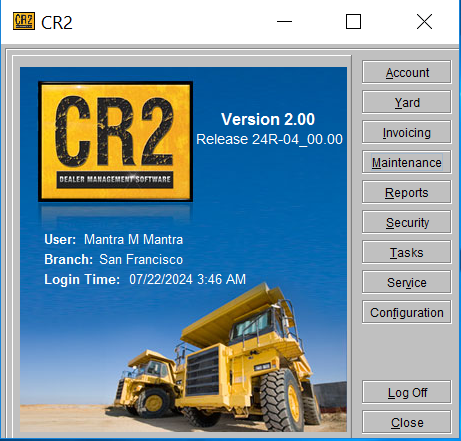
To begin, click on the Account button from the Launch Pad:
1 Orders by Customer
To see all open orders for a given customer, begin by searching for that customer:
type the first part of that customer’s name in the “Company” field and press the Enter key. If a unique match is found, the customer information will appear, as in the example below:
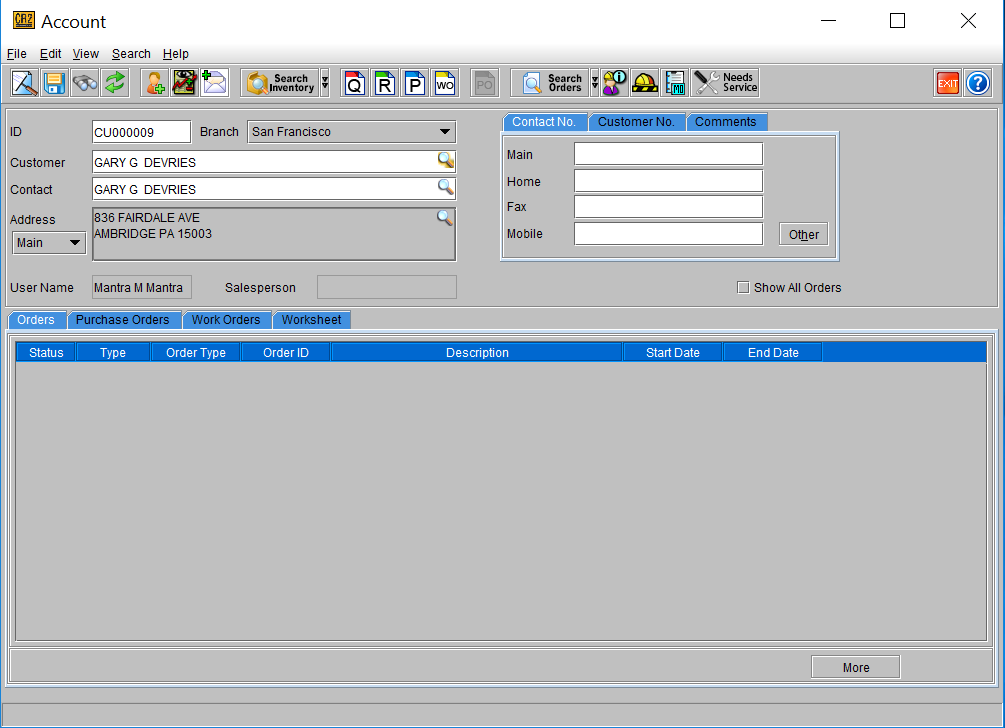
If a unique match is not found, you’ll be brought to the Company/Contact Search screen (this can also be accessed directly from the Account screen by clicking on Search Company).
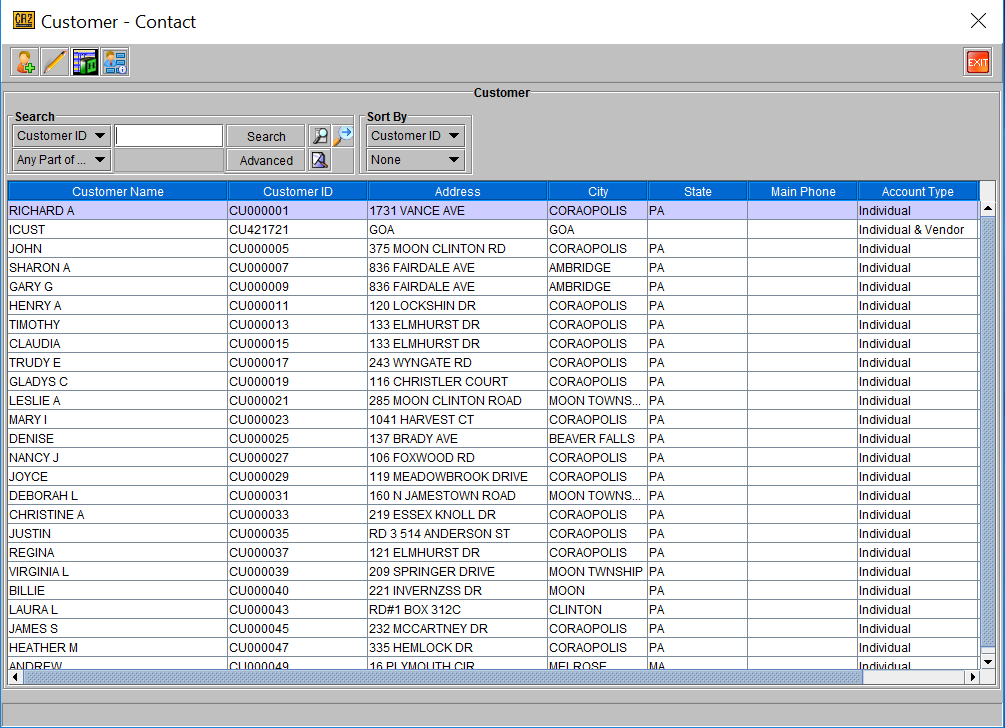
If the customer has more than one contact, R2 will show the Company Search screen. Double-click on any contact – no matter which you select, all orders for that company will be displayed.
The Orders tab will display all of the open orders that customer has with you. If the order is invoiced, it will not be displayed by default.
If the order is from a different site than the one you are currently logged into, it will not be displayed here.
Double-click on the order to open it.
To search for all orders, no matter the status or site, use the general Order Search:
2 General Order Search
To use the general order search, click on the Order Search icon 
Or, by clicking the double-down arrows next to the Order Search icon, you can select the type of order search you want to perform:
Click on the label of the area for which you want to search. Here are the most commonly accessed areas:
|
Search Label |
What it does |
|---|---|
|
Orders |
Quote, Hold, Reservation and Invoiced orders can be accessed from here. |
|
Invoice |
Search for invoices, credit memos, debit memos, and summary invoices. |
|
Payments |
Advanced order payments can be accessed from this list. |
|
Purchase Orders |
Master purchase order search screen. |
|
Transfer Orders |
Master transfer order search screen. |
|
Multi-Orders |
Search for customer orders, transfer orders, and purchase orders all from the same screen by using Multi-Orders Select the checkbox for any of the areas for which you wish to search. Next, check the boxes in the same row to filter for the types of orders you wish to find. |
From the Order Search screen, use the search feature to find your order. For instance, if the order has a description that includes the word “serial”, then use the search criteria for order Description:
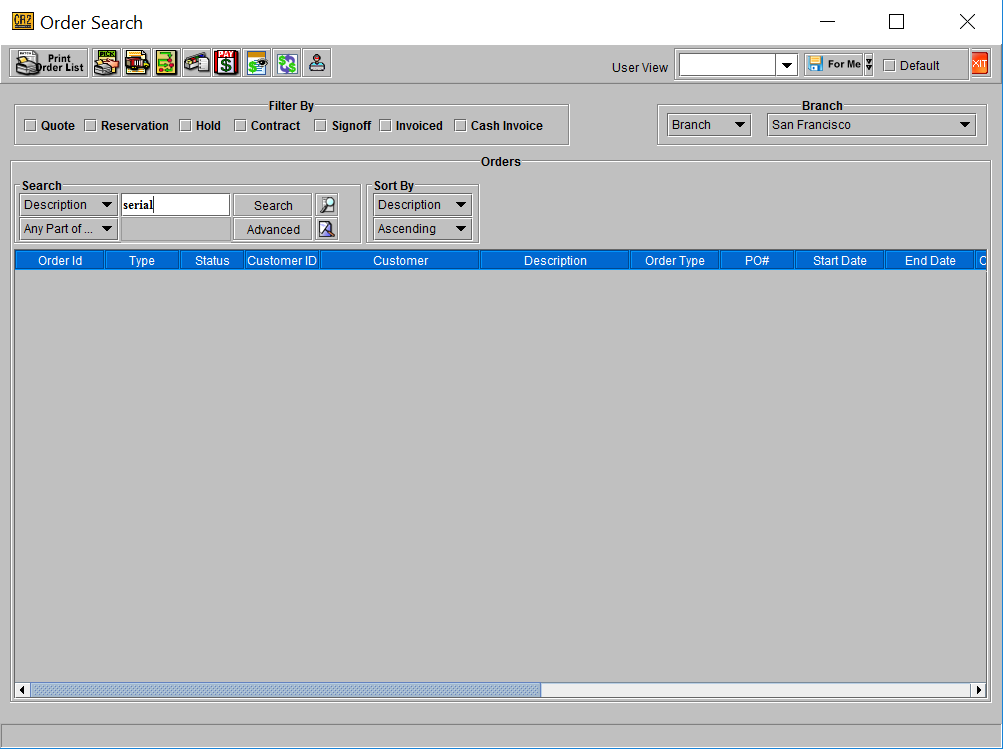
Click on the search criteria menu. This menu list contains all of the available search column descriptions (for example: Order Number, Order Description, Customer, Contact, Location, etc.)
Enter a value (or partial value) into the search field.
The blue arrow points to an area that helps you refine your search. This area defaults “Any Part of Field” in every search screen in the program. This means you can enter a partial value instead of an exact one.
Click on the Search button to find the order(s.)

If R2 finds the order(s) they will be displayed on-screen. If not, nothing is displayed.
Double-click to open the order.
3 Supporting Features of the Order Search
The order search screen doesn’t just allow you to access orders, you can also change the order status, order dates, print the order, and a number of other things without having to open the order.

To use these features, begin by highlighting an order (single-click on the order so that it becomes highlighted.) The grid below explains some of the more popular features:


