
Reference No: 20007
Details
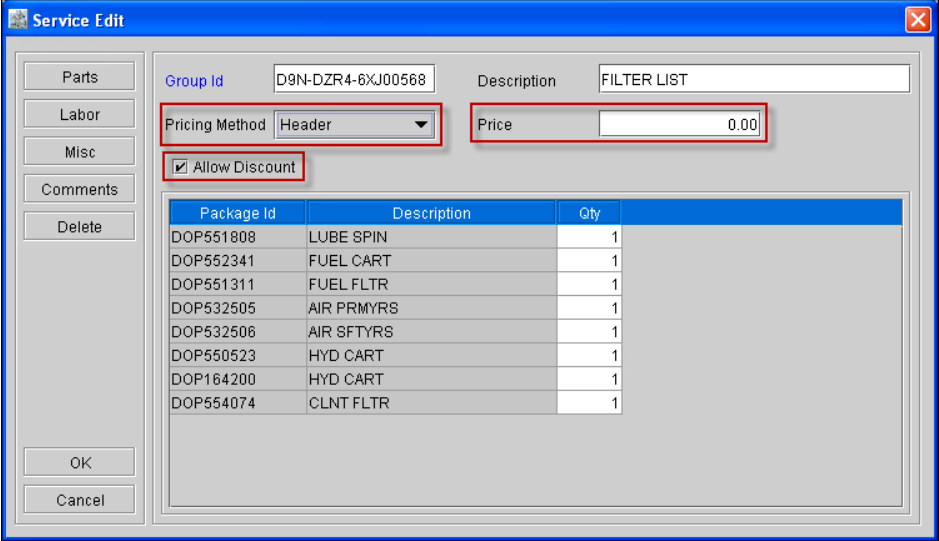
Support has been now provided to apply the Service Group header price in the header of the Service added to an Order by adding the following fields in the Service Edit window (as shown below).
-
'Pricing Method' field with the option Header and Detail
-
'Price' field
-
'Allow Discount' check box
Functionalities
-
In an order, on adding a Service group having the Pricing Method selected as 'Header', the price defined in the Service Edit window for the header will default to the Price field of the Service group header in the Order.
-
The amount of the header of the Service group will be calculated and distributed among the child items (considering the child quantities) of the Service based on the actual price of the child and the header price of the service.
-
The user will be able to edit and change the Price discount and the amount of the Service header in the order (if the Pricing Type is 'Header' for the Service Group) based on which amount of the child items will be re-calculated automatically.
-
On selecting the 'Allow Discount' check box in the Service Edit window, system will allow the user to apply discount in the Service header in an Order.
-
The user will not be able to edit the price or the amount of the Child individually if the Pricing Type is 'Header' for the Service Group.
-
On generating the invoice, the user will get both the service header as well as child items but the amounts will be considered only for child items for the total invoice amount.
-
The Service Group header will not appear in distribution of Dist.txt file.
Illustration:
-
Create a Service Group [SGroup#1] (Pricing Method selected as Header) having parts [Part#1] , [Part#2] and [Part#3] with below details.
|
Part |
Cost |
Price |
|---|---|---|
|
[Part#1] |
10 |
40 |
|
[Part#2] |
20 |
60 |
|
[Part#3] |
30 |
100 |
-
In the Service Edit window for [SGroup#1], set the price as 100.
-
Add the above [SGroup#1] to an order and the price of service group will be defaulted to the price field of the service header in the Order. And the price of the child items will be calculated as shown below:
|
SKU |
Price |
Amount |
|---|---|---|
|
[SGroup#1] |
100 |
100 |
|
[Part#1] |
20 |
20 |
|
[Part#2] |
30 |
30 |
|
[Part#3] |
50 |
50 |
The Price will be calculated based on the actual price of each part and the service group header price.
For example:
The price of [Part#1] in the order will be calculated as follows:
The actual price of [Part#1]/ total price of [Part#1] ,[Part#2]and [Part#3] * Service Group header price
= 40/(40+60+100)* 100
=20
Therefore, after adding the Service Group to the order, the amount of the child [Part#1] of the service group will be 20 in the order.
-
On printing a Part Sale Order / Work Order / Part Sale Invoice / Work Order Invoice using the respective UI's (1154000UI, 1154100UI, 1154200UI, 1155000UI, 1155100UI, 1155200UI, Counter_153500UI, Counter_159500UI, CounterCR_159500UI, CRPartsSales159500UI, PartsSales_153500UI, PartsSales_159500UI, PartsSalesTemp_159500UI) , system will print the Service Header Price and Amount, if the Pricing method applied to the Service which is added to the Order is Header.