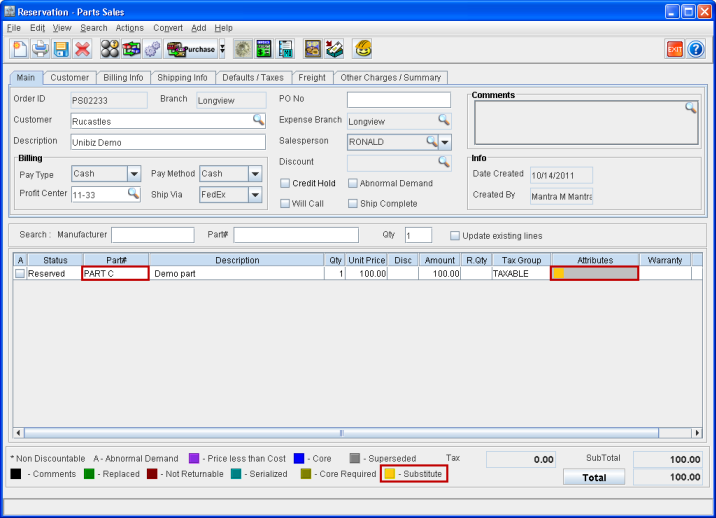
Reference No: 24240
(V 02.00.08-00)
Table of Contents
Details
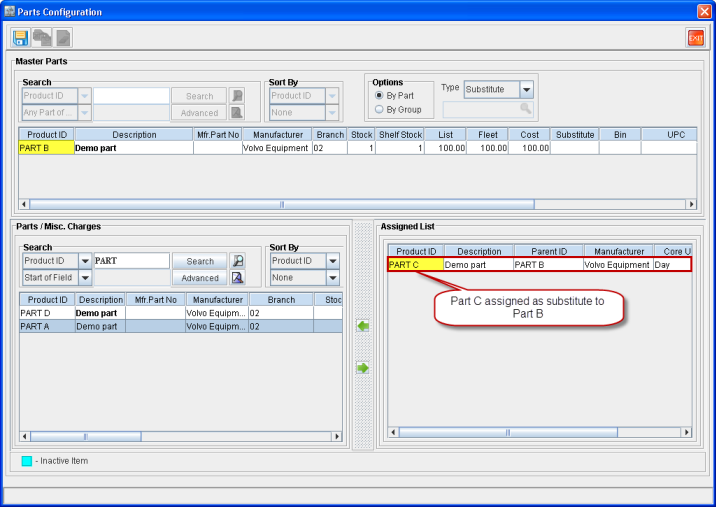
Consider that there are four parts present in the system namely Part A, Part B, Part C and Part D. The parts have substitute parts assigned to them as shown in Table 1.0 given below.
Table 1.0 List of Substitute Parts Assigned to Various Parts
|
Part |
Substitute Parts Assigned to the Part |
|
A |
B, D |
|
B |
C |
|
C |
None |
|
D |
None |
Figure 1.0 Parts B and D Assigned as Substitutes to Part A
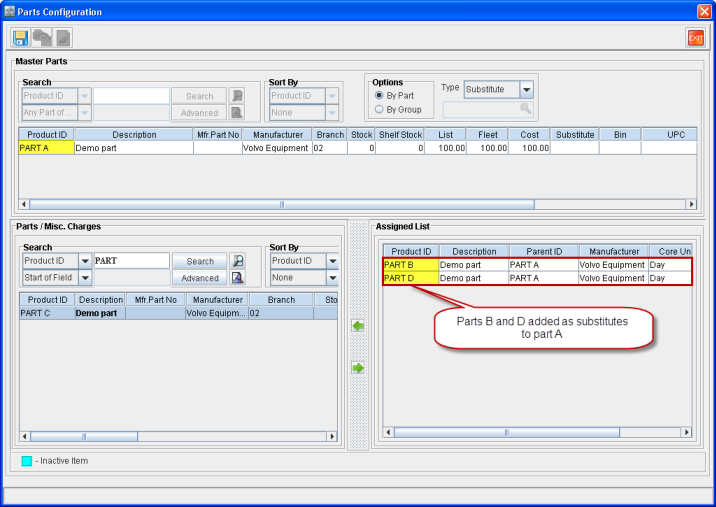
Figure 1.1 Part C Assigned as Substitute to Part B
If a part is added to an order and if it is not available then the system allows the availability to be filled using a substitute part (which is either directly assigned to it as its substitute or is substitute to its assigned substitute part) which is available. The system displays parts as available substitutes (provided the substitutes themselves are available in stock) as shown in Table 1.2 given below.
Table 1.2 List of Available Substitutes Displayed for a Not Available Part
|
Part Not Available |
Parts Displayed as Available Substitutes |
|
A |
B, C, D |
|
B |
A, C, D |
|
C |
A, B, D |
|
D |
A, B, C |
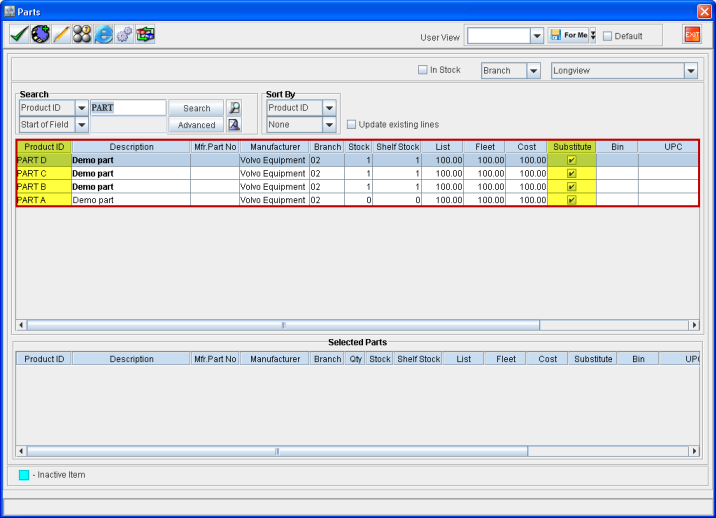
When a part [Part C] is assigned as a substitute part to another part [Part B], then both the parts will have the check boxes in their Substitute column checked when viewed in the Parts Search window. Both of them will also become available as substitutes for each other in the system depending on their availability.
Figure 1.3 Parts Search Window Listing Substitute Parts
Instructions for Substituting a Not Available Part in an Order
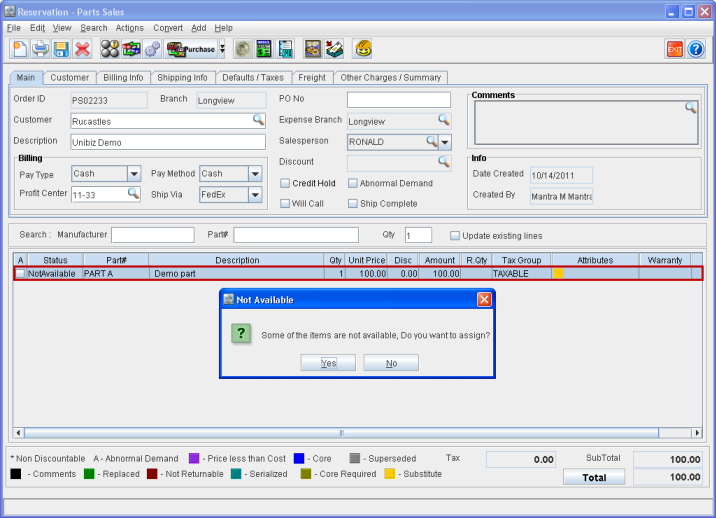
For example, Part A has zero availability and is added to an order as shown in Figure 2.0. System prompts the message "Some of the items are not available, Do you want to assign?".
Figure 2.0 Not Available Part Added to an Order
-
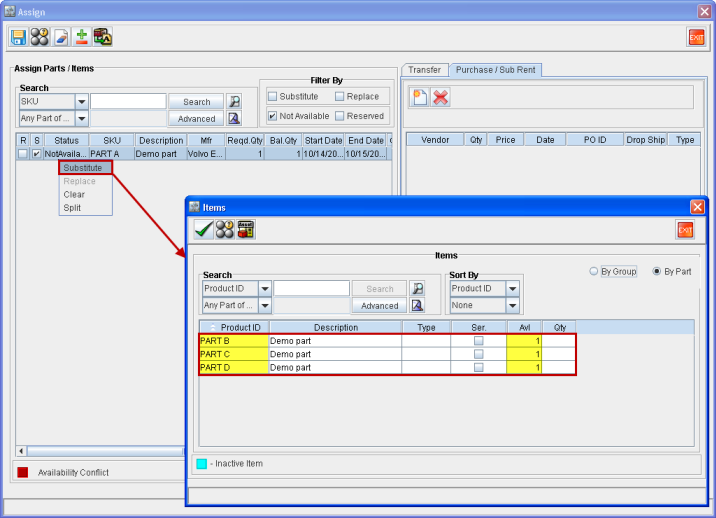
Click Yes. The Assign window opens up as shown in Figure 2.1.
-
Right-click on the not available part's line and select Substitute. This will open up the Items window as shown in Figure 2.1. The Items window lists all the available substitute parts for the not available part. In this case it lists parts B, C and D.
Figure 2.1 Window Listing All Available Substitute Parts
-
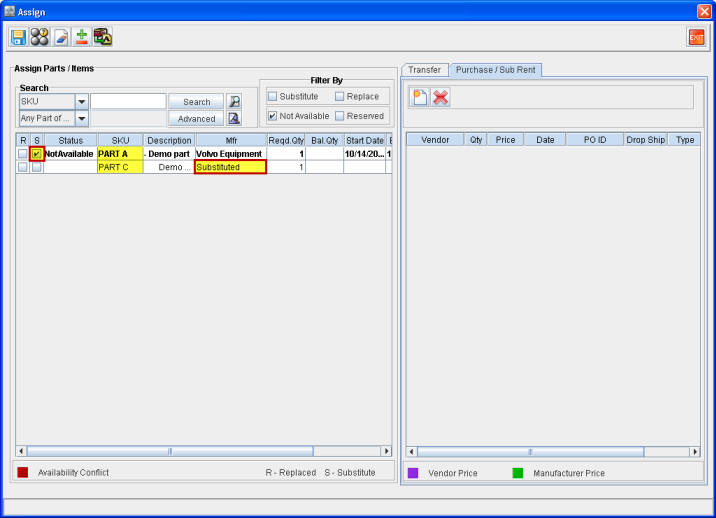
Double-click on any of the listed substitute part. This will select the same as the substitute as shown in Figure 2.2.
Figure 2.2 Substitute Part Selected for the Not Available Part from Available List
-
Click on Save icon. This will save this selection.
-
Click on Exit icon. This will exit the Assign window.
On the Order window the Not Available Part [Part A] will get substituted with the currently selected substitute part [Part C] as shown in Figure 2.3.
Figure 2.3 Not Available Part Replaced By Substitute Part in the Order Window