
Reference: 24207
(V 02.00.08-00)
Details
In CR2, you will be able to select and assign multiple part/item lines (which are having status as Not Available within an Order) to a Purchase Order in one go, as shown in Figure 1.0. This can be performed from Rental Orders, Sale Orders, Parts Sale Orders and Work Orders.
Note: The operation is explained below using a Parts Sale Order.
Figure 1.0 Multiple Not Available Part/Item Lines Assigned Together to a PO
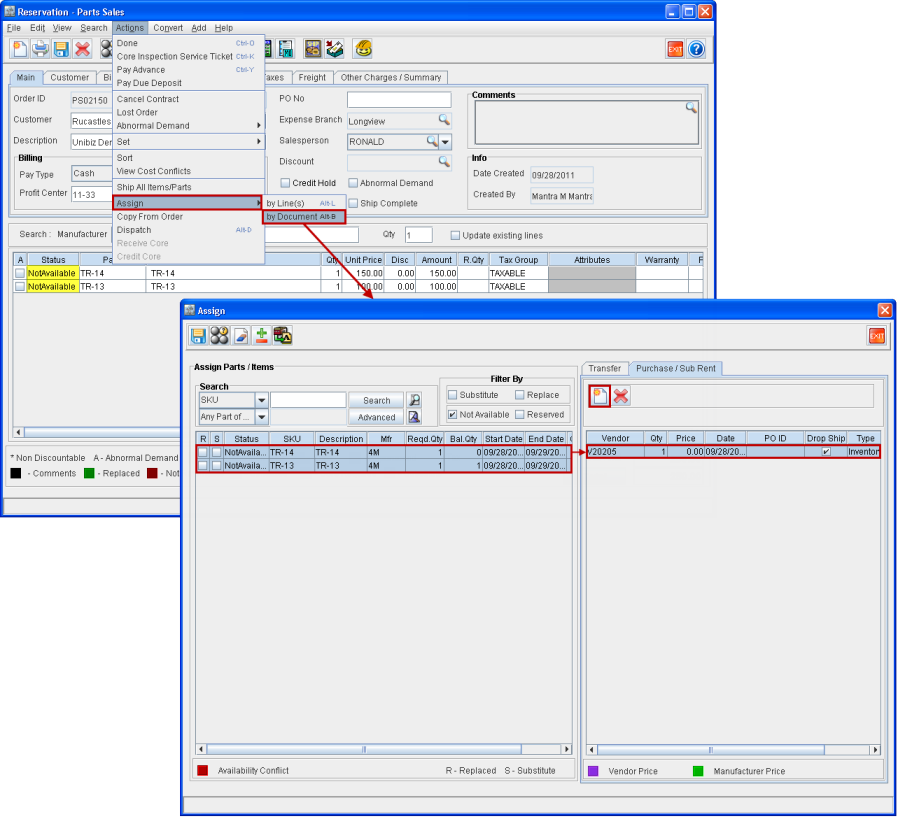
Instructions for selecting and adding multiple part/item lines with status as not available to a PO are:
-
Select Actions menu > by Document. This open the Assign window.
-
Select all the order lines with status as Not Available from Assign Parts/Items section.
-
Click on New icon under the Purchase/Sub Rent tab. A new line gets created.
Notes:
-
You can tag an existing PO to this line by using the PO ID column. Else a new PO will be created.
-
The quantity of the last selected part/item line will get displayed within the quantity column in the line within the PO under the Purchase/Sub Rent section.
-
Search and tag a Vendor by clicking on the Vendor column.
-
Click on Save icon.
Multiple part/item lines have been successfully added to the PO.
Adding Multiple Part/Item Lines where One or More Lines were Already Added to PO
One item/part line is added to the PO, as shown in Figure 1.1.
Figure 1.1 Single Part/Item Line Added to PO
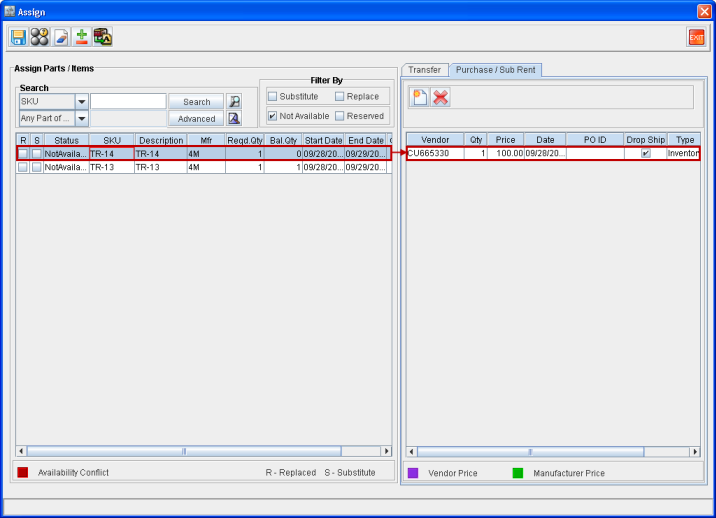
Now if you select one or more part/item lines in addition to the one that was previously added, then the previously added line within the Purchase/Sub Rent section will get deleted.
To add the selected lines to the PO click on New icon under the Purchase/Sub Rent tab. A new line gets created. The search and tag a Vendor by clicking on the Vendor column. Click on Save icon. Multiple part/item lines gets added to the PO.