
Making Payments through Axia Card Terminals with the Transaction Type as Auth Capture
The payments through the Axia Card Terminal can be performed with the Transaction Type as Auth Capture.
Workflow Steps:
-
Select the Account module > tag a Company [Apple Computers]
-
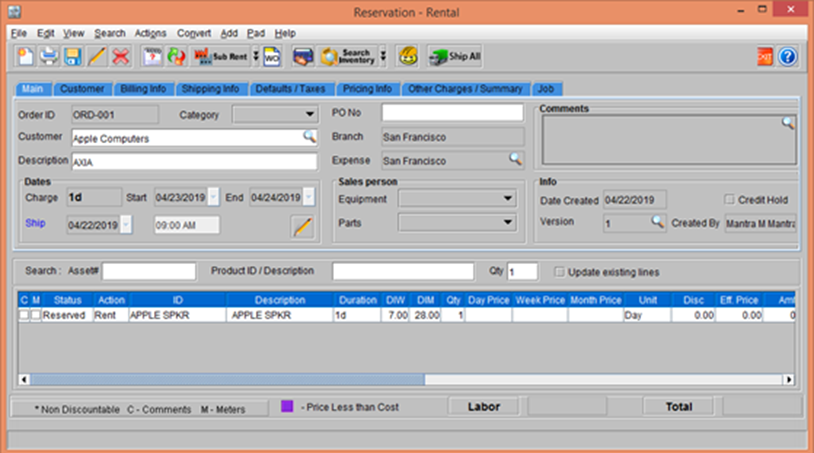
Create a Rental Reservation Order [ORD-001]. Search and Add the Item [APPLE SPKR], as shown in the following figure.
Figure 3.0 Order [ORD-001] Reservation
-
Select the Actions menu > Pay Advance option. The Payment window is displayed.
-
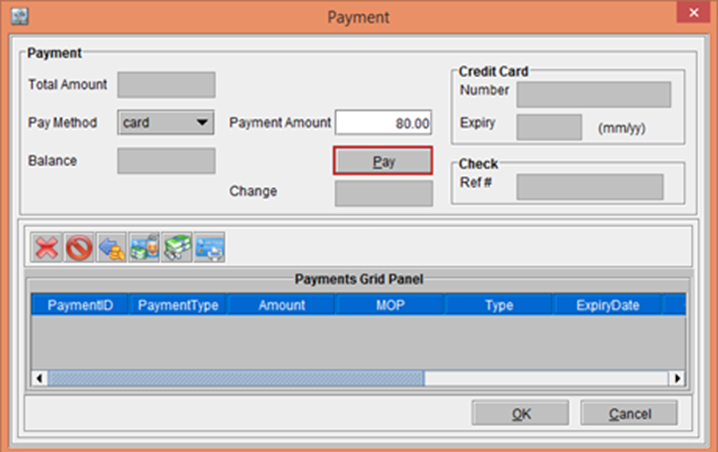
Select the Pay Method drop-down as card and enter the Payment Amount [80.00] and click the Pay button, as shown in the following figure.
Figure 3.1 Payment window
-
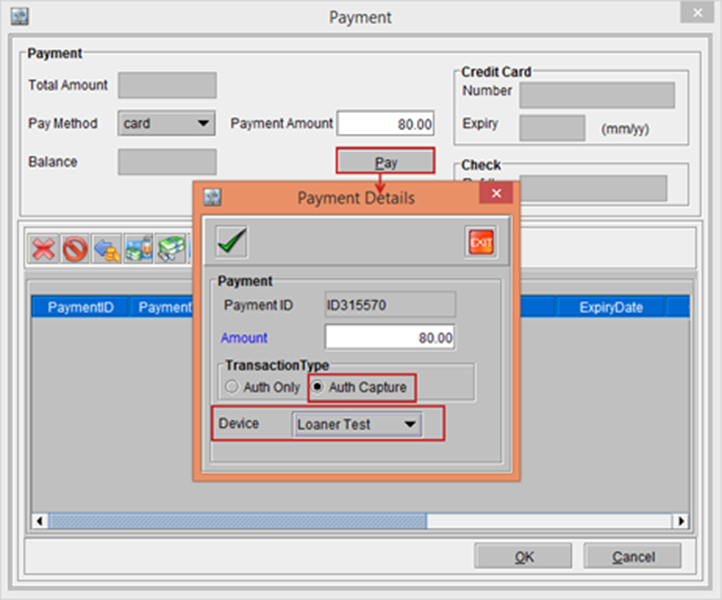
The Payment Details window is displayed comprising of the Payment section and the Transaction Type section, as shown in the following figure.
-
The Payment section displays with the Payment ID [ID315570] and Amount [80.00].
-
In the Transaction Type section select the default Auth Capture radio button and the Device drop-down as Loaner Test, as shown in the following figure.
Figure 3.2 Payment Details window
-
In the Payment Details window, click the OK button. The system displays a prompt with the message "Payment in Progress. Please wait".
-
Observe the Device [Loaner Test] selected. It will prompt you to Swipe the Card and sign.
-
Swipe the Card and do the signature and press Enter key on the Device.
-
On successful payment, the system displays a prompt with the Payment Successful! message.
-
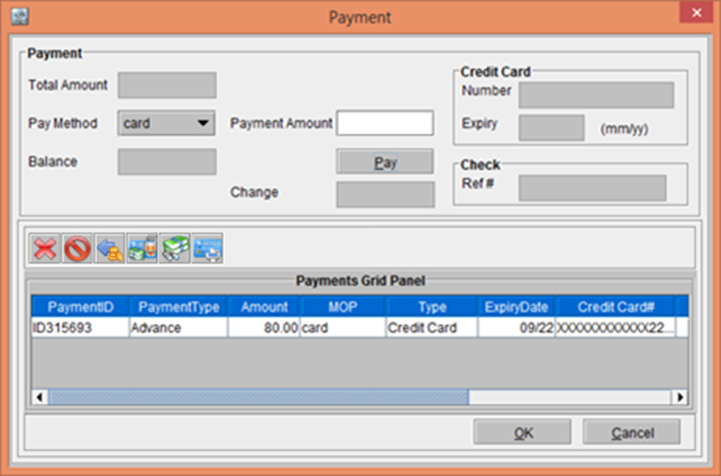
Click OK. The Transaction gets included in the Payment window, as shown in the following figure.
Figure 3.5 Transaction included in the Payment window
Click OK in the Payment window.