Reference No: 25330
(V 02.00.15-00)
Change in Parts Availability Displayed in Parts Availability Window when the Transfer-In Site has not Received the Stock
In a Transfer Order, when the Transfer-In site does not receive the stock and when the Auto Ship/Receive and Drop Ship option in Shipping tab is not selected while creating the Transfer Order, the Available Stock in parts Availability window will not be updated.
Scenario 1
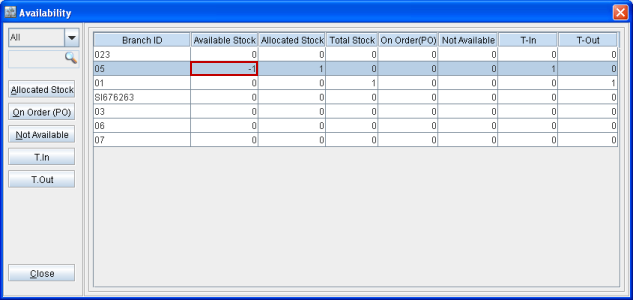
Create a Transfer Order from Site A to Site B. Add a Part [Part#1] of 1 quantity. Clear the check box Auto Ship/Receive and Drop Ship in the Shipping tab. Enter value as 1 in both the Shipped and Filled columns. Save and Exit the Transfer Order. Go to Branch B, search for [Part#1] and click on Edit icon to open the Part Edit window. Click on Availability button and verify the stock details, Available Stock will be 0. Only upon receiving the Stock the Availability will change to 1 as shown in Figure 1.0.
Figure 1.0 Part Availability Window
Scenario 2
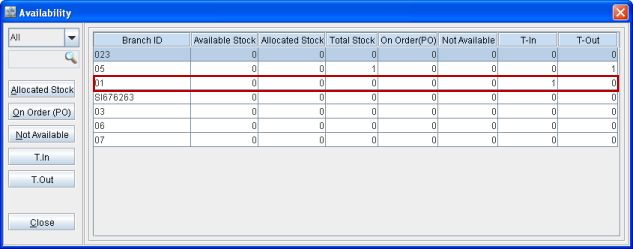
Create a Part [Part#1] in Site A and receive 1 quantity. Go to Site B and create a Part Sale Order. Add the above created Part [Part#1], the Status is Not Available. Select the part line, right-click and select the option Assign. Select the Transfer In/Purchase option for the prompt message and click OK. In the Assign window, [Part#1] with the Site A is displayed on the right side. Double-click on the part line and then click on Save icon. Now go to Site B and check the availability. Available Stock value is 1. Only when the Part is shipped from Site A and upon receiving it in Site B, the Available Stock value will be 0 as shown in Figure 1.1.
Figure 1.1 Part Availability Window