Reference : 23854
Details
In Cr2, additional features has been provided in Part Sale Order Window and Work Order window which can be used to identify the Parts having substitute parts, and also to view the list of Parts which are tagged as Substitute for a Part.
Identifying Parts having Substitute Parts in Part Sale Order and Work Order Window
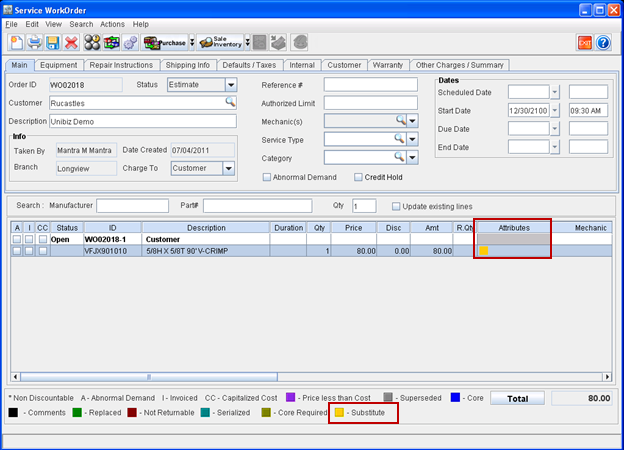
In the Parts Sale Order and Work Order window, a new color code will be displayed in the Attributes column, for the parts which are having substitute parts/groups tagged. Refer figure 1.0 and figure 1.1 for illustration.
Figure 1.0 A Part having Substitute Part marked so in the Attribute Column of a Parts Sale Order
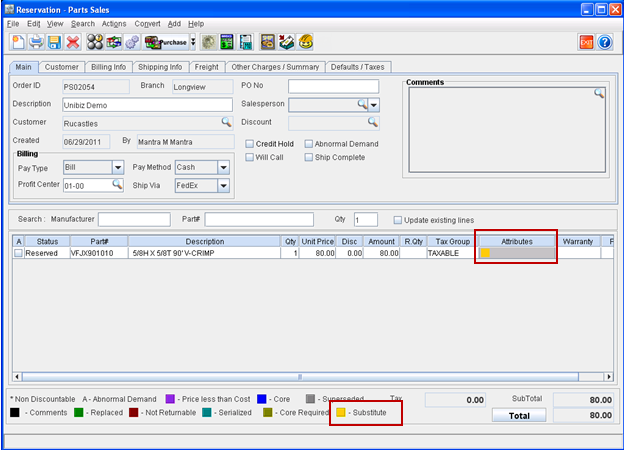
Figure 1.1 A Part having Substitute Part marked so in the Attribute Column of a Work Order
Viewing Parts Added as Substitute for a Part
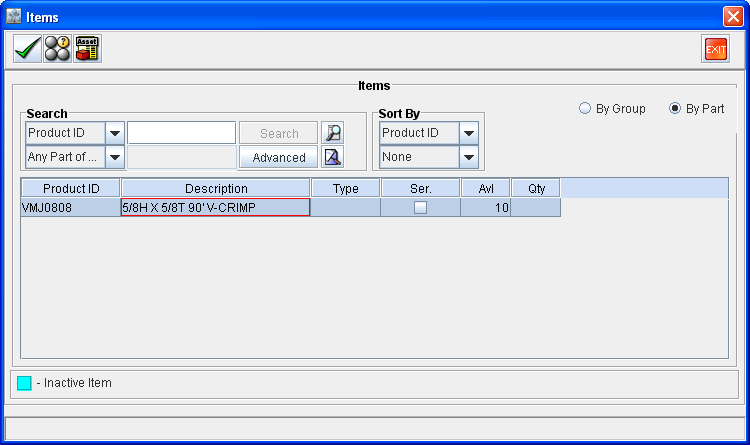
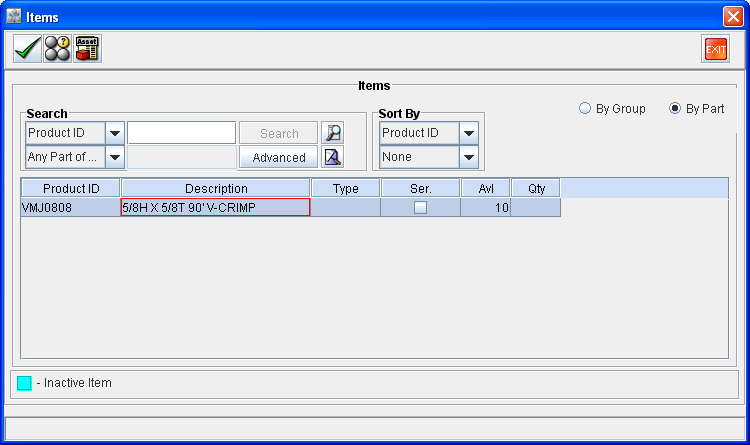
In the Part Sale Order and Work Order window, you can use the icon Substitute 
Note: The Items window will display parts if and only if stock is available for the substitute part.
Figure 2.0 Viewing Substitute Parts for a Part
-
You can select a part for substitution, by entering the required quantity that has to be substituted in the QTY column and following clicking Accept icon.
-
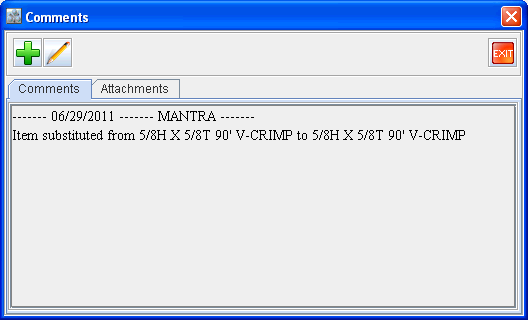
Once part line is substituted in an order, the legend color will be changed to blank (displayed for comments) as shown below. Further to on viewing the comments for the line, system will display the Part- substitution information. Refer Figure 2.1 and Figure 2.2.
Figure 2.1
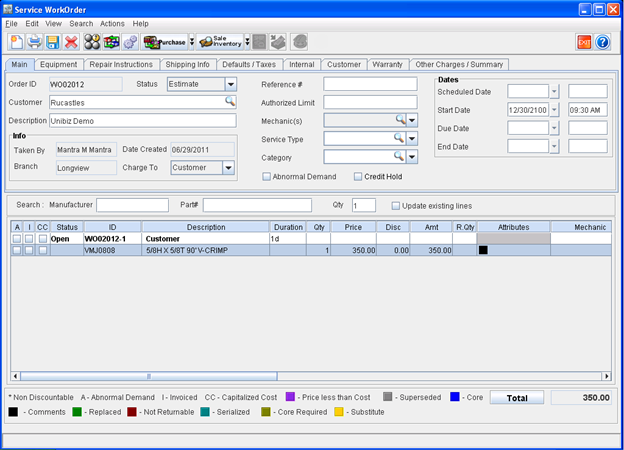
Figure 2.2
Identifying Parts having Substitute Parts Viewing Substitute Part List in Parts Search Window
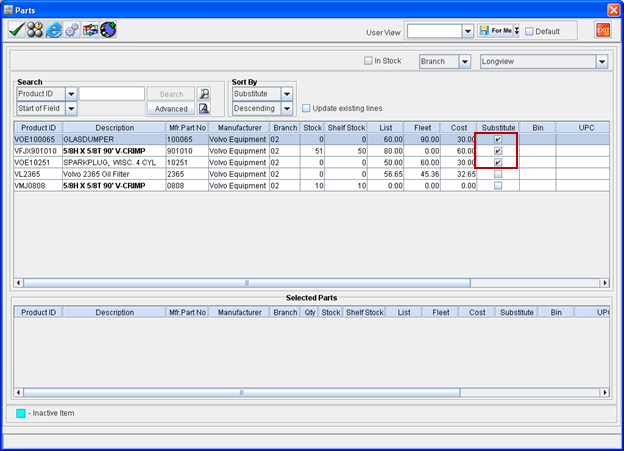
In the search results displayed in Part Search window, you can use the Substitute column to identify the parts having substitute parts / groups tagged.
The substitute column will display the check box as selected for the part lines having substitute parts / groups, and will display as de-selected for the parts which does not have any substitute parts/ groups . Refer figure 3.0 for illustration.
Figure 3.0 Identifying Parts having Substitutes in Parts Search Window
In Parts Search window, you can use the icon View Substitute Parts 
Figure 3.1 Viewing Substitute Parts for a Part from Parts Search Window