
Reference: 20414
On returning a part as Return Core on the Part Sale Order, support is provided to update the Receiving Cost of the part and the Return Price of the part.
Defining Receiving Cost and return Price of a Return Core Part
-
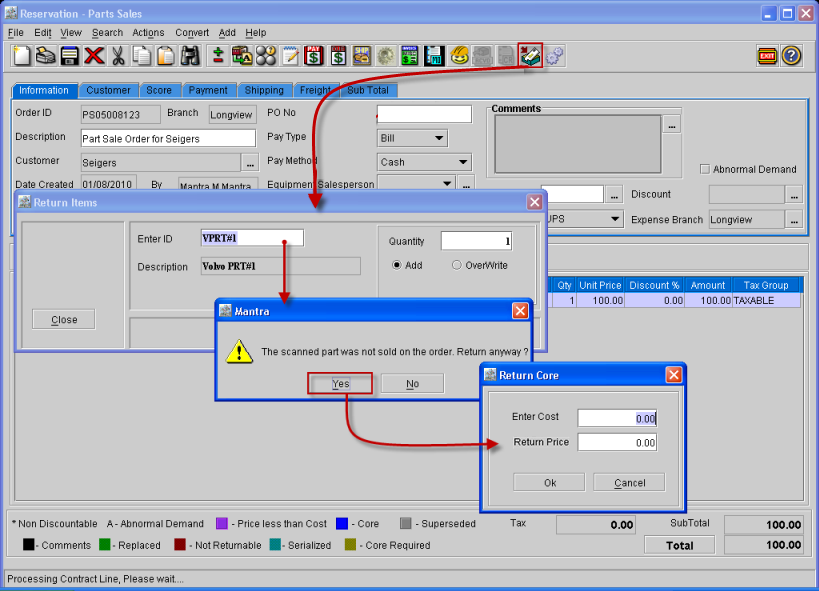
On returning a part as Return Core, system will prompt a message 'The Scanned part was not sold on the Order. Return it anyway?' on selecting Yes to this message, system will display the Return Core dialog, wherein the Receiving Cost can be entered in the Enter Cost field and price at which the part is being returned can be entered in the Return Price field, as shown in Figure 1.0.
Figure 1.0
-
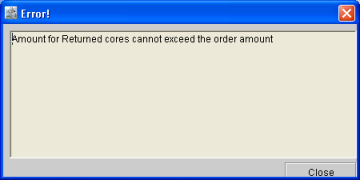
If the value entered in the Return Price field of Return Core dialog is greater than the Order Amount, system displays the message as shown in Figure 1.1.
Figure 1.1
Editing Receiving Cost of a Return Core Part
-
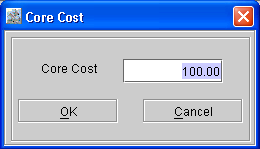
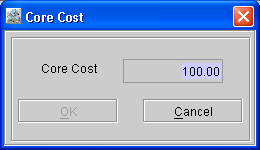
To edit the Receiving Cost of the Return Core part, double-click on the return core line on the Order, the Core Cost dialog will be displayed as shown in Figure 2.0.
Figure 2.0
Note:
By default the value displayed in the Core Cost dialog will be the receiving cost entered in the Return Core dialog when returning the part as Return Core. This value can be edited by keying-in the required value in the Core Cost field.
-
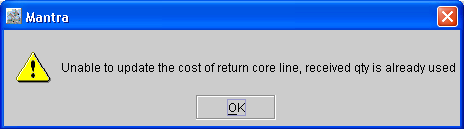
The Receiving Cost of a Return Core part can be edited after the item is returned, system will prompt a message "Unable to update cost of return core lines, received qty is already used" if the part is already used on Order, as shown in Figure 2.1.
Figure 2.1
Possible status when the Receiving Cost cannot be edited
-
Retired
-
Sold
-
Physical Inventory Adjusted (retired,lost etc)
-
Vouchered
-
Returned To Manufacturer
-
Transferred
-
On editing the value of receiving cost of a Return Core part after the Return Core line is invoiced and posted, the Core Cost dialog will be displayed in Read Only mode as shown in Figure 2.2. However, if the Invoice is cancelled then on double clicking the Return Core line in the Order, the Core dialog will be displayed in Read-Write mode.
Figure 2.2
Note:
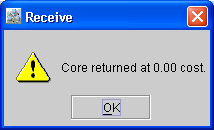
If while Defining or Editing the Receive Cost, in any case if the core is returned at 0.00, system will prompt the message as shown in Figure 2.3, after the part is returned.
Figure 2.3
Defining / Editing Price of a Return Core Part on an Order
-
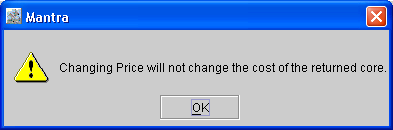
Defining or editing the price of a Return Core Part on an Order, will not change or affect the Receiving Cost of the Return Core part. On entering a value in the Unit Price column for the return core part, system will display a message as shown in Figure 3.0.
Figure 3.0
Posting Invoice of a Return Core Line
On posting an Invoice of a Return Core Line, system will always consider the receiving cost of the Return Core part, if the Receiving Cost of the part was edited then the edited price will be considered as Receiving Cost and the COGS and PURCH entries will always consider the Receiving Cost of the Return Core and not the Price (Contract Line value).
Illustration
The Dist.txt file will appear as below: 
|