-
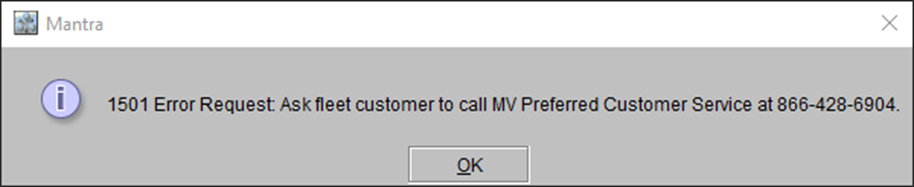
In a special case, when continuing from Step #6 in Scenario #1, if the automated authorization for VFS through CR2 is broken, the system will display an error message.
Figure 10.0: Error Message prompt when automated authorization for VFS through CR2 is broken
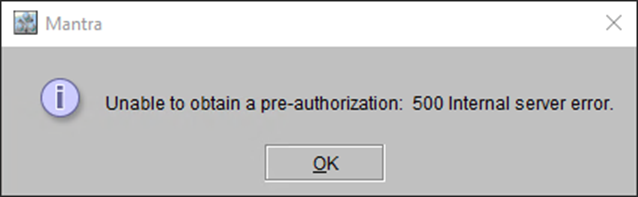
In certain cases, the system may also display the following error prompt, when the CR2 is unable to process the Pre-Authorization due to any internal error.
Figure 10.1: Error Message prompt when CR2 internal error happens while Pre-Authorization
-
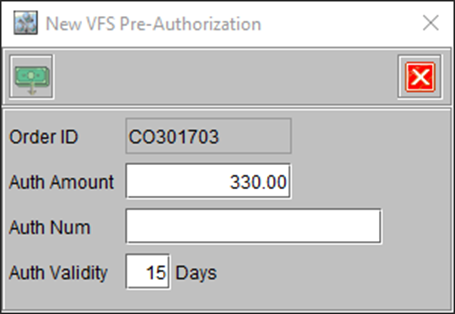
In both the above cases, CR2 allows you to get a Auth Code directly from VFS through phone or any other mode of communication and enter it manually in the CR2 VFS Pre-Authorization window.
Figure 11.0: VFS Pre-Authorization window prompting you to enter Auth Number
-
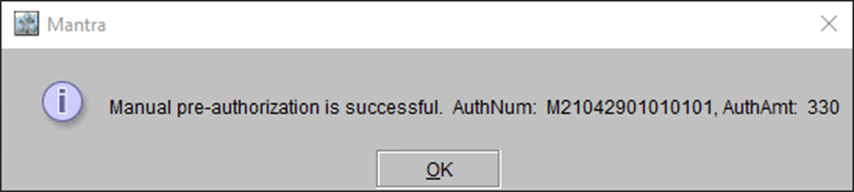
Once the Auth Code is entered and successfully verified by the system, CR2 displays a Confirmation message, which mentions both the Auth-Code and Authorized amount.
For Example: if the Auth-Code is M21042901010101 and Amount is 330, the following prompt is displayed.
Figure 12.0: Confirmation message prompt when Manual authorization is done