
Details
This feature work very much identical to the PSO (Part Sale Order) functionality. However, it does not require enabling/disabling the ‘Ship Complete’ tag.
Though, contarary to a PSO, in ESO you can add Items, Assets, and/or Parts.
Also, that ESO allows to do a trade-off by returning an asset in replacement of a different asset. Metered assets can be added, though they are not charged directly in the Order itself.
Sample Workflow
-
Create an Equipment Sale Order with few items added.
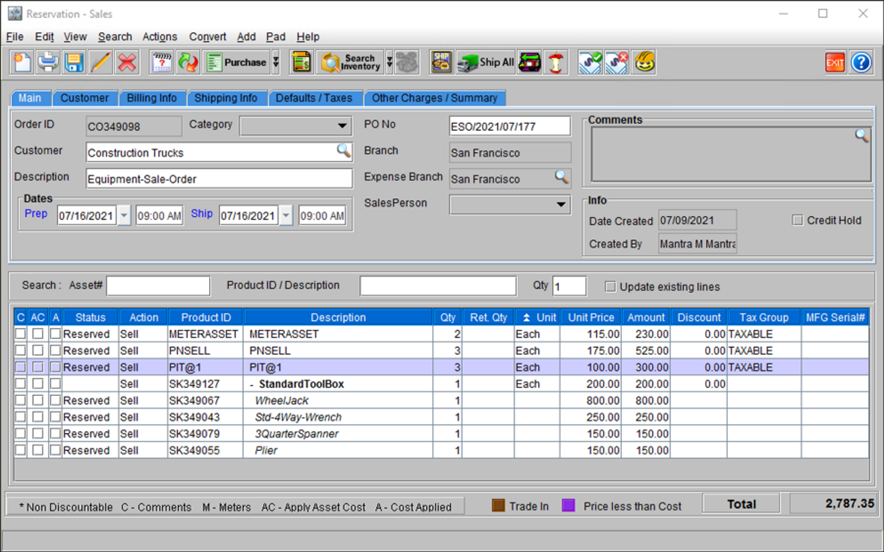
For illustration of the sample workflow, we have added extra items in the order. Some of these items will be returned or exchanged/replaced with a different item.
Figure 55: Order ID [CO349098] with some Items, Assets, and Kits added
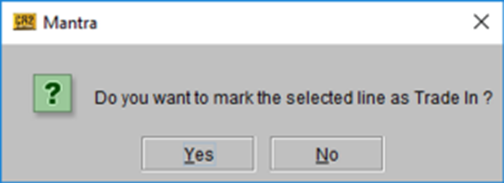
To do trade-off on any equipment, right click on any item line and select TradeIn. At this point system will seek a confirmation (Shown in Figure 57, and on confirmation the specific item line will appear as Figure 58. (Read step C).
Figure 56: TradeIn step performed for Item [PNSELL]
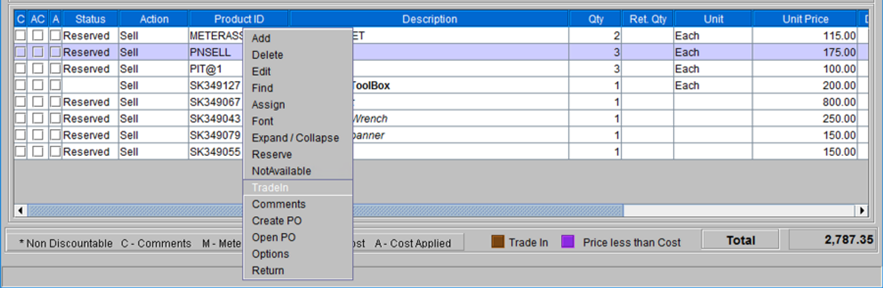
Figure 57: Confirmation prompt for Trade-In on selected line
The line item that was opted for Trade-in, has the ‘Status’ displayed as ‘Trade-in’ and a Section Head is added to the line above it with description ‘TRADE-IN’ Also the unit price for the item now shown in negative.
Figure 58: Selected line shown as Trade-in in the Order

Click on the Trade-In button.
Select the type of Asset ID. Click Receive button on Scan Items window.
Enter the Asset# in the Enter Asset# Dialog and click Close.
Figure 60: Scan Item to Trade-In with
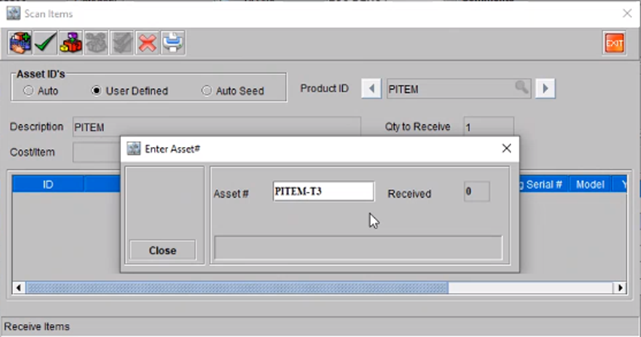
Click Accept in the Scan Items window.
The status of the selected item in the Order window has changed to ‘Trade-in Recvd.
Figure 61: Trade-In Received

-
Do the ‘Fill and Ship’ for the items in the Order.
-
Click the ‘Disptach’ button. Since some of the items on the Order are Serial Items, the system prompts to select the items by their Serial#.
-
For the Metered Asssets, system prompts to enter the meter reading.
-
-
Status for all the items has changed to ‘Sold’. You can invoice the Order now.
-
System automatically seeks VFS Authorization and displays the Auth number in a prompt.
-
Go to the Invoicing Module. Post the invoice.
-
Post the invoice to a batch.