-
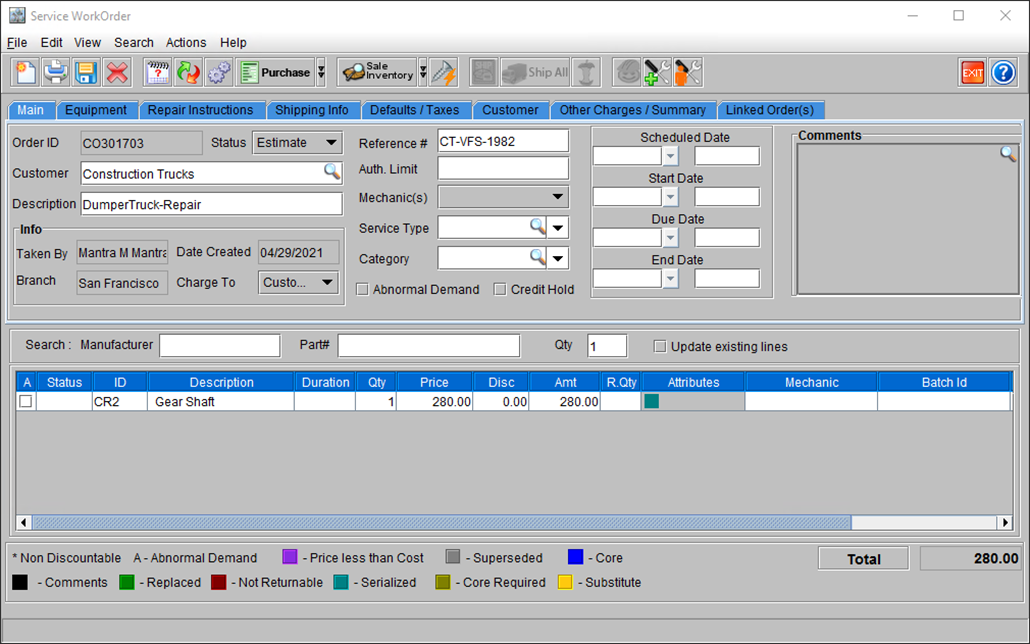
Go to CR2 > Accounts > Search and tag a Customer.
-
Create a Work Order with Status as Estimate. Add Equipment as required.
-
Add the required parts to the WO. Add the price if needed.
-
Give a Reference# and description to the WO.
Figure 1.0: Service Work Order [CO301703] showing Equipment and Parts information
-
Change the status of WO.
-
For planned repairs, you must use Status: Scheduled.
-
If Status is selected as Scheduled, system will prompt to select a Schedule Date.
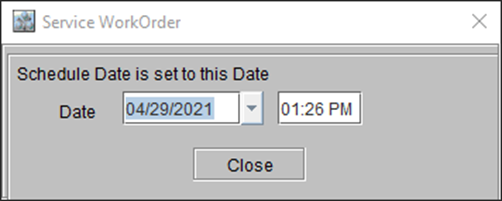
Figure 2.0
-
-
For immediate repairs. you must use Status: Open.
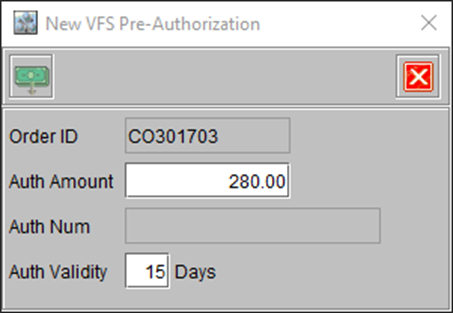
Figure 3.0
-
-
If sufficient credit limit is available on the customer’s VFS account, the system displays a confirmation message. The message also shows the VFS Auth-code (format same as manual auth-code).
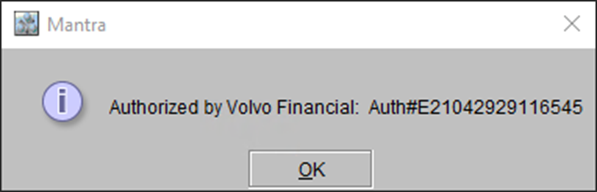
Figure 4.0 -
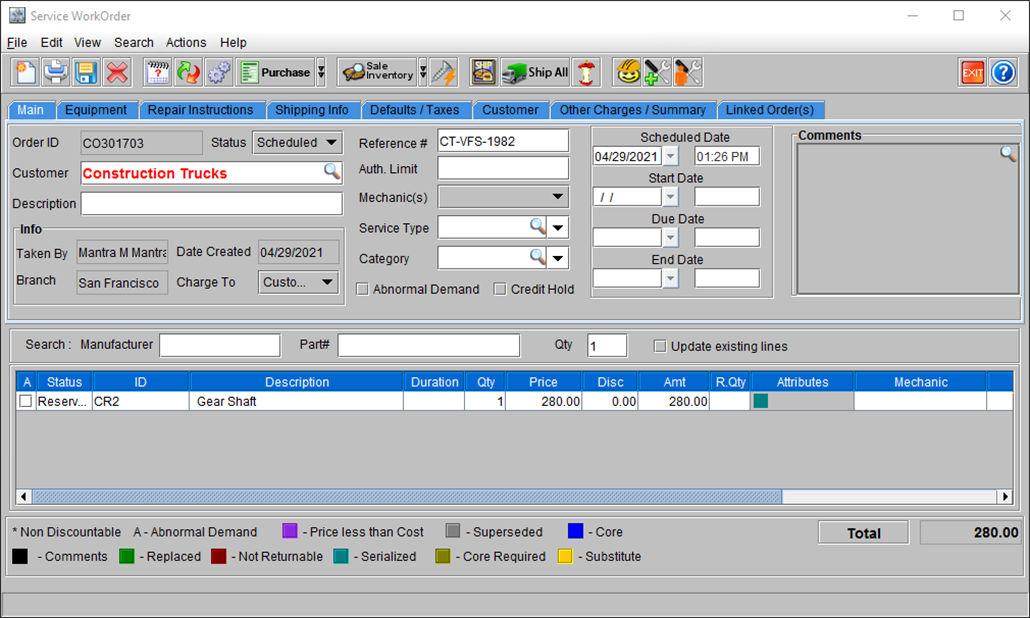
Click OK to return to Service Work Order window. The ‘Status’ of the Order has changed to ‘Scheduled’.
In case of a specific business need, to change a Work Order’s Status from ‘Scheduled’ or ‘Open’ back to ‘Estimate’ again – use the Status dropdown and select ‘Estimate’. Here, CR2 will display a message prompt asking for confirmation from you. If you click OK, the system changes the Status.
Figure 6.0: Message Prompt – When changing status from ‘Scheduled’ to ‘Estimate’
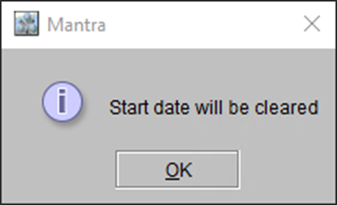
Figure 7.0: Message Prompt – When changing status from ‘Open’ to ‘Estimate’