Reference: 24811
(V 02.00.13-00)
Details
In the invoicing module, you can define the GL Codes for Trade-In Assets. This will be displayed when the invoices having the Trade-In Assets are posted in the Great Plains format. Detailed steps on how to define GL-Code for Trade-In Assets is given below.
Defining GL Code for Trade-In Assets
The steps for defining GL Code for Trade-In Assets are:
-
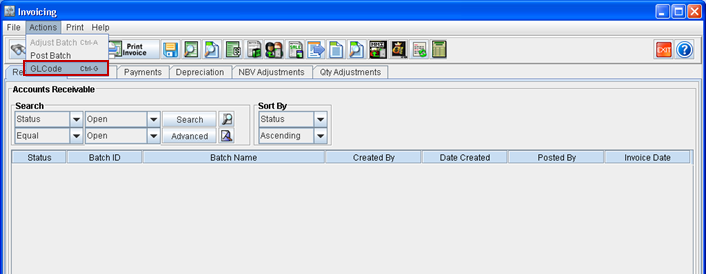
Access Invoicing module > Actions Menu.
-
Select the option 'GL Code'. Alternatively you can also use the keyboard short cut 'CTRL+G'.
Fig 1.0 GL CODE option in Invoicing Module
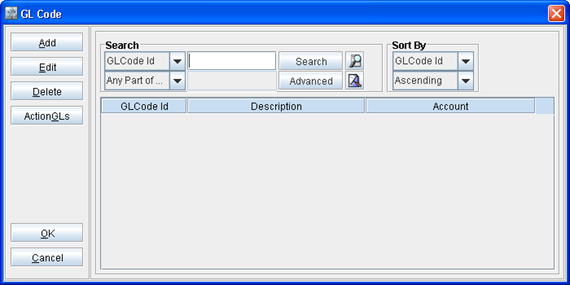
System displays the GL Code definition search window.
Fig 1.1 GL CODE definition Search Window
-
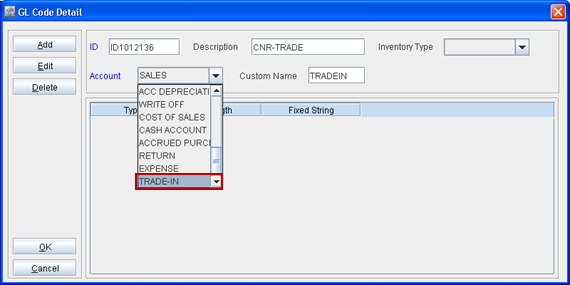
Click Add. System displays the GL Code Detail window.
Fig 1.2 Selecting GL CODE detail Window
-
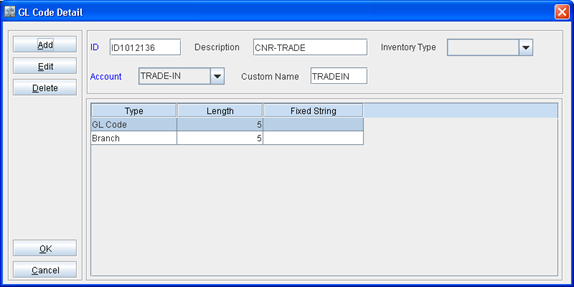
Enter an ID and Description for the new definition.
-
Enter a Custom Name. (This is optional. The custom name defined will be displayed as the type for the GL Code in 'dist.txt' file).
-
Set the Account type as 'TRADE-IN'.
-
Define the segment details as per requirement. Refer Fig 1.3 for illustration.
Fig 1.3 GL Code Detail window with segment Details
-
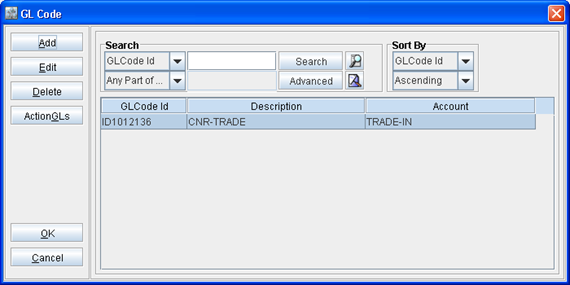
Click OK. The newly created definition will be displayed in the GL Code search window,as shown in Fig 1.4.
Fig 1.4 New GL Code Definition in GL Code Search Window