Reference : 23394
Details
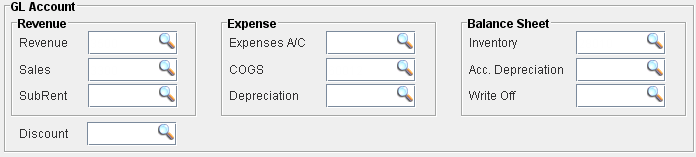
In CR2, you can use the GL Account feature, to categorize the revenue and payables recorded for an item, which has to be considered while posting invoices and vouchers. You can define the G/L Account number (GL Code) for an Item in the GL Account section (shown in Fig 1.0), individually for each account type under the categories such as Revenue, Expenses and Balance Sheet A/c.
Steps for categorizing account transactions into respective GL accounts are:
Step 1
-
Creating GL Account Group definitions for each Account Type in Item Edit window.
Steps for creating new GL Account definition are:
The below illustration is given for defining GL Account for Expenses A/c. You can follow the same steps to define GL account for other Account types also.
-
Access Item Edit window.
-
Click on the import button present under an Account Type field in Gl Account section. For example, if you want to create GL Account definition for Expenses A/c, click on the import button present in the Expenses A/C field in Expense section.
-
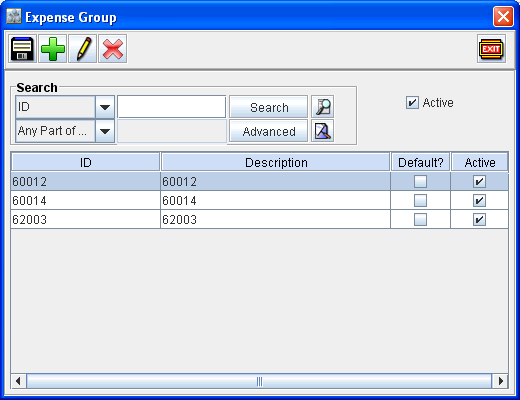
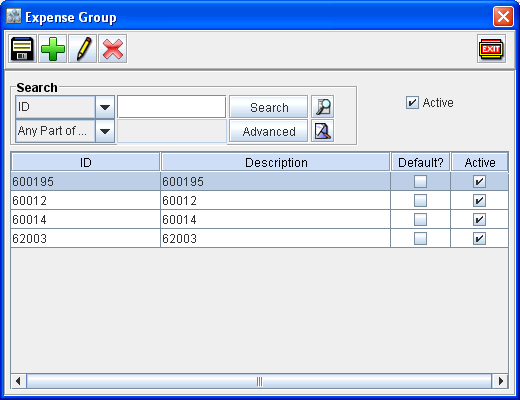
System displays the Expense Group Search / Definition window as shown below.
-
Click on Add button to create a new definition.
-
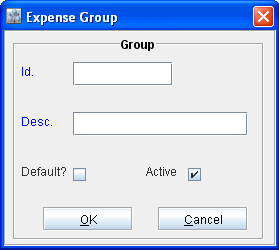
System displays the new definition dialog as shown below:
-
Enter the ID and Description in respective fields and click OK.
-
The newly created definition will be displayed as shown below:
Step 2
-
Tagging G/L Account definitions to respective Account type fields.
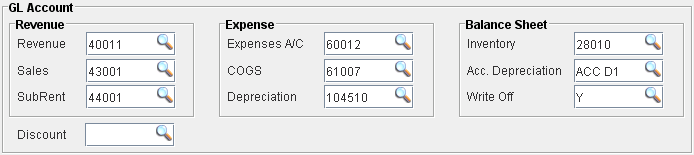
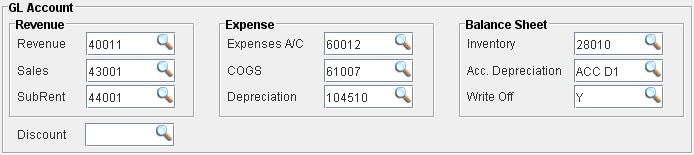
You can tag the G/L Account definition for the each Account type, by clicking on the import button present in each Account type field and following selecting the Group window which is displayed. On tagging GL Account for all account types, the GL Account section will be displayed as shown in the below figure.
-
On using an item with GL Account defined for Account types, system will consider the GL account based on the respective transactions as mentioned in the below table :
Table 1.0
|
Transaction / Accounting Scenario |
GL Account definition Considered |
|
|
|
Account Type |
Category |
|
Rent |
Revenue |
|
Sub Rent |
|
|
Sales |
|
|
Expenses A/c |
Expense |
|
COGS |
|
Note: The GL account defined for Depreciation will be considered while posting depreciation batch and Invoices generated for Rental Orders which affect the Item depreciation. |
Depreciation |
|
|
Inventory |
Balance Sheet |
Step 3
-
Defining GL Code in Invoicing Module
-
Definition of GL code definition in reference to the account type is necessary for mapping the G/L Account number defined for the item and to use it while posting invoices based on different Transaction.
-
You can define GL code using the option ”r;GL Code”, which is present in Invoicing Module Main window &endash; Actions menu.
Usage Illustration
Illustration - I (Posting Voucher Generated for Inventory Purchase Order)
-
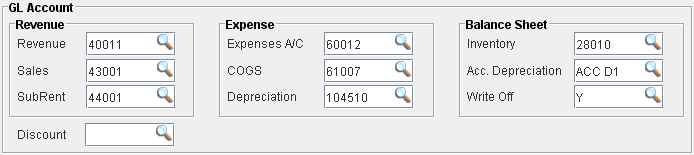
Create a new item (DGD-5544) with G/ L Account item as shown below:
-
Create a new Misc. Charge definition with ID (10008464) and GL Account settings defined as below :

-
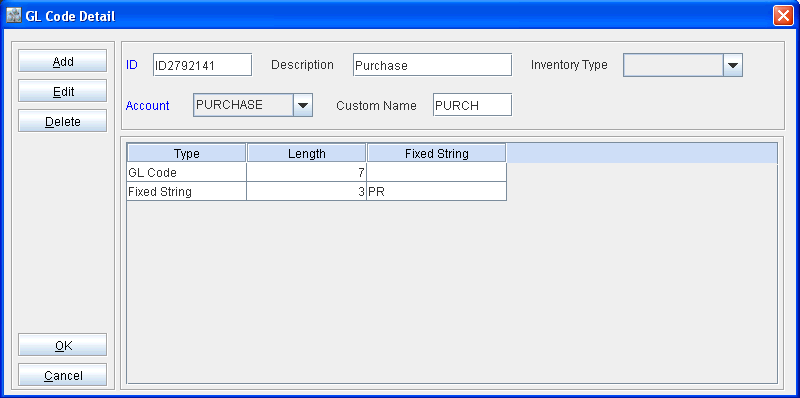
In Invoicing Module, create a new GL Code Definition of Account Type ”r;Purchase” as shown below:
-
Create a new GL Code definition of Account type ”r;Pay” as shown below:
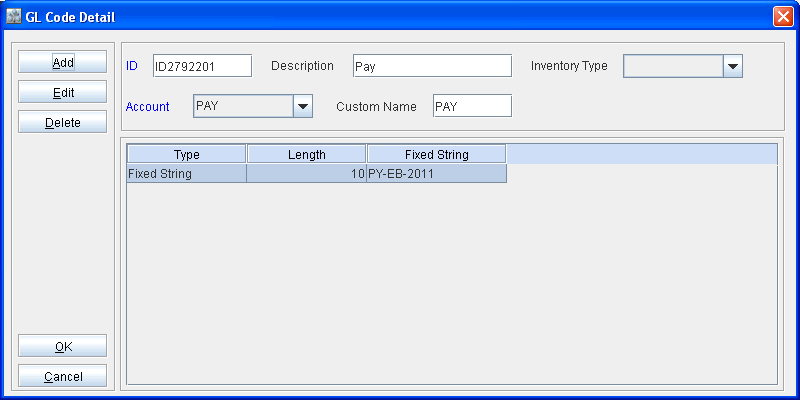
Note: For the illustration purpose, the GL Code is defined in Invoicing module as general by selecting Inventory type as blank. You can also define GL Code specific to each inventory type such as Items/Equipment, Parts, Misc. Charges and Labor.
-
Create a new Inventory Purchase Order and add the item (DGD-5544) and Misc. Charge (10008464) to the order.
-
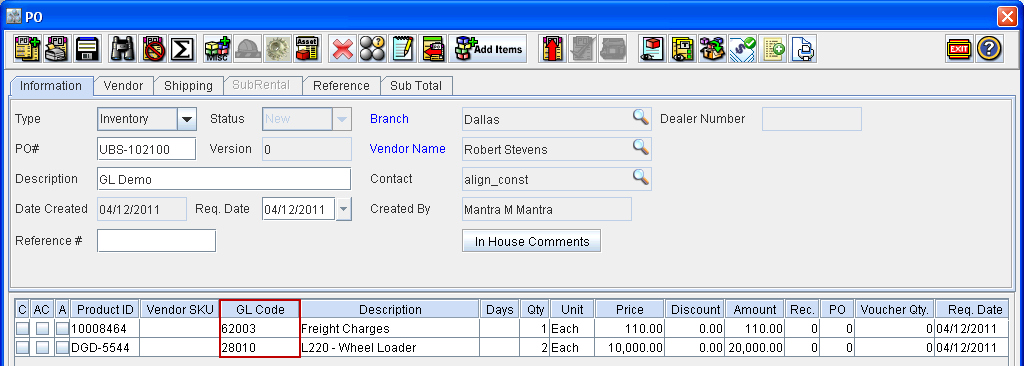
On adding the item to the order, system will automatically update the GL Code for the item as defined in the Inventory GL Code , and GL Code for Misc.Charge will be considered from Expenses A/c type as shown below:
-
Approve, Release and receive the items on the PO.
-
Create a Voucher for the Approved amount on the PO.
-
Access Invoicing Module.
-
Create a new Payables Batch, add the Voucher to the created batch.
-
Save and exit the Voucher Batch.
-
Post the Voucher Batch with the option Create Export file selected.
-
System will generate the export file based on the Invoice Format selected as below :
Output Illustration
-
When voucher batch is posted with invoice format selected as Peach Tree
-
On posting the voucher batch in Peach Tree format, system will generate the Purchase.CSV with the GL code defined of pay type displayed in the column ”r;L” and GL Code generated of type Purchase displayed under the column ”r;R” for the posted voucher.

-
When voucher batch is posted with invoice format selected as Great Plains
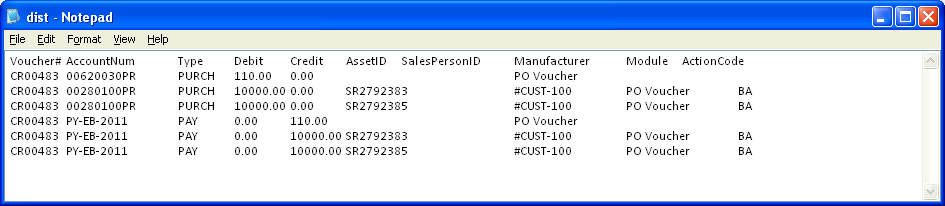
Illustration - II (Posting Voucher Generated for Subrent Purchase Order)
-
Create a new item (DGD-5544) with G/ L Account item as shown below:
-
Create a new Misc. Charge definition with ID (10008464) and a Capitalized Misc. Charge definition with ID (10008468).
-
Define GL Account settings for the Misc. Charge definitions (10008464, 10008468) as below :

-
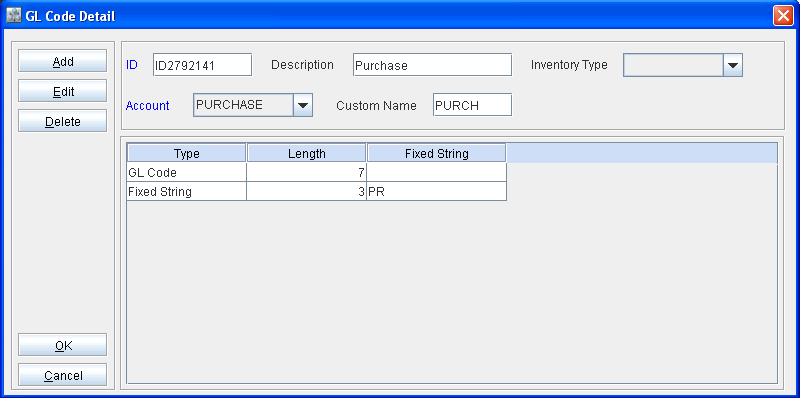
In Invoicing Module, create a new GL Code Definition of Account Type ”r;Purchase” as shown below:
-
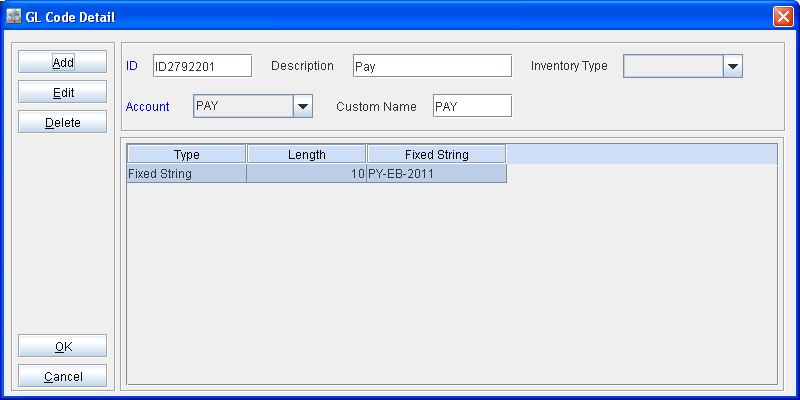
Create a new GL Code definition of Account type ”r;Pay” as shown below:
Note: For the illustration purpose, the GL Code is defined in Invoicing module as general by selecting Inventory type as blank. You can also define GL Code specific to each inventory type such as Items/Equipment, Parts, Misc. Charges and Labor.
-
Create a new Subrent Purchase Order and add the item (DGD-5544) and Misc. Charges (10008464,10008468 ) to the order.
-
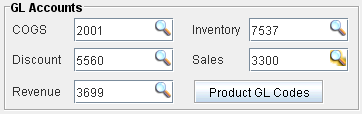
Apply Asset cost for the Capitalized Misc. Charge using an Asset having GL Code as shown below :
-
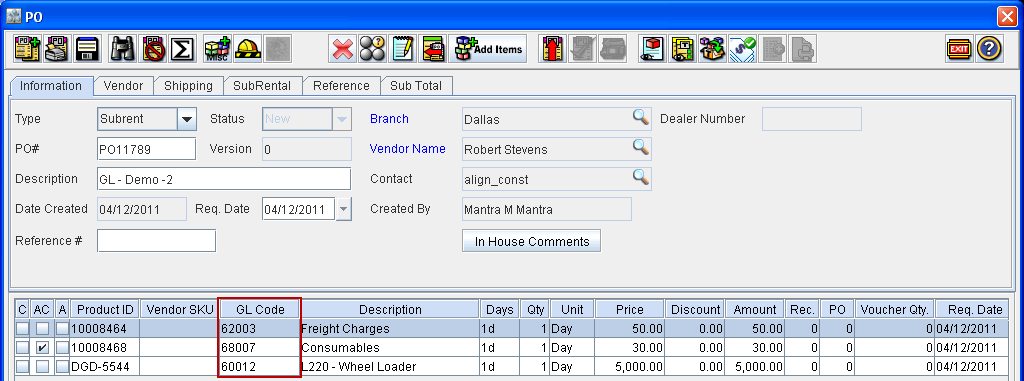
On adding the item to the order, system will automatically update the GL Code for the item and normal Misc. Charge as defined in the Expenses A/C type , and GL Code for Capitalized Misc. Charge will be considered from Inventory account type as shown below:
-
Approve, Release and Receive the items on the PO.
-
Create a Voucher for the Approved amount on the PO.
-
Access Invoicing Module.
-
Create a new Payables Batch, add the Voucher to the created batch.
-
Save and exit the Voucher Batch.
-
Post the Voucher Batch with the option Create Export file selected.
-
System will generate the export file based on the Invoice Format selected as below :
Output Illustration
-
When voucher batch is posted with invoice format selected as Peach Tree
-
On generating the Purchase.CSV, system will display the GL code defined of Pay type in the column ”r;L” and GL Code generated of type Purchase will be displayed in the column ”r;R” for the posted voucher.
-
For the capitalized Misc. Charge, system will display the Inventory Gl Code defined for the asset / product to which cost is applied in the column ”r;R”.
-

-
When voucher batch is posted with invoice format selected as Great Plains
-
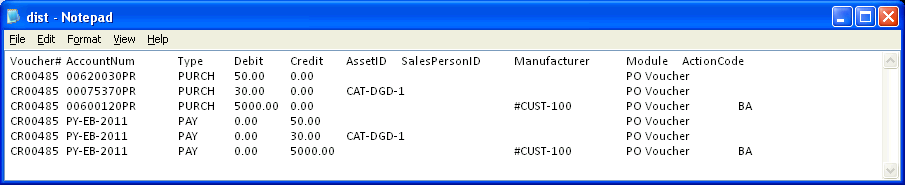
On posting the batch in Great Plains format, system will generate the dist.txt with the GL code displayed in Account Num column.
-