
Reference: 22145
(V 02.00.02-00)
Details
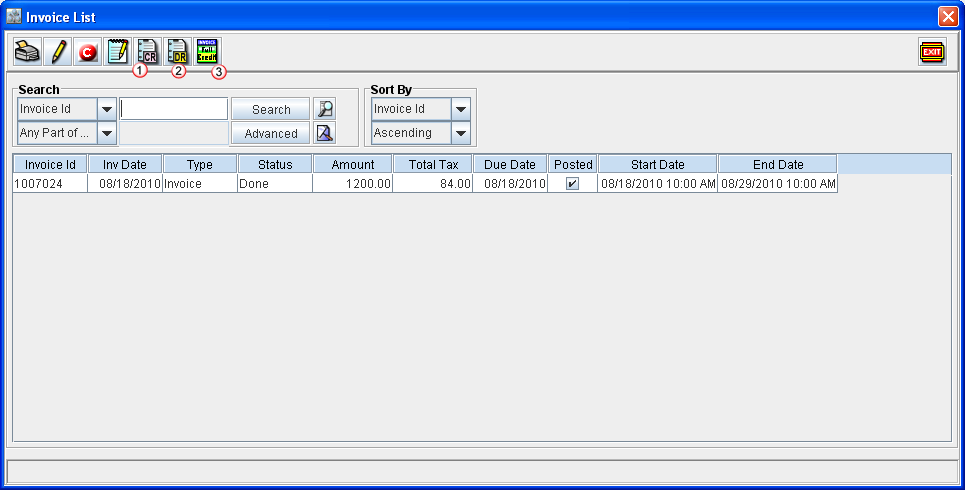
In Cr2, you can generate credit memo, debit memo and also give full credit to the invoices which are already posted, from within the View invoice List window. This can be done using the icons Credit Memo, Debit Memo and Full credit which is present in the View Invoices window as shown in Figure 1.0.
Figure 1.0
-
In the Invoice List window, you can generate Credit Memo, Debit Memo or allow Full credit for a posted invoice, by highlighting a posted invoice line and following clicking the respective icon in Tool Bar.
Table 1.0 Icon Reference
|
Sl No |
Icon |
Description |
|
1 |
|
Credit Memo icon. Clicking on the credit memo icon by highlighting a posted invoice will display the Credit Memo window, using which you can define credit memo for the posted invoice. |
|
2 |
|
Debit Memo Icon. Clicking on the debit memo icon by highlighting a posted invoice will display the Credit Memo window, using which you can define debit memo for the posted invoice. |
|
3 |
|
Full Credit icon. The full credit icon can be used to give full credit for a posted invoice. To allow full credit for a posted invoice, highlight the invoice and following click on the Full Credit icon. |


Note:
-
This feature is applicable to the posted invoices which are generated for all types of orders such as Rental Orders, Work Orders, Part Sale Orders and Sale Orders.
-
On generating Credit/Debit memo or while giving full credit for the posted invoice, system will prompt for updating reason code. For more information on Reason Codes, click here.