
R2 allows you to post Debit and Credit memos to adjust a disputed invoice amount.
To Post a Debit or Credit Memo
Begin at the Invoicing window. Verify that you are in Receivables.
Click on the Search Invoices Icon.
Perform a search for the posted invoice that you need to adjust.
Double click on the invoice line.
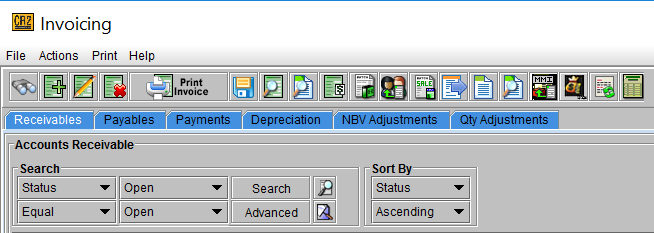
This pulls up the batch that the Invoice is posted on within the Invoicing window.
Double click on the Batch record.
This opens the Invoice Batch window, displaying all invoices in the Batch.
Locate and highlight the Invoice line within the data grid.
Click on the Cr/Db Memo button 
The Invoice Memo window will appear.
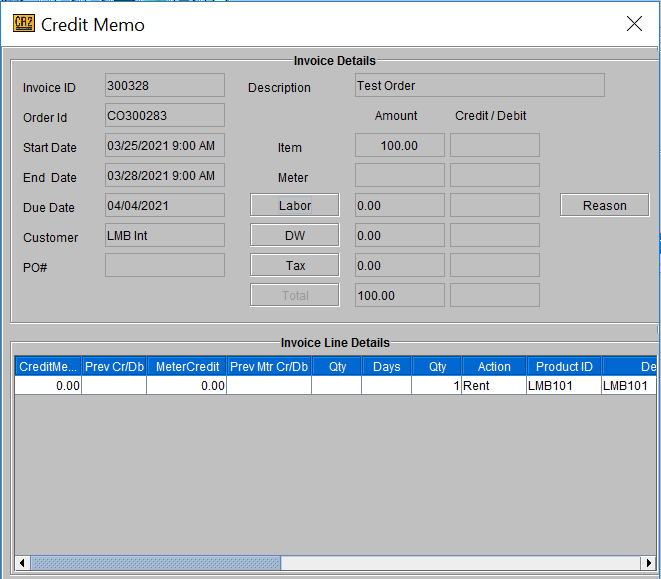
Click in the Cr/Db column.
Type the amount you wish to credit.
R2 Will debit the item charge minus any applicable tax determined by original tax schedule applied to the order.
You can also credit Quantities or Days and R2 will calculate the dollars credited.
Add the Debit/Credit memo to an open batch and post.
Posting a Purchase Order
Posting vendor invoiced is very similar to posting receivables.
To Post a PO
From the Invoicing window, click on Payables.
Select File > New from the upper menu line.
a new batch, just as if you were posting receivables.
Add Vendor Invoices.
This is just like adding receivables. Refer to To add invoiced orders to a batch, page 4-5.
Post the Batch.
Search for Customer
There are four ways to search for a customer.
-
Company
-
Contact Name
-
Phone Number
-
Customer ID
All of these options with the exception of Customer ID are also available from within the Company-Contact dialog.
TO QUICKLY BRING UP A CUSTOMER RECORD
Begin at the Account Window.
Type all or part of the customer’s Company or Contact name, Phone number or Customer ID in the corresponding field.
Press <enter>