Making Payments through Axia Card Terminals with the Transaction Type as Auth Only
The payments through the Axia Card Terminal can be performed with the Transaction Type as Auth Only.
-
Select the Account module > tag a Company [Apple Computers]
-
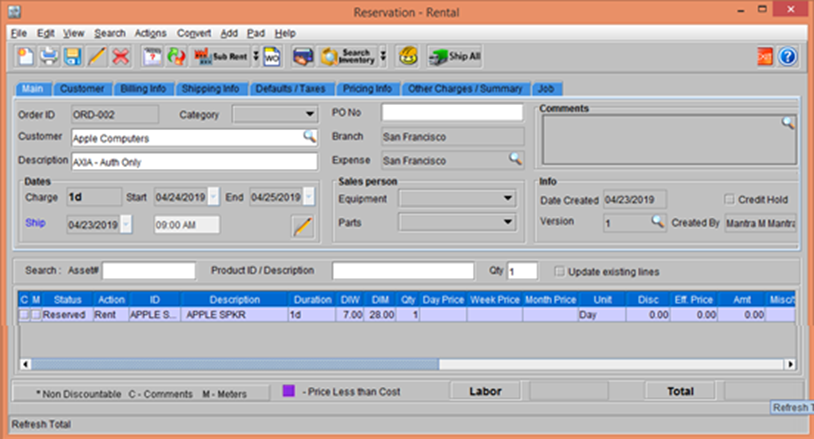
Create a Rental Reservation Order [ORD-002]. Search and Add the Item [APPLE SPKR], as shown in the following figure.
Figure 4.0 Order [ORD-002] Reservation
-
Select the Actions menu > Pay Advance option. The Payment window is displayed.
-
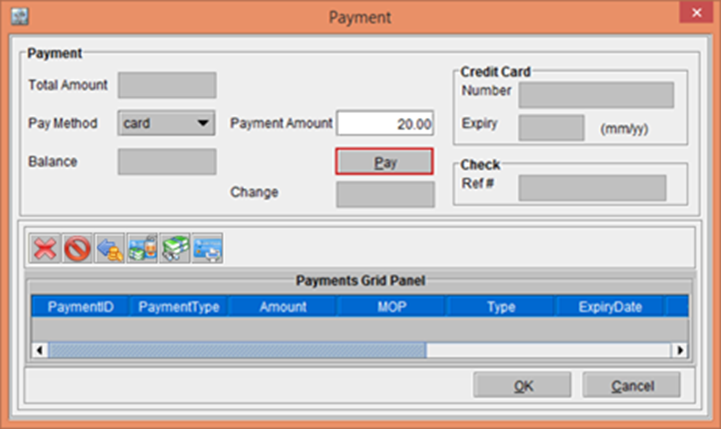
Select the Pay Method drop-down as card and enter the Payment Amount [20.00] and click the Pay button, as shown in the following figure.
Figure 4.1 Payment window
-
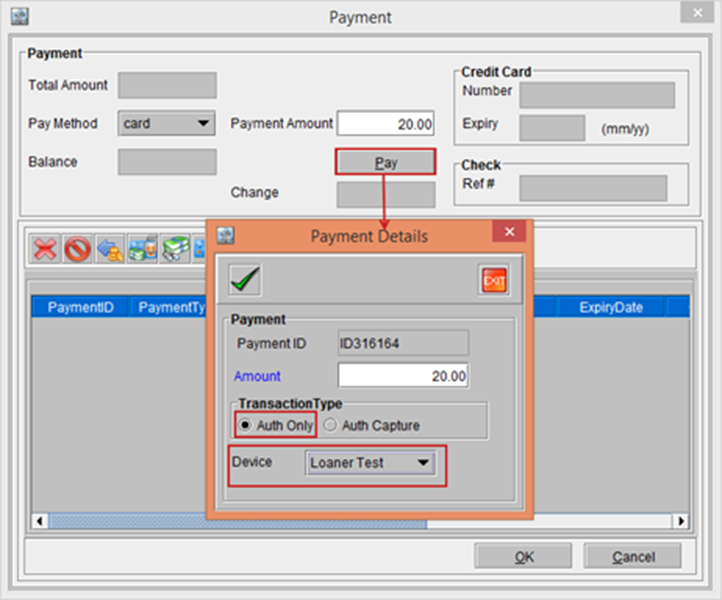
The Payment Details window is displayed comprising of the Payment section and the Transaction Type section, as shown in the following figure.
-
The Payment section displays with the Payment ID [ID316164] and Amount [20.00].
-
In the Transaction Type section select the Auth Only radio button and the Device drop-down as Loaner Test, as shown in the following figure.
Figure 4.2 Payment Details window
-
In the Payment Details window, click the OK button. The system displays a prompt with the message "Payment in Progress. Please wait".
-
Observe the Device [Loaner Test] selected. It will prompt you to Swipe the Card and sign.
-
Swipe the Card and do the signature and press Enter key on the Device.
-
On successful payment, the system displays a prompt with the Authorized Successfully message.
-
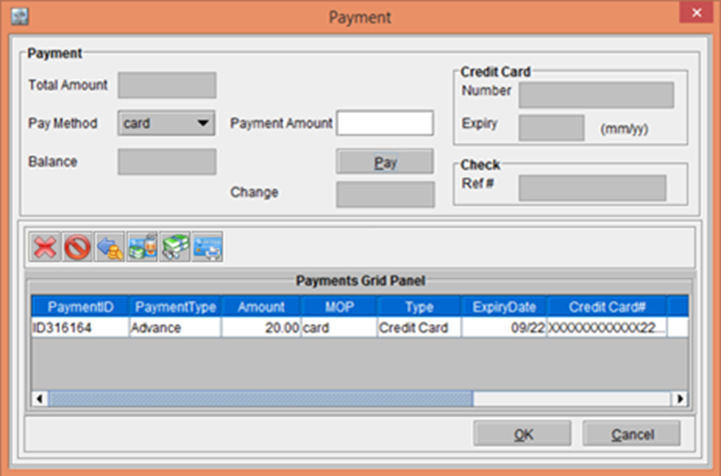
Click OK. The Transaction gets included in the Payment window, as shown in the following figure.
Figure 4.5 Transaction included in the Payment window