Reference No: 24034
Table of Contents
Details
In CR2, you will be able to view the Parts Availability by parts present in all branches of the company, by default. You can further filter it by any branch, region or sub-region as need be by using the drop-down list provided.
Settings for Parts Availability to Default to All Branches
-
Select CR2 > Maintenance > System.
-
Search and select (Double-click) the Employee for whom the Parts Availability should default to All Branches.
-
Select Defaults ID import button.
-
Search and select System Defaults > Edit.
-
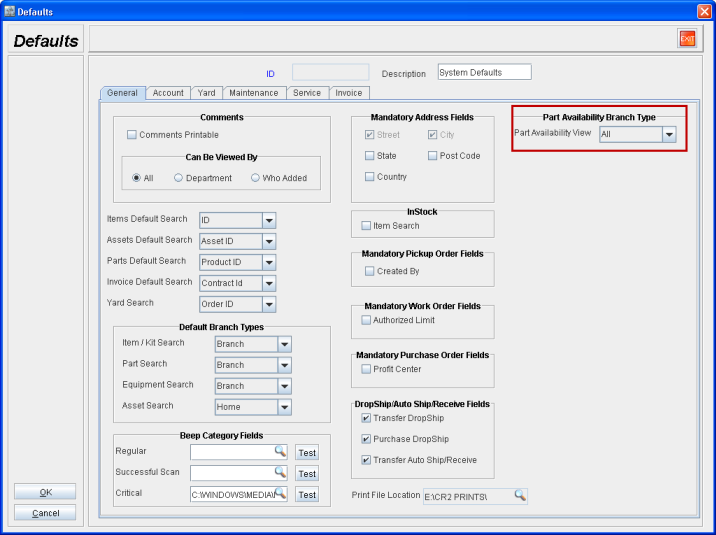
Within General Tab > Part Availability Branch Type set Part Availability Search field value to All as shown in Figure 1.0.
Figure 1.0
How it works
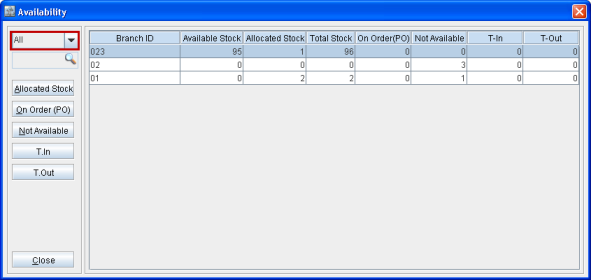
The Parts Availability will default to parts available from All branches within the parts Availability window, when accessed from anywhere in the CR2 system, as shown in Figure 2.0.
Figure 2.0