Reference : 18788
(V 01.00.83-00)
Table of Contents
Support to view the Exchange Group and Bin Number Column together
Functionality Before Change
-
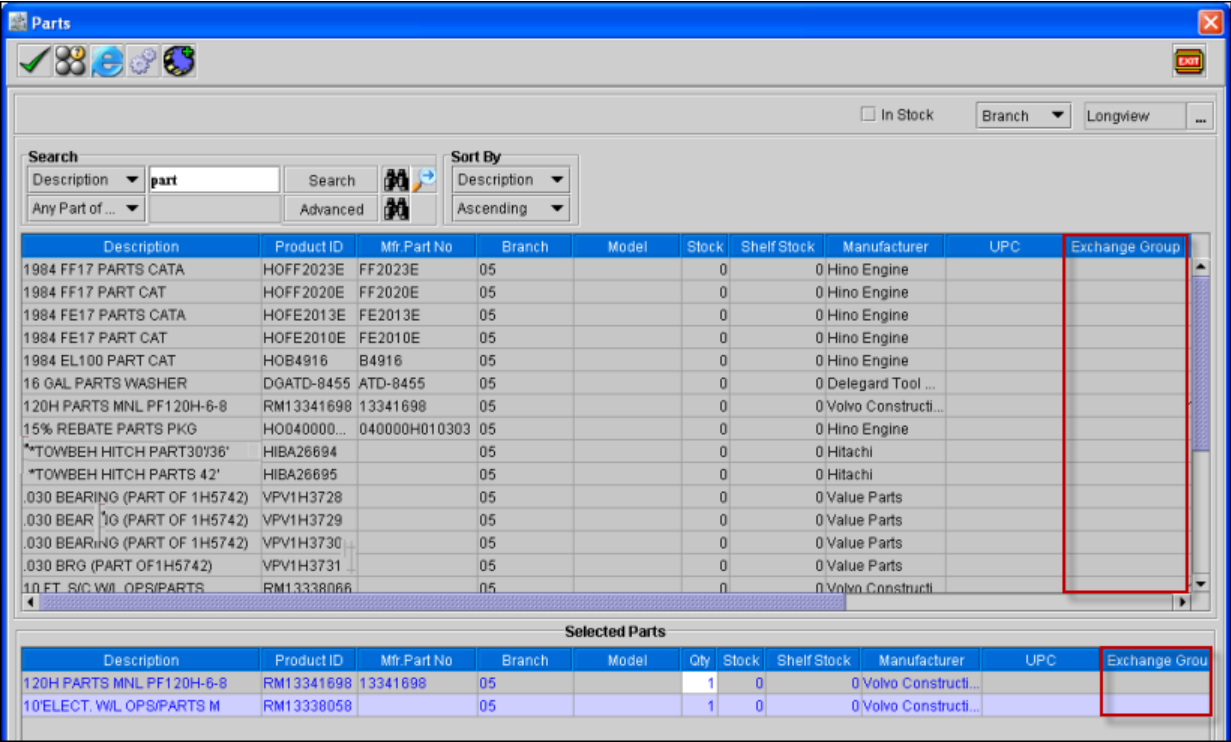
In the Parts search window, while searching a part the user were able to view the 'Exchange Group' directly but has to scroll the Scroll bar to the right side of the grid to view the 'Bin Number' Column as shown in Figure 1.0
Figure 1.0
-
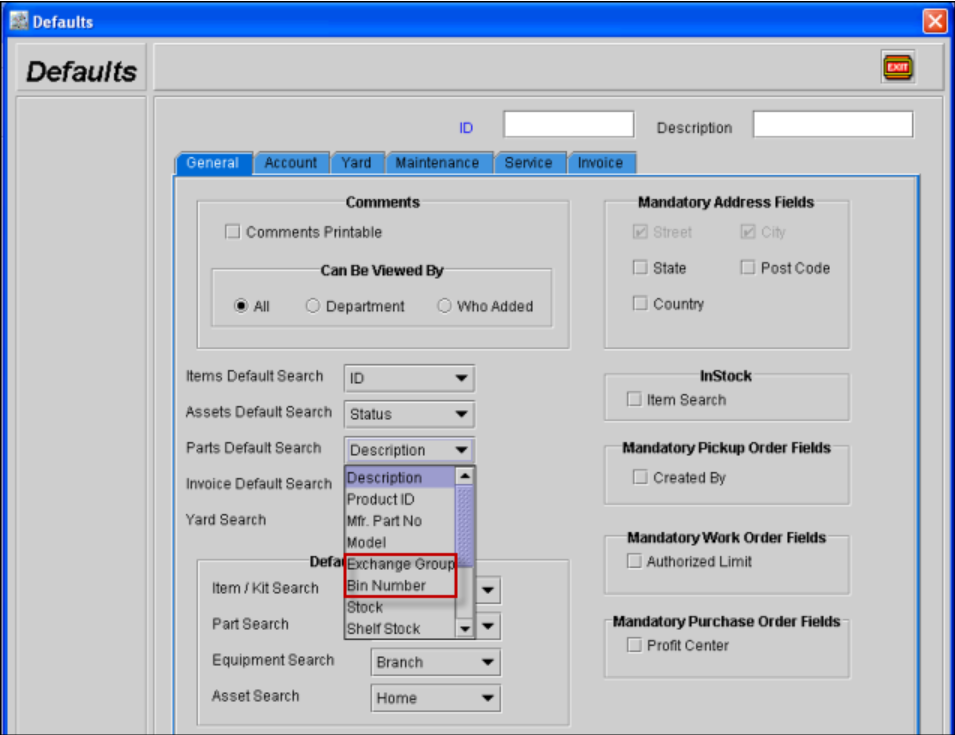
In the Defaults module, the Exchange Group and the Bin Number option were not set together as shown in Figure 1.1.
Figure 1.1
Functionality After Change
-
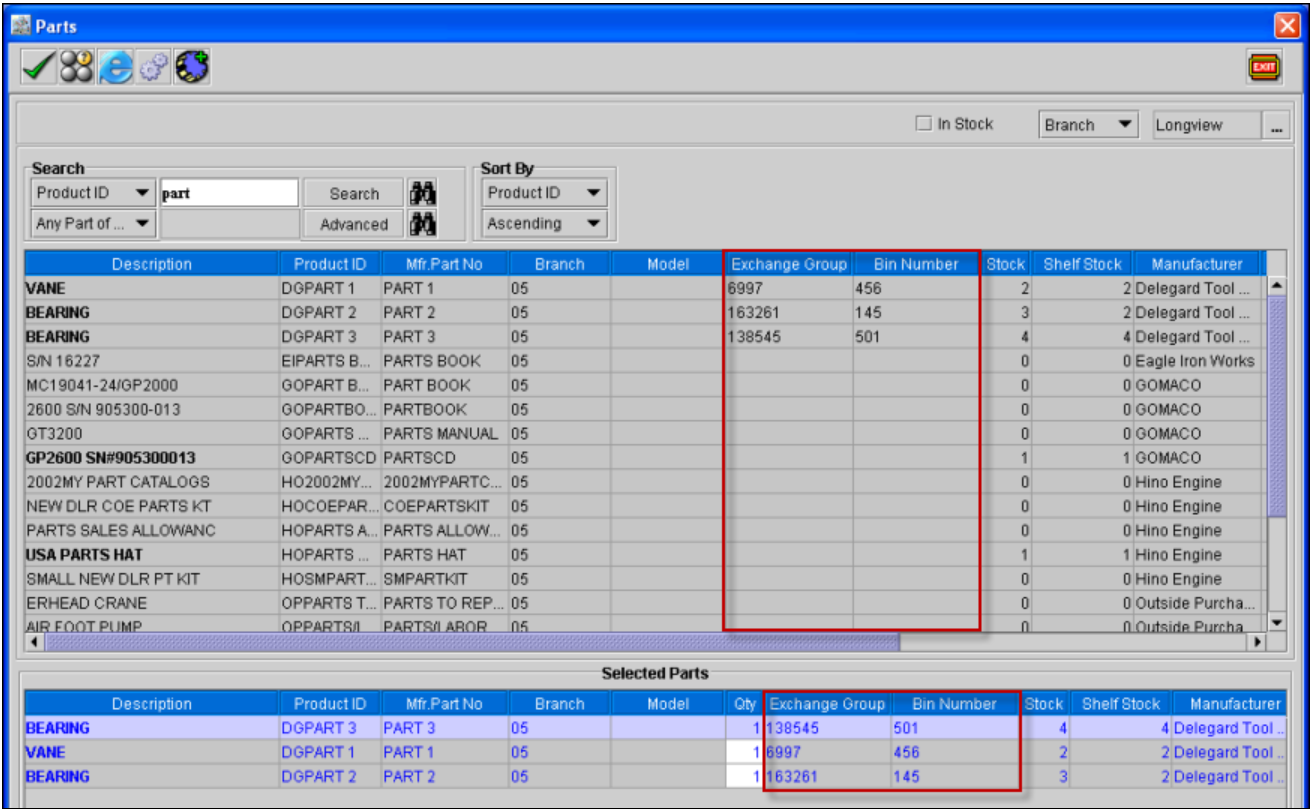
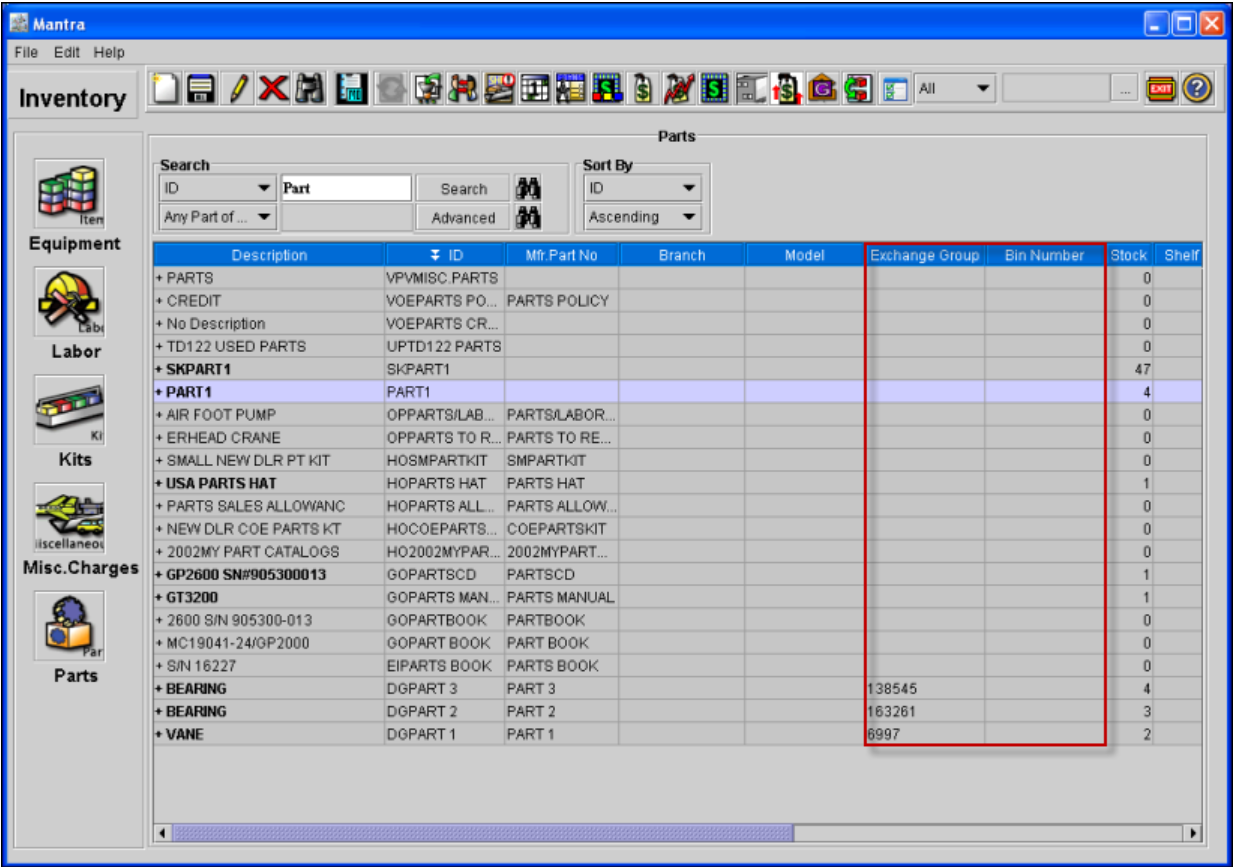
In the Parts search window, while searching a part the user will be able to view the 'Bin Number' Column along with the 'Exchange Group' column without scrolling the Scroll bar to the right side of the grid to view the 'Bin Number' Column, as shown in Figure 1.2.
Figure 1.2
-
In the Part search window of the Maintenance module, while searching a part the user will be able to view the 'Bin Number' Column along with the 'Exchange Group' column without scrolling the Scroll bar to the right side of the grid to view the 'Bin Number' Column as shown in Figure 1.3.
Figure 1.3
-
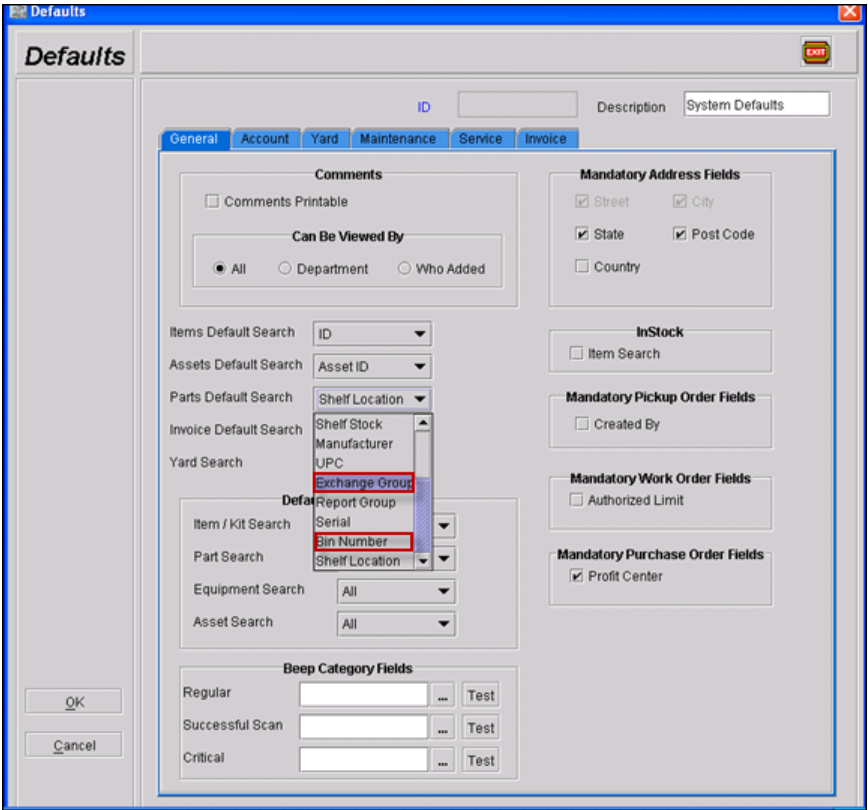
In the Defaults module, the Exchange Group and the Bin Number option are set together as shown in Figure 1.4.
Figure 1.4