
Reference No: 26259
(V 02.00.19-00)
Details
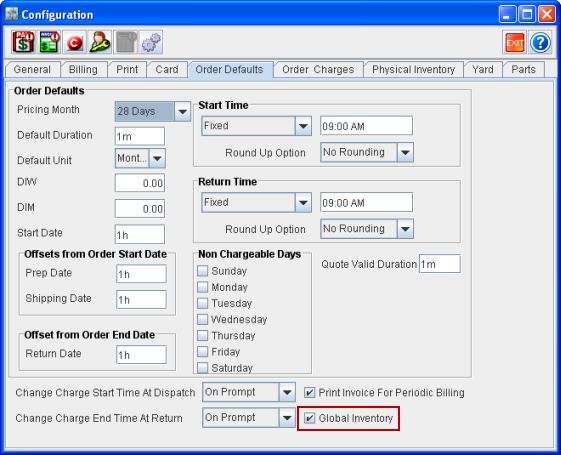
Global Inventory feature enables the quick reservation of Assets belonging to other Branches on a Rental/Sale Order by automatically changing its Current Branch to the Order’s Branch. To enable the Global Inventory feature, the Global Inventory check box in Configuration module > Order Defaults tab has to be selected.
Figure 1.0 Global Inventory check box in Configuration module > Order Defaults tab
While adding an Asset belonging to a different Branch to a Rental/Sale Order, system will display a message as shown in Figure 1.1.
Figure 1.1 Message displayed while adding Assets belonging to another Branch to an Order in Longview Branch

On clicking Yes, system will automatically change the Current Branch of the Asset to the Order's Branch and will add the Asset to the Order with status as Reserved. If one or more of the Assets' Current Branch is not able to be changed, then they will still be added to the Order with status as Not Available.
-
An Asset's Current Branch can't be changed for Assets whose Status is either Out, Filled, Repair, Lost, Missing, In Transfer, or Returned to Vendor.
If No is clicked, then the system will not change the Current Branch of the Asset and also will not add the Asset to the Order.