Reference : 22241
(V 02.00.02-00)
Details
In CR2, you can import the outstanding balance of a customer/customers in Peach Tree format through the Invoicing Module- Import Invoice Payment Details dialog. This can be done by storing the outstanding balance for the customer/customers in a text file, which can be later imported via Import Payment Details Dialog.
Steps to Import Outstanding Customer Balance:
-
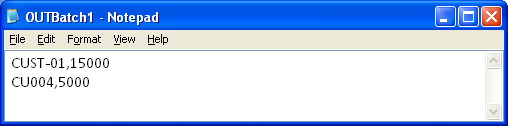
Create a text file which contains the outstanding balance information of customers, with the customer ID and balance separated by comma',' . (Refer below illustration for sample).
-
Access invoicing Module.
-
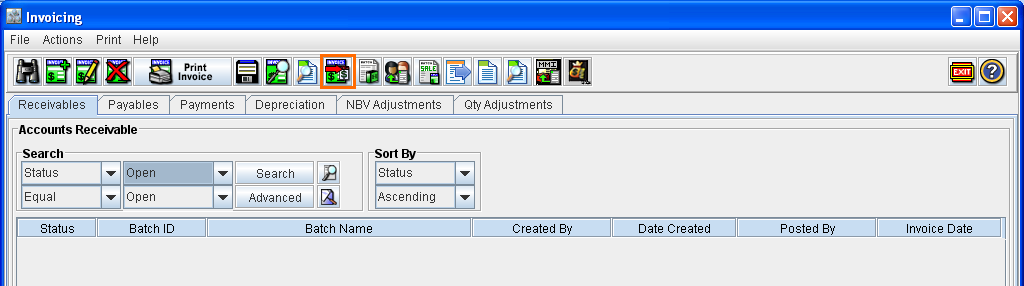
Click on the Import Payment Details Icon (as shown below) .
-
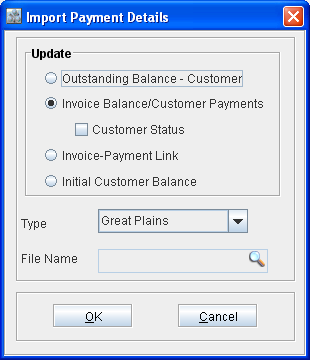
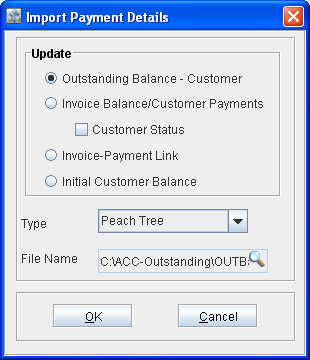
System displays the Import Payment Details dialog as shown below :
-
Set the type as 'Peach Tree' using the option present in the Type Drop down field.
-
Select the option "Outstanding Balance - Customer". (Note : The option can be selected if and only if the type is set as Peach Tree)
-
Select the text file which contains the outstanding balance information of the customers, by clicking on the import button present in the File name field. (Clicking the import button will display the file browser dialog wherein you can select the file).
-
Once completed, the Import Payment Details Dialog will be displayed as shown below :
-
Click OK to import the Outstanding Balance.
-
On importing the payment information, CR2 will locate the Customer Record for the ID and if found, the outstanding balance of the customer will be updated with the amount available for the respective customer.
-
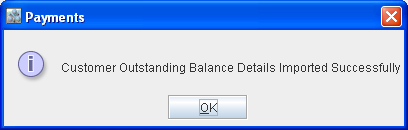
Upon successful importing of Outstanding Balance, system displays a confirmation message as shown below:
-
Click OK to close the message.
Viewing Imported Outstanding Balance Information for a Customer
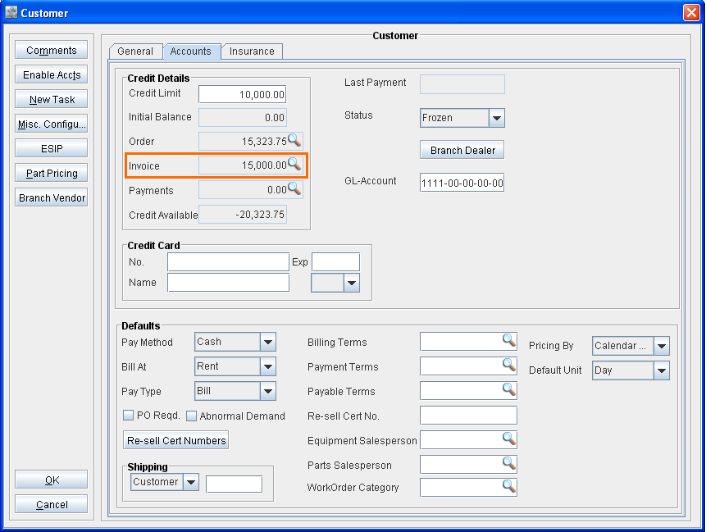
On importing outstanding balance for a customer, system will update the outstanding customer invoice balance with the imported balance details and the same can be viewed from the below locations:
-
Customer edit window - Credit Details section - Invoice Field
-
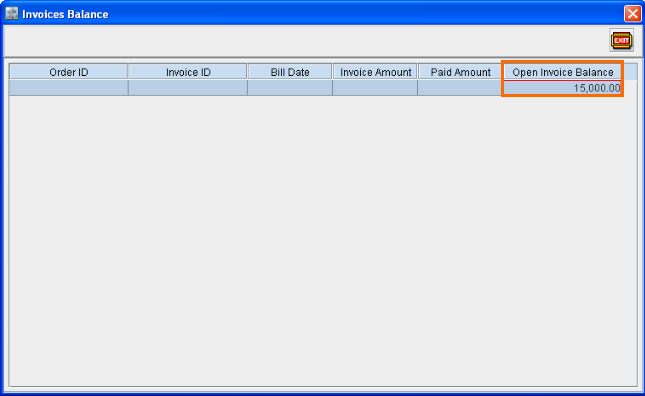
Invoices Balance window (Displayed on clicking the import button present in Customer edit window - Credit Details section - Invoice Field)