
Reference No: 24040
Table of Contents
Details
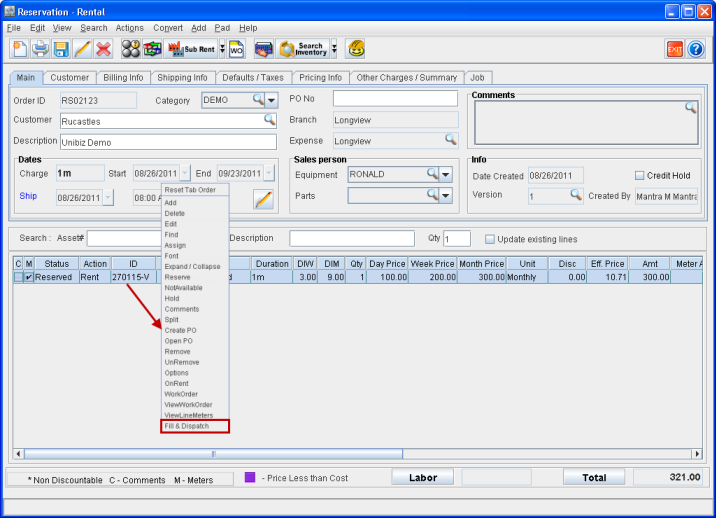
In CR2, to quickly Fill and Dispatch items which are in reserved status, use the feature Fill & Dispatch present in the right-click menu, as shown in Figure 1.0.
Figure 1.0
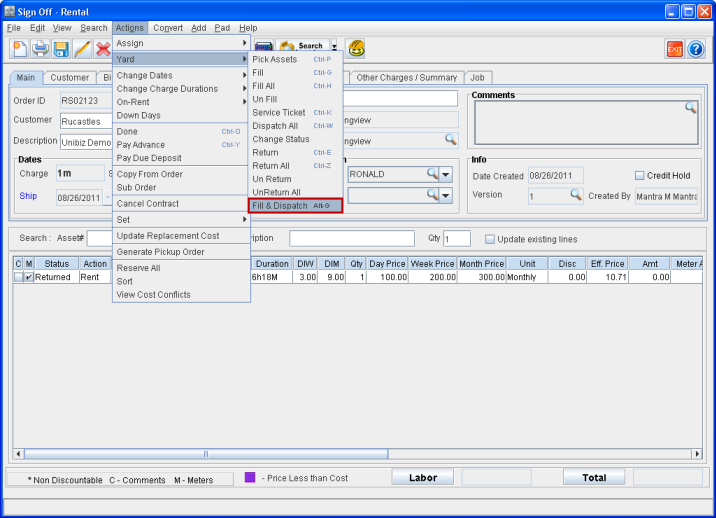
Fill and Dispatch feature can also be accessed from within a Rental Order by selecting Actions menu > Yard > Fill & Dispatch, as shown in Figure 1.
Figure 1.1
Steps to Quick Fill and Dispatch from within a Rental Order
-
Open the Rental Order whose Assets has to be filled and dispatched.
-
Click and select an Item/Asset line.
-
Right-click and open the right-click menu.
-
Select Fill & Dispatch.
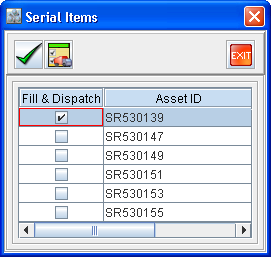
Note: If a serial Item/Equipment is selected for Fill & Dispatch, system will display the Serial Items window, as shown in Figure 2.0, with list of Assets which are currently available (Assets with status as In).
Figure 2.0
-
From within the Serial Items window, select the Assets that are to be filled and dispatched. You can select Assets in one of the following ways:
-
Selecting Assets individually by selecting the check box present in the Fill & Dispatch column for each Asset line. Click on Accept Icon.
Note: For a selected item line, system will only allow to select the assets to the maximum quantity, as defined for that item in the order. For example, for an item[EQ12] having 5 quantity defined in the line level, in the Serial Items window displayed on selecting Fill & Dispatch feature, you can select a maximum of 5 assets for the Item.
-
You can also let the system auto-select the Asset(s), from the available list of Assets for that item(s), to be added by clicking the Fill & Dispatch Icon.
-
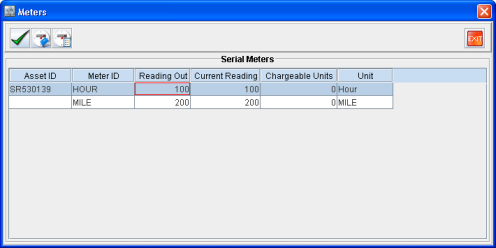
For Metered serial Item(s)/Asset(s), the Meters window will be displayed with the Reading Out field highlighted, as shown in Figure 3.0. Enter the reading out values and click Ok button.
Figure 3.0
-
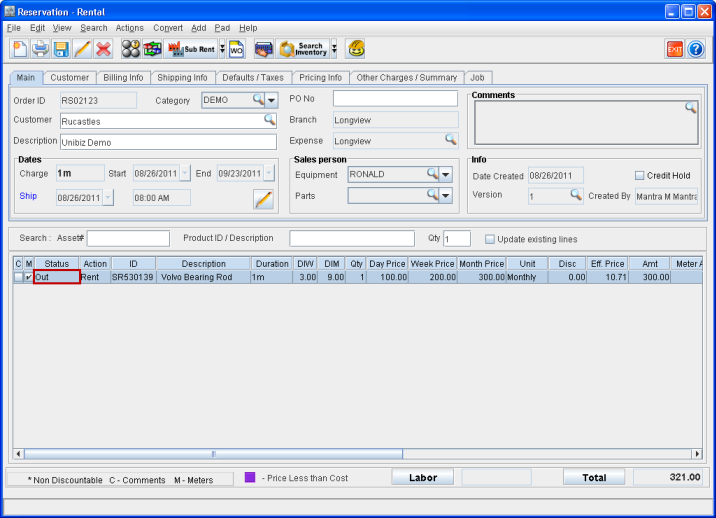
The item(s)/Asset(s) get filled and dispatched. Their line level status turns to Out, as shown in Figure 4.0.
Figure 4.0
The Order is successfully filled and dispatched.