
Reference No: 24317
Details
In CR2, you can now create User Defined Fields (UDF) for Assets of serial Items, serial Parts, and serial Kits.
Adding User Defined Field
Instructions for adding a UDF for Assets are:
-
Select CR2 > Maintenance > Assets. This opens up the Assets window.
-
Search and open an Asset. This opens up that asset's Assets edit window.
-
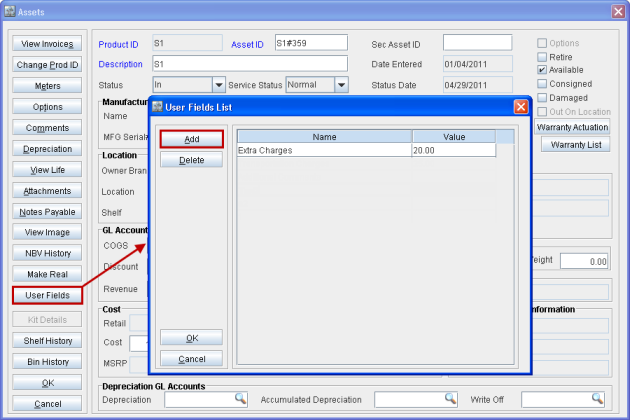
Click on User Fields button. This opens up the User Fields List window as shown in Figure 1.0 given below.
Figure 1.0 User Fields List Window
-
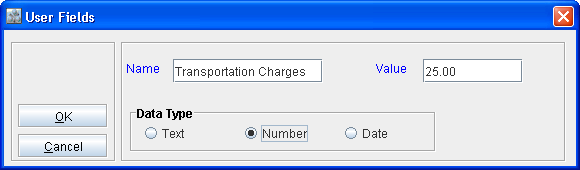
Click on Add button. This opens up the User Fields window as shown in Figure 1.1 given below.
Figure 1.1 User Fields Window
-
Enter a suitable name for the UDF using the Name field.
-
Enter a suitable value for the UDF using the Value field.
-
Select data type of this UDF as either Text, Number or Date from the Data Type section.
-
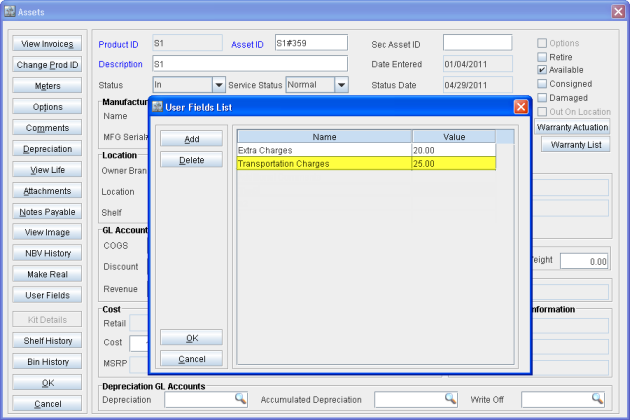
Press OK. This UDF is saved and gets displayed within the User Fields List window as shown in Figure 1.2 given below.
Figure 1.2 New User Defined Field Listed within User Fields List Window
Notes:
-
A User Defined Field once defined will be available for all Assets of all serial Items, serial Parts, and serial Kits.
-
The value of a User Defined Field has to be separately provided for each individual Asset.
-
You can change the name and/or value of a pre-defined UDF by double clicking on the respective columns within the User Fields List window and entering the new value.
-
The previously entered value for a particular UDF for an Asset can be cleared by pressing the Delete button in the User Fields List window and then pressing the OK button.