
Reference No: 23983
Table of Contents
Details
In CR2 a new Revise feature has been provided in the Taxes Window which will allow you to manually revise a Tax Schedule. Enhancement has also been made to define Tax Schedules with same ID but with different Effective Date and to consider the same on order with respect to the Order Start Date.
Functionality
Revising Tax Schedule from Taxes Window
This new enhancement allows the manual revising of a Tax Schedule already existing in CR2. The step-by-step instructions for doing the same are:
-
Select CR2 > Maintenance > System > Taxes > Search.
-
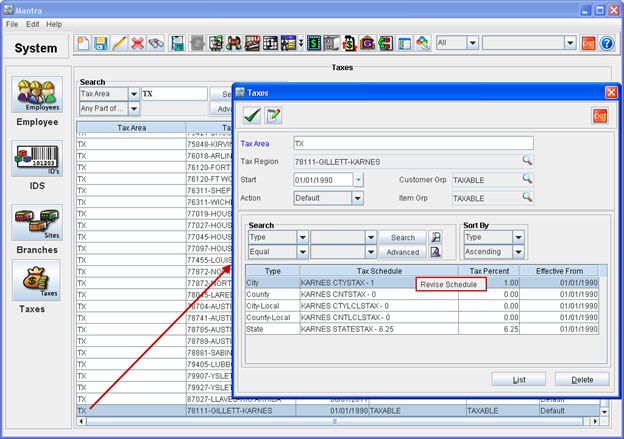
Double-click and open the Taxes window of the Tax Area of choice as shown in Fig-1 below.
The Tax Schedules applicable for that Tax Area will be listed there.
-
Right-click on any Tax Schedule to modify.
-
Select Revise Schedule as shown in Fig-1 below.
Fig-1
-
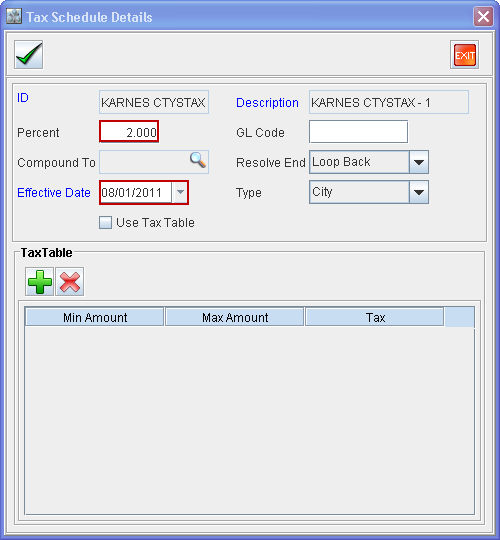
Make any modifications as need be. Refer Fig-2 below.
Note: The ID and Descriptions fields can’t be modified and are automatically populated with the existing ID and Description.
Fig-2
-
Select Ok button on Toolbar.
Notes: The system will prompt with this message &endash; Do you want to add revised Tax Schedule <Tax Schedule Name> to all applicable Tax Areas?
-
Select Yes to affect all the Tax Areas which has this Tax Schedule.
-
Select No to affect the Tax schedule of just this Tax Area.
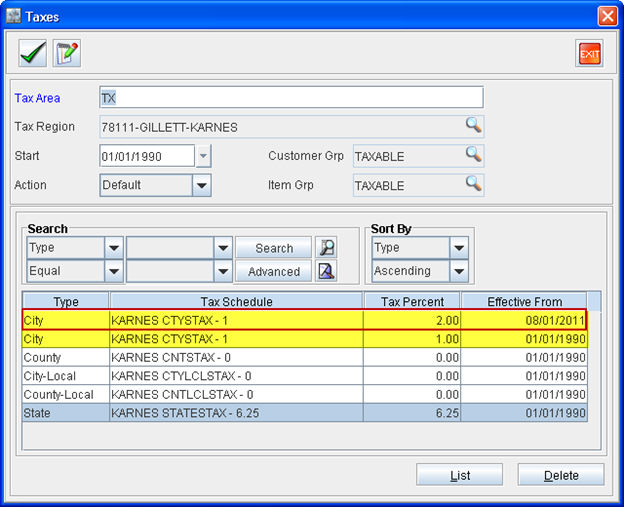
The Tax Schedule was successfully modified as shown in Fig-3 below.
Fig-3
Note: If a pre-revised Tax Schedule is attempted to be revised again as shown in Fig-4 then the system will show a new window with all the revised Tax Schedules present as shown in Fig-5 below.
Fig-4
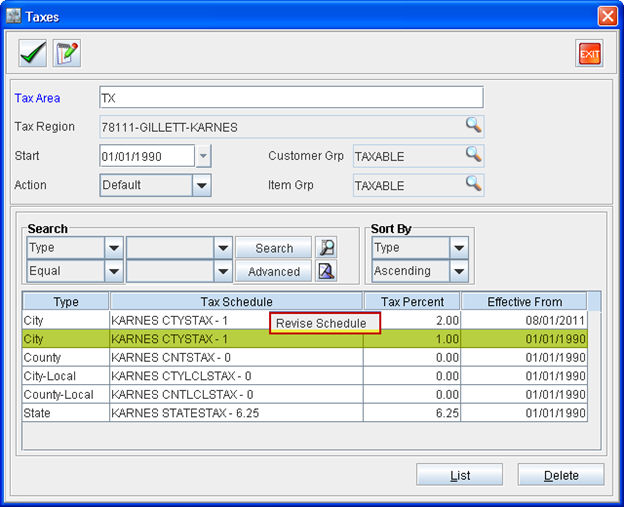
Fig-5
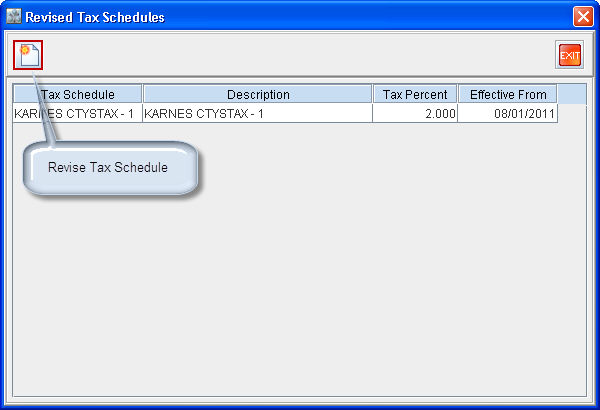
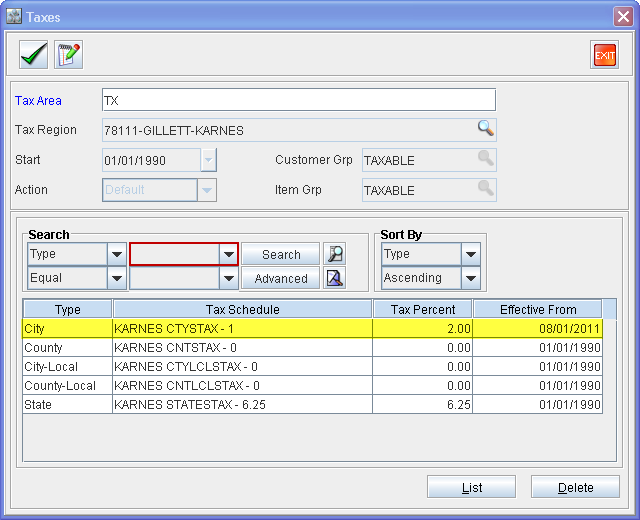
If you close the Tax Schedules window after revising a Tax Schedule and re-open it, it will appear as shown in Fig-6 below. Only the latest revised Tax Schedule will be listed in the window. The earlier version of the revised Tax Schedule can be viewed by searching for it using the search option.
Fig-6
Applying Tax Schedules to an Order
Tax Schedules can be applied to an Order by tagging the respective Tax Region to the Order. The step-by-step instructions for doing this are:
-
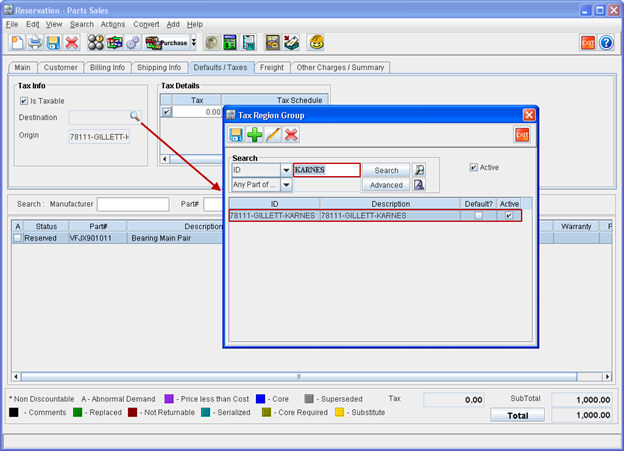
Select Defaults/Taxes tab from within an Order window as shown in Fig-7 below.
Fig-7
-
Select Destination search option.
-
Search and add the Tax Region to the Order.
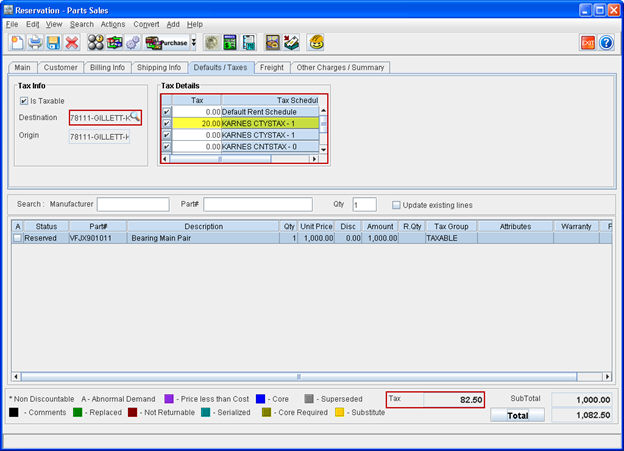
Note: By doing this all the Tax Schedules listed under that Tax Region will get listed within the Tax Details panel.
If a latest Revised Tax Schedule is present in CR2 under the selected Tax Region then that will also be listed in the Tax Details panel and will be used for calculating the Tax as shown in Fig-8 below.
Fig-8
Rules Governing Application of Tax Schedules to Orders
The Tax Schedules get applied to an Order based on the Tax Region that is tagged to that Order in the Defaults/Taxes tab.
A Tax Schedule becomes active and is available to be used in an Order if and only if its Effective Date as well as the Effective Date of the Tax Area to which it belong is earlier than that Order’s Start Date.
When a new Order is created and a Tax Region is tagged to it then the latest Tax Schedule for that Tax Region will automatically get applied to it.
Illustration-1
|
Order Type |
Order’s Date Field Used for Comparison with Effective Date of Tax Schedule |
|
Rental Order |
Start Date of Individual Item Lines |
|
Sales Order |
Order Start Date |
|
Parts Sales Order |
Order Start Date |
|
Work Order |
|
|
Order Date Created |
|
Order Start Date |
Scenarios:
The various scenarios that arise in the application of Tax Schedules to an Order are as described below. These scenarios are applicable to all types of Orders (Rental Order, Sales Order, Work Order and Parts Sale Order) unless mentioned otherwise.
Note: Consider that the CR2 has the following Tax Area, Tax Region and Tax Schedules already present in the system. There are two sets of Tax Schedules for TX, with effective Dates 01/01/90 and 08/01/11. They are in the format:
Tax Area &endash; TX
Tax Region (in the format <ZIP>-<City>-<County>) - 78111-GILLETT-KARNES
Tax Schedules (in the format <County> <Tax Type> - <Tax Rate>) -
-
KARNES CTYSTAX - 1
-
KARNES CNTSTAX - 0
-
KARNES CTYLCLSTAX - 0
-
KARNES CNTLCLSTAX - 0
-
KARNES STATESTAX - 6.25
-
When a new Order is created and a Tax Region is tagged to it then the latest Tax Schedule for that Tax Region will automatically get applied to it.
-
Order Start Date later than the Effective Date of the latest Tax Schedule &endash; Latest Tax Schedules for that Tax Area will get applied to it.
For example, the Start Date of an Order is 08/15/2011. Then the Tax Schedules created on 08/01/11 for that Tax Area will get applied to it automatically.
-
Order Start Date earlier than the Effective Date of the latest Tax Schedule &endash; Tax Schedules for that Tax Area whose Effective Date is on or before that of the Order Start Date will get applied to it.
For example, the Start Date of an Order is 07/15/2011. Then the Tax Schedules created on 01/01/90 for that Tax Area will get applied to it automatically.
Note: When an old and active Rental Order’s latest invoice gets generated then the latest Tax Schedule will get automatically applied to it since the invoice bill date is later than the Effective Date of latest Tax Schedule. But in the Rental Order window it will still show as though the earlier version of the Tax Schedule is still getting applied.
For example, The Start Date of a Rental Order is 07/15/2011.
-
Then the Tax Schedules created on 01/01/90 for that Tax Area will get applied to it automatically during the generation of its first invoice.
-
But when the second invoice gets generated, after the posting of the first invoice, for the same Rental Order, then the Tax Schedule with Effective Date 08/01/11 will get applied to it since the Invoice Bill Date is later than the Effective Date of latest Tax Schedule.
Note: At this time in the Rental Order window it will still show that the earlier Tax Schedule is still applied to this Rental Order.
-
If a Parts Sale Order (PSO) is invoiced, then cancelled and then invoiced again &endash; then the following two additional scenarios will arise thereof:
-
If the PSO was pre-existing the latest Tax Schedule:
If the PSO invoice is cancelled and then the same PSO is re-invoiced now then the latest Tax Schedule will get applied to it. In the PSO window the older Tax Schedule will be listed.
-
New Tax Schedule created with a pre-dated Effective Date:
If an existing PSO which was already invoiced with an older Tax Schedule applied is cancelled and then invoiced again, then the newly created latest Tax Schedule will get applied to it. In this case in the PSO window all the applicable Tax Schedules will be listed with the latest one applied.
Note: For the creation of Credit and Debit Memos for a posted invoice, the system will use the same Tax Schedule as was applied to the invoice.