
Reference No: 22294
(V 02.00.02-00)
Table of Contents
Define Default Customer Values for Shipping, Payment and Salesperson
Details
In Cr2, you can define the default values Ship Via, Payment Terms, Equipment and Parts Sales Person and other Billing information based on different order types, that has to be considered while creating a new customer / individual. The values which are defaulted for a customer/individual can be further editing from the respective edit window and the values will be defaulted accordingly while creating orders for the individual/customer.
Defining default values that has to be considered while creating new Customer/Individual
You can define the default values, which has to be defaulted while creating a new customer/individual using the options present in the Defaults Module- Customer Defaults section.
Steps to define default customer values in Defaults Module
Note: The below illustration is for defining default values for Customer. The same is applicable for Individual also.
-
Access Employee Edit Window
-
Click on the import button present in the Defaults Id field, to display Defaults definition search window.
-
Perform search to display the list of existing definitions.
-
Edit any existing definition or create a new Defaults definition. (Note : You can also set the default values in System Default definition, by which default values set will be applied for all the employees for whom Default ID definition is not tagged)
-
Access Maintenance Tab - Customer Sub Tab to view the contents. (Select Individual Tab, if default values has to be set for Individual customer)
-
System displays the Customer Sub Tab as shown below :
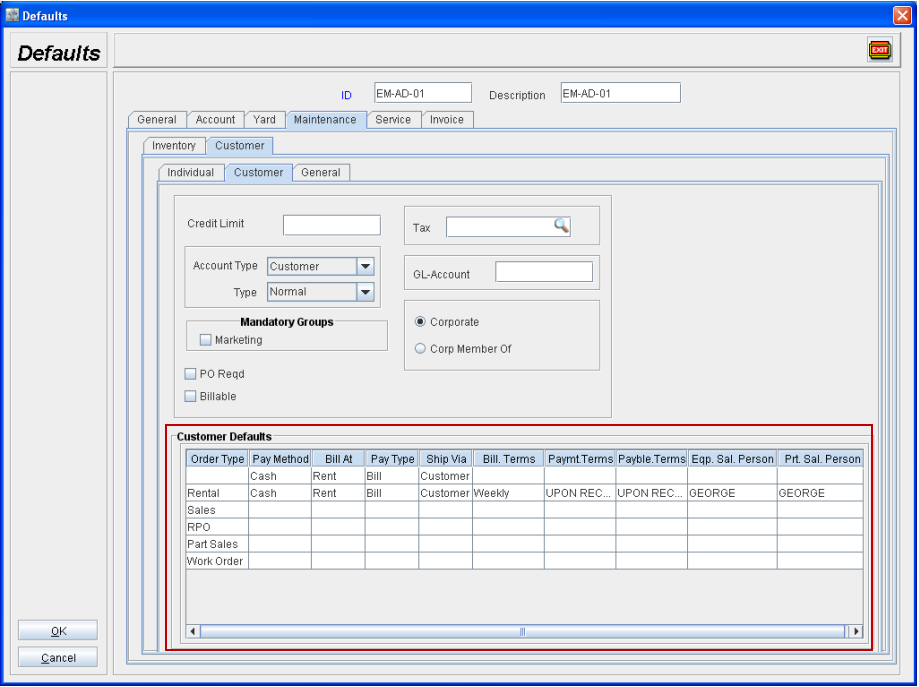
Customer Defaults Column Information
|
Column |
Description |
|
Order Type |
Non-Editable field. Displays the type of the order to which the default values set will be applied. The first definition with the Order Type as blank is considered as General definition, of which the definitions present will applied to other Order Types if a respective definition is not present. |
|
Pay Method |
Allows to set the default pay method for a order type. You can select a method from the drop down list which can invoked by clicking inside the field. 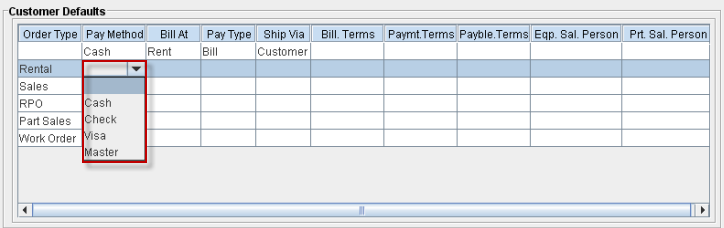
|
|
Bill At |
Allows to set the default Bill At option. You can set the default value as either Rent, Return, Periodic Billing or No Charge from the drop down list that can be invoked by clicking in the field. 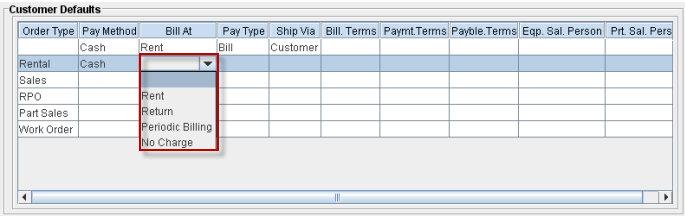
|
|
Pay Type |
Allows to set the default Pay Type. You can set the value as either Bill, Cash or Cash Only from the drop down list that can be invoked by clicking in the field. 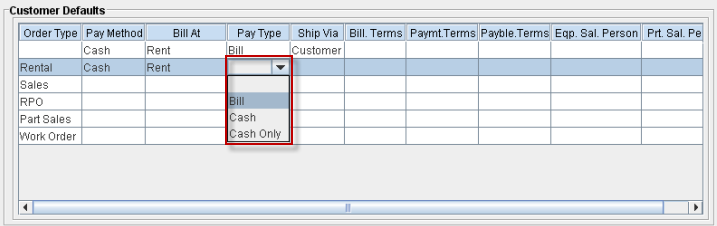
|
|
Ship via |
Allows to set the default value for Ship Via. You can set the default value from the list of available definitions using the drop down list, that can be invoked by clicking inside the field. 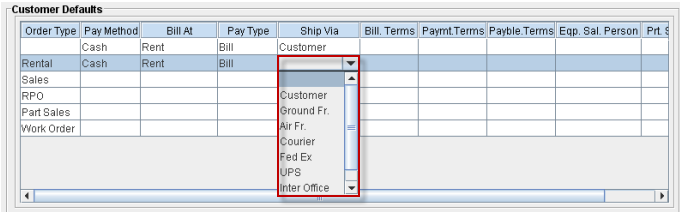
|
|
Bill.Terms |
Allows to set the default Billing Terms. You can select a default billing term from the Billing Terms window that can be invoked from within the field. 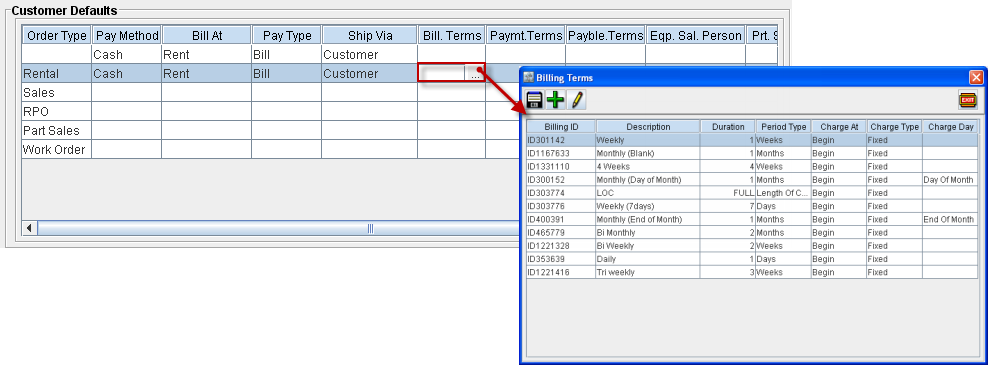
|
|
Paymt.Terms |
Allows to set default Payment Terms. You can select a default Payment Term from the Payment/Payable Terms window that can be invoked from within the field. 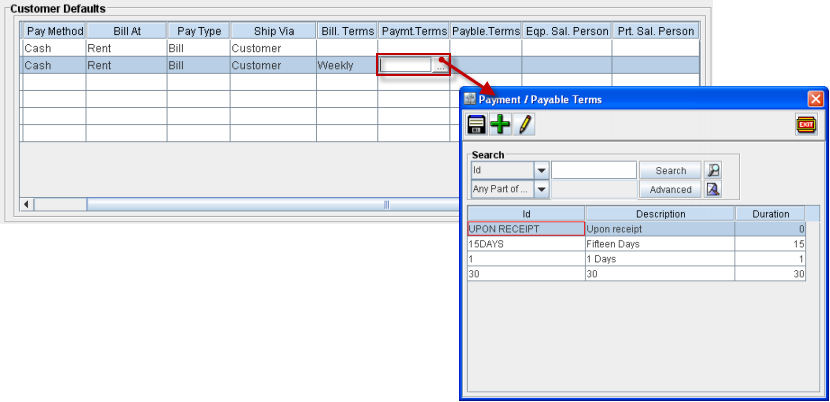
|
|
Payble.Terms |
Allows to set default Payable Terms. You can select a default Payable Term from the Payment/Payable Terms window that can be invoked from within the field. 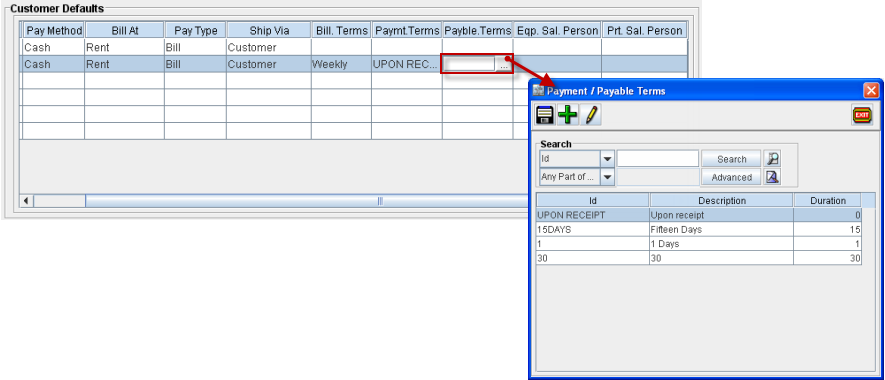
|
|
Eqp.Sal.Person |
Allows to set default Salesperson for Equipment. You can set default Salesperson for Equipment from the Employee search window, that can be invoked from within the window. 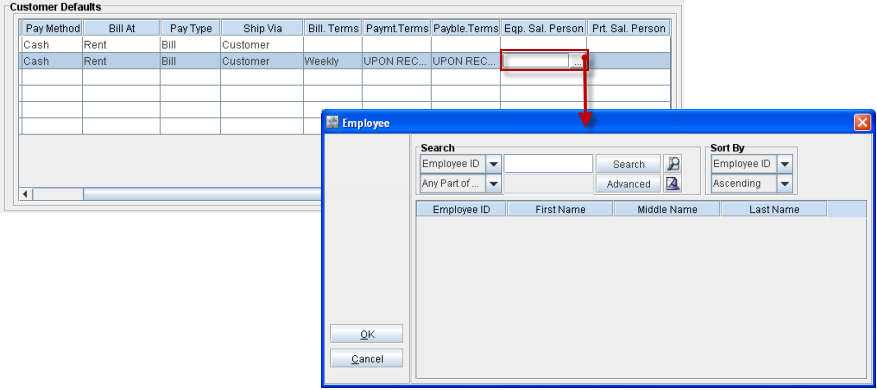
|
|
Prt.Sal.Person |
Allows to Set default Salesperson for Parts. You can set default Salesperson for Parts from the Employee search window, that can be invoked from within the window. 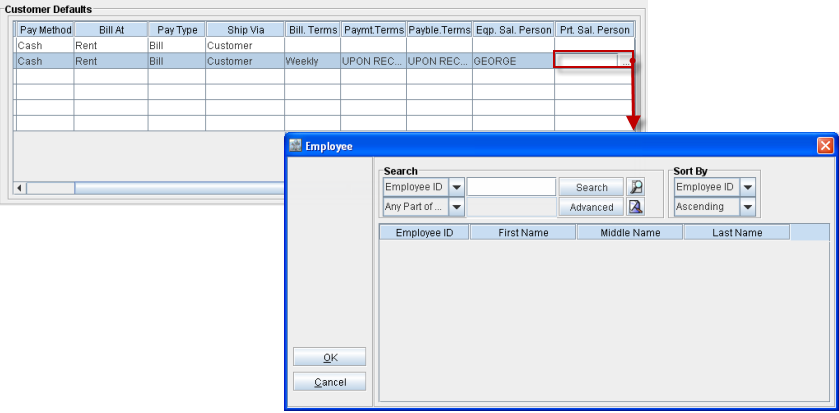
|
-
Set the default values for the Ship Via, Payment Terms, Equipment and Parts Sales Person and other Billing information as per requirement, for each Order Type.
-
Once the default values are set, click OK to save the Default definition and return to the Defaults definition search window.
-
The default values for the Ship Via, Payment Terms, Equipment and Parts Sales Person and other Billing information,defined in the default module will be considered while creating a new customer/individual based on the Defaults Definition tagged for the logged-in employe. For an employee having no Default definition tagged, system will consider only the default values defined in the System Default definition.
Defining default values that has to be considered while creating Orders
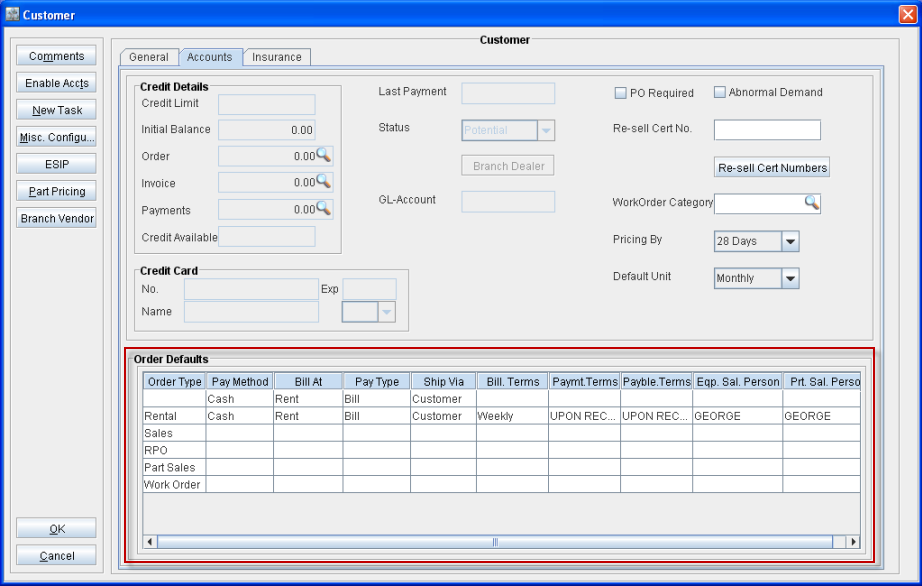
While creating a new customer, the default values set for Ship Via, Payment Terms, Equipment and Parts Sales Person and other Billing information will be defaulted to the Order Defaults section under the Accounts Tab (as shown below). The value displayed here will be considered from the Default definition tagged for the logged-in employee or from the System Defaults definition, if no Defaults definition is tagged.
Illustration (Customer - Accounts Tab)
-
You can modify any values which is displayed (excluding Order Type column), by which the modified values will be defaulted to the Order of respective type (which is modified) which is created for the customer.
-
While creating a order, if default value definition is not present for a respective category base on the Order Type, then system will consider the same value present for the category in General Type definition (the first definition present in the list with Order Type set as Blank) for the order.
-
For example, if the default value for Pay Method is not defined (set as blank) for Order Type Rental and for the General defaults definition, the Pay Method default value is present as Cash, then on creating a new rental order, system will set the default Pay Method as Cash.
Points to Note
-
System will allow to set billing terms only for periodic billing orders. When the Bill at changes from Periodic billing to any other, billing terms applied will be cleared.
-
System will not allow to save the default/customer if the default value for Bill At is set as periodic billing and no Billing Terms is tagged.
-
System will allow to Set Billing Terms only for Rental Orders and RPOs.
-
System will allow to set the Pay Type as only Bill, if the default value for Bill At is set as Periodic Billing.
-
System will not allow set blank definitions for the first four columns of general default definition (definition having order type as Blank).