Reference No: 25459
(V 02.00.16-00)
Details
The various Tasks (Prep, Dispatch, Pickup, Return, and Receive) of all types of Orders (Rental Reservation, Sales, Parts Sales, and Work Order) get automatically updated to Done in their Yard Tasks once they are completely performed on all the Items/Parts in the Order.
Configuration Settings
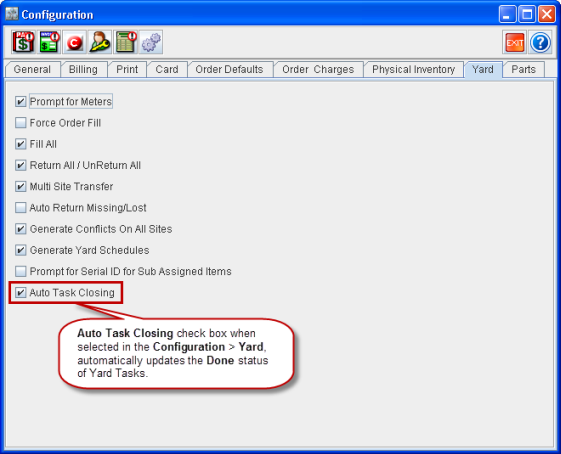
The Yard Tasks get automatically updated if, and only if, the Auto Task Closing check box in Configuration module > Yard tab is selected, as shown in Figure 1.0.
Figure 1.0 Auto Task Closing Check Box Selected in Configuration > Yard Tab
Sample Workflow
-
Select the Auto Task Closing check box in Configuration module > Yard tab.
-
Create a Rental Order [RS02590] in CR2.
-
Add an Item (for example, SR1118461) and a Part (for example, VFJX901011) to the Order.
-
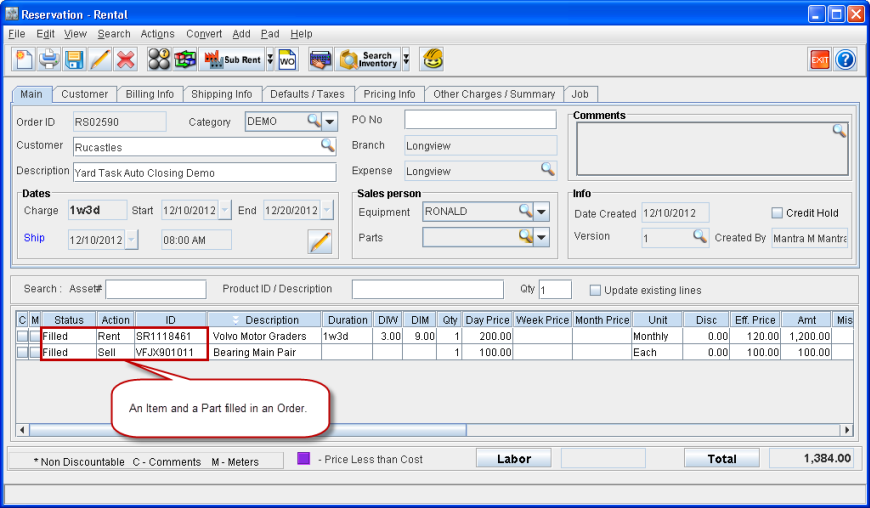
Select Actions menu > Yard > Fill All. This fills both the Items on the Order, as shown in Figure 2.0.
Figure 2.0 Items Filled on an Order
-
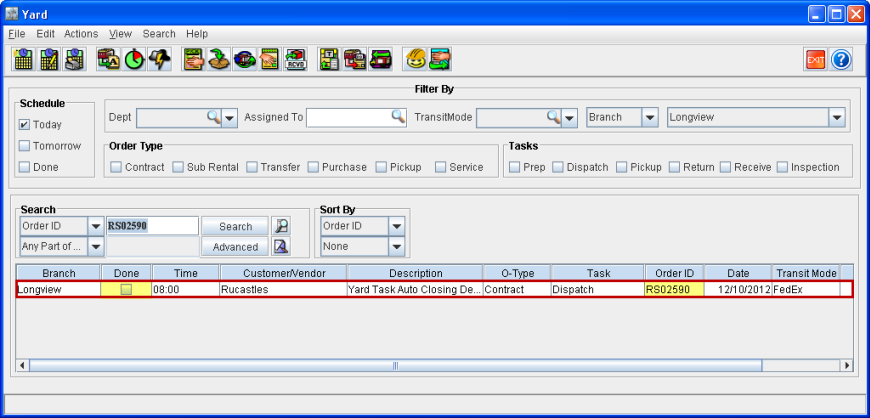
Open Yard module and check for the Yard Tasks of the Order [RS02589]. The Dispatch Task for the order is created, as shown in Figure 2.1.
Figure 2.1 Dispatch Task in Yard Module
-
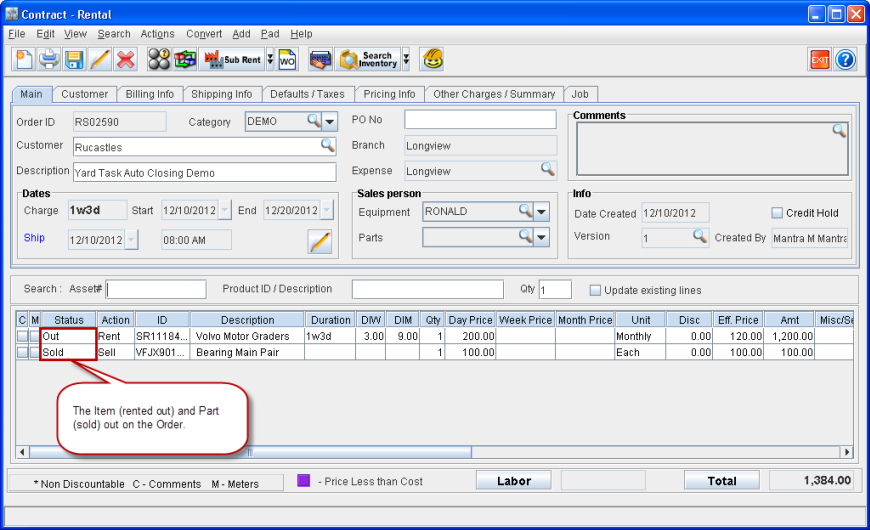
Select Actions menu > Yard > Dispatch All. This dispatches the Item and the Part present in the Order, as shown in Figure 2.3.
Figure 2.3 Items/Parts Dispatched from Order
-
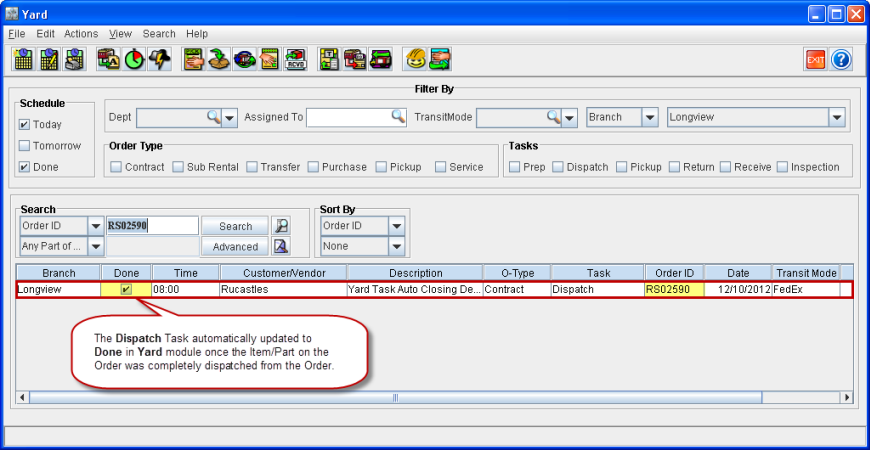
Verify the Dispatch Task of the Order in the Yard module. The Dispatch Task gets displayed with its Done check box selected, since all the items/parts in the Order has got dispatched, as shown in Figure 2.4.
Figure 2.4 Dispatch Task Auto Closed in Yard Module when Auto Task Closing Check Box is Selected in Configuration > Yard Tab