Reference: 18739
(V 01.00.82-00)
Details
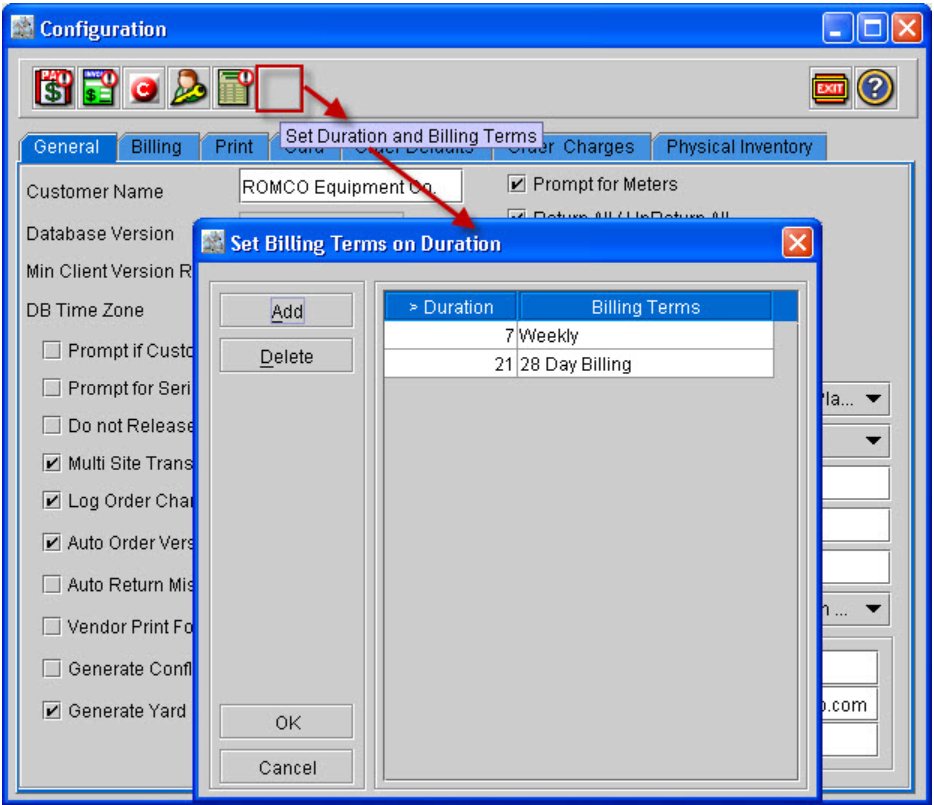
On upgrading to version 01.00.81-03, support is provided for an icon Set Duration and Billing Terms, clicking on which the Set Duration and Billing Terms dialog is displayed wherein you can define the Billing Terms that has to be applied on an Order based on the Charge Duration of the Order while posting the Invoice.
Defining Set Duration and Billing Terms in Configuration
-
Open Configuration module, click on the Set Duration and Billing Terms icon in the Tool bar. The Set Duration and Billing Terms dialog will be displayed as shown in Figure 1.0.
Figure 1.0 Set Duration and Billing Terms dialog
-
In the Set Duration and Billing Terms dialog, you will be able to Add, Edit or Delete records.
-
Click on the Add button to add a new record and define the Duration and Billing Terms that has to be applied for an Order.
-
To Edit and existing record, click in the column that has to be edited and modify the values.
-
To Delete an exiting Record, highlight the line and click on Delete.
Implementation of Set Duration and Billing Terms in Orders
-
The Billing Terms applied to the Order, will change automatically based on the Escalation records defined in Configuration > Set Duration and Billing Terms only if system finds that the Charge Duration is extended while posting the Invoice of the Order.
-
While posting an Invoice if it is found that the Charge Duration of the Order is extended but it is equal to or less then the Lowest duration record in the Set Duration and Billing Terms dialog then the Billing Terms will not change.
-
While posting an Invoice if it is found that the Charge Duration of the Order is extended and it is Greater than one of the Records defined in Set Duration and Billing Terms dialog, then system will apply the appropriate Billing Terms to the Order automatically.
-
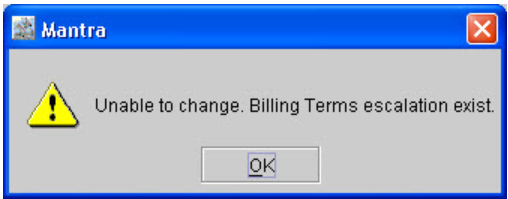
System will not allow you to change the Billing Terms of an Order if Escalation records are found in the Set Duration and Billing Terms dialog and the following message will be displayed as shown in Figure 1.1.
Figure 1.1
-
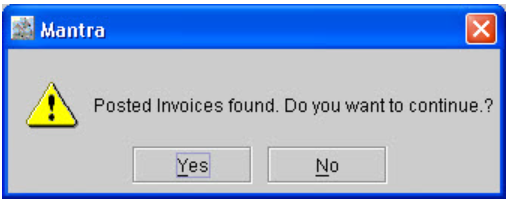
However, if no Escalation records are found in the Set Duration and Billing Terms dialog, the Billing Terms on an Order can be changed manually after the Invoice is Posted and the following message will be displayed as shown in Figure 1.2.
Figure 1.2
Illustration
-
In Set Duration and Billing Terms dialog if the definitions are as below:
Table 1.0
|
> Duration |
Billing Terms |
|
7 |
Weekly |
|
21 |
Monthly 28 Days Billing |
-
Create an Order [ORD#1], from 05/20/2009 12:00AM to 05/21/2009 12:00AM
-
Order Duration will be 2 Days, set the Billing Terms as Daily.
-
Add an item [NBV] with Price as 100.
-
Fill and Ship the Items, Invoice the Order.
-
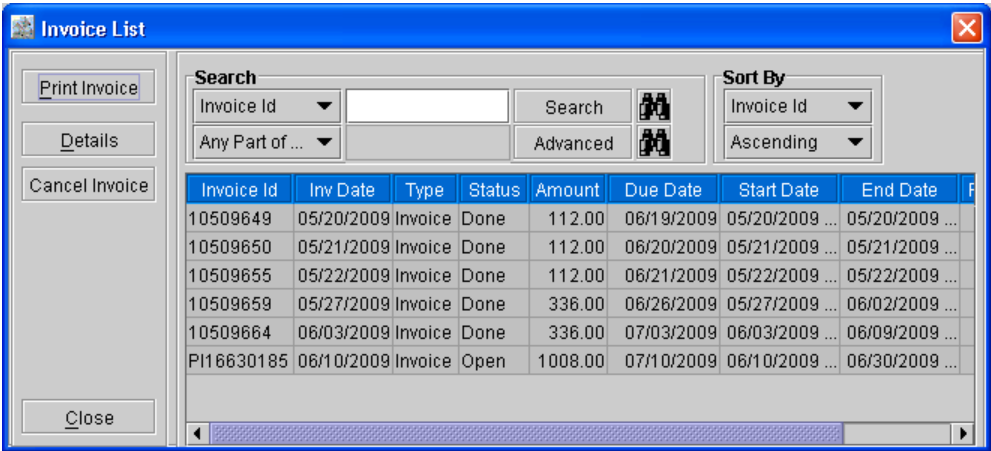
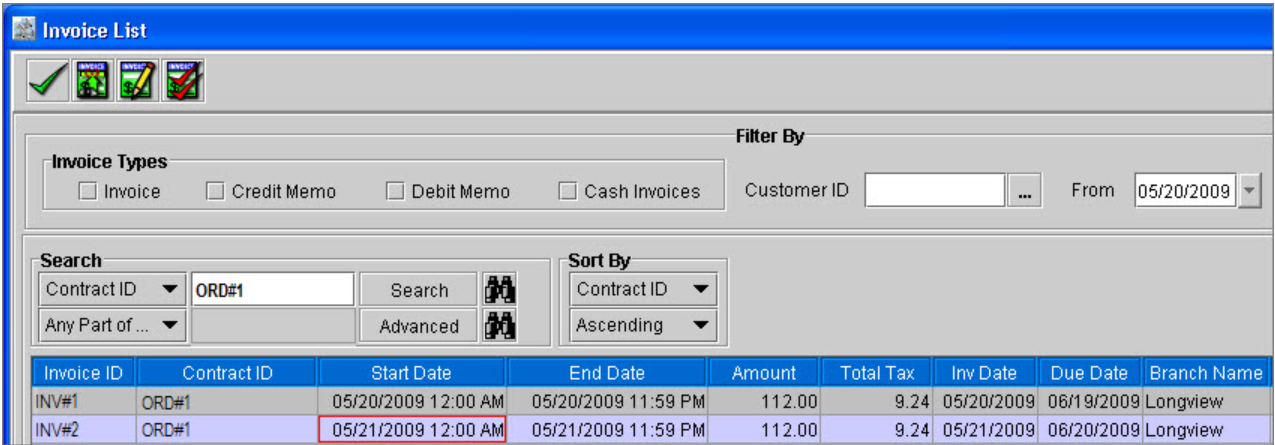
System will generate 2 Invoices [INV#1] and [INV#2] as shown in Figure 1.3.
Figure 1.3
-
Add [INV#1] and [INV#2] to a batch.
-
Post the Invoices and Verify the Order:
-
The Order Charge Duration will be displayed as 3.
-
The Billing Terms on the Order has not changed as the Charge Duration is still less then or Equal to the 3.
-
Invoice the Order, [INV#3] will be generated with Start Date as 05/22/2009 12:00AM to 05/22/2009 11:59 PM.
-
Post [INV#3], Verify the Order.
Figure 1.4
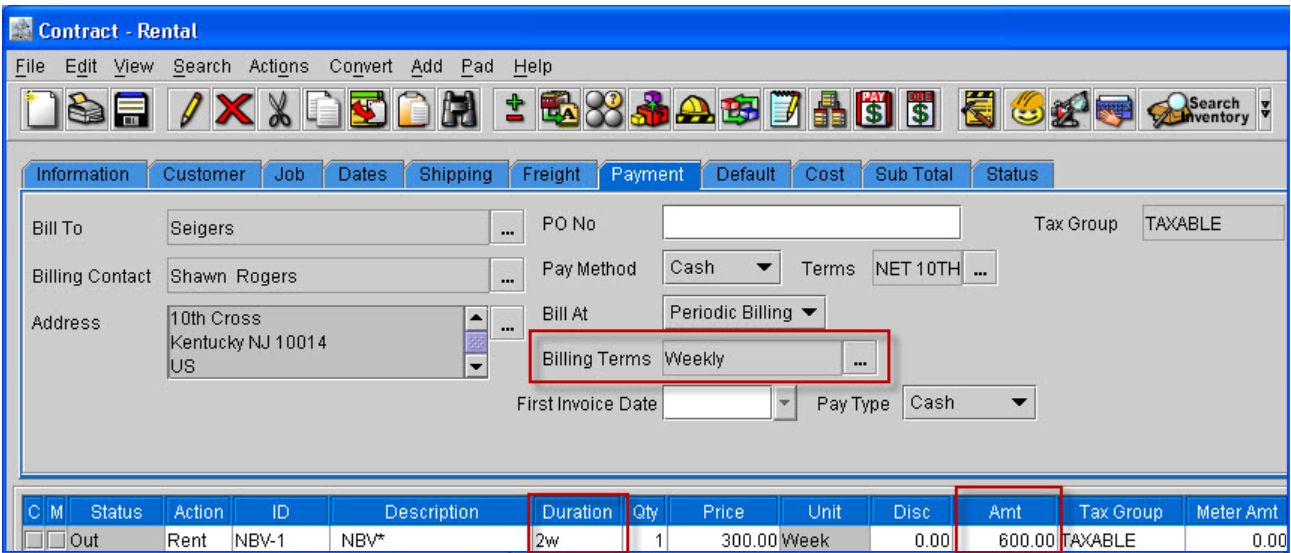
In the Image above
-
The Billing Terms has changed to Weekly from Daily.
-
The Order Duration has changed to 2W.
-
Amount is calculated as 600, (1week is 3 days therefore for 1week Price is 300, therefore 2 weeks is will be 600).
-
Invoice the Order, [INV#4] will be generated as shown in Figure 1.5.
Figure 1.5
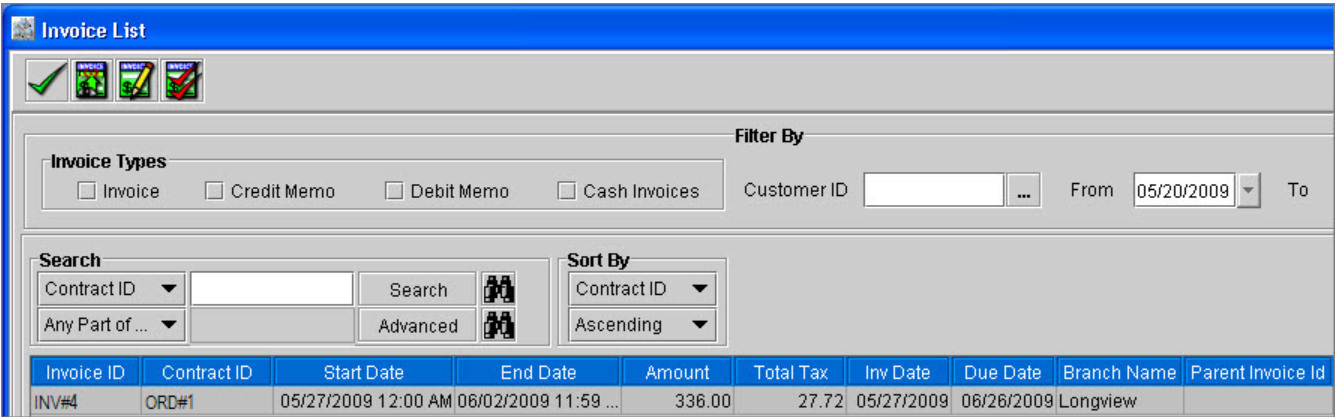
In the Image above
-
The Start Date of the Invoice is from 05/27/2009 and End Date is 06/02/2009.
Note: [INV#3] End Date was 05/22/2009 and [INV#4] Start Date is 05/27/2009, this is because the last 4 days [23rd, 24th, 25th and 26th] of the Week is not Billed as Charge Duration greater than 3 days is considered as Week, since in Configuration DIW is defined as 3.
-
Post [INV#4] and verify the Order, the Order Duration will change to 3 Weeks .
-
Invoice the Order, [INV#5] will be generated with Start Date from 06/03/2009 to 06/09/2009.
-
Post [INV#5], verify the Order.
Figure 1.6
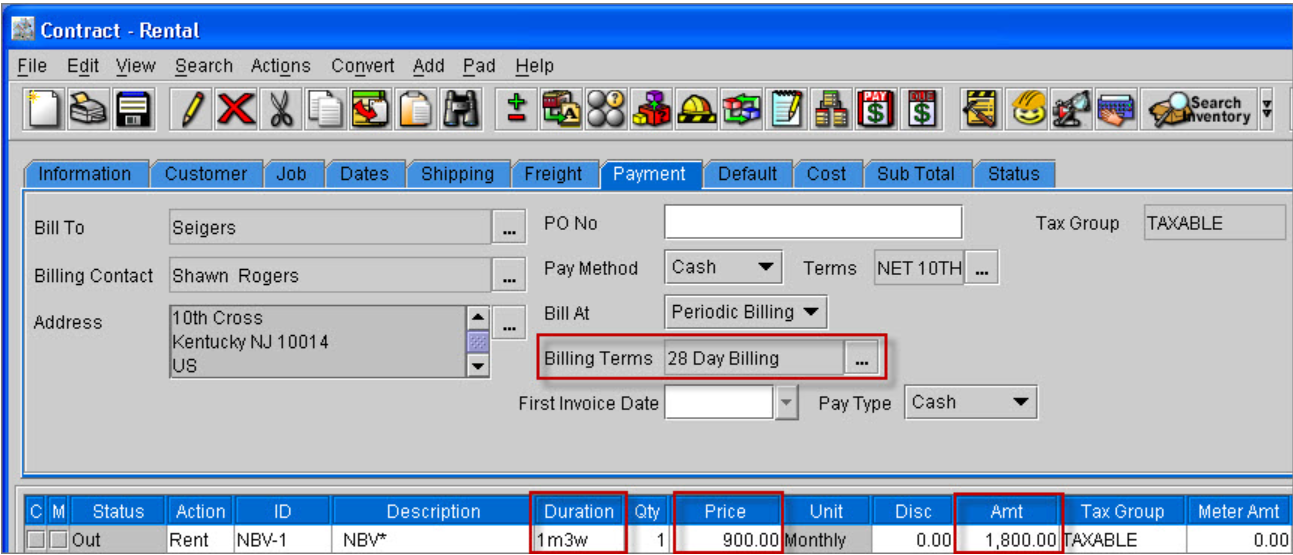
In the image above
-
Billing Terms has changed to Monthly 28 Days Billing from Weekly.
-
Order Duration has changed to 1m3w.
-
Price is displayed in terms of month 900. i.e. 1 week is 300, therefore 3 weeks is 900.
-
Amount is calculated for 1m3weeks = 1800.
Figure 1.7 Sample Invoice List for an Order where the Order Duration has changed