
Reference No: 24548
(V 02.00.11-00)
Details
In CR2, new print filters are added to the Pick List print window for both Parts and Equipment, as shown in Fig 1.0.
Fig 1.0 Pick List Print Window With Newly Added Print Filters
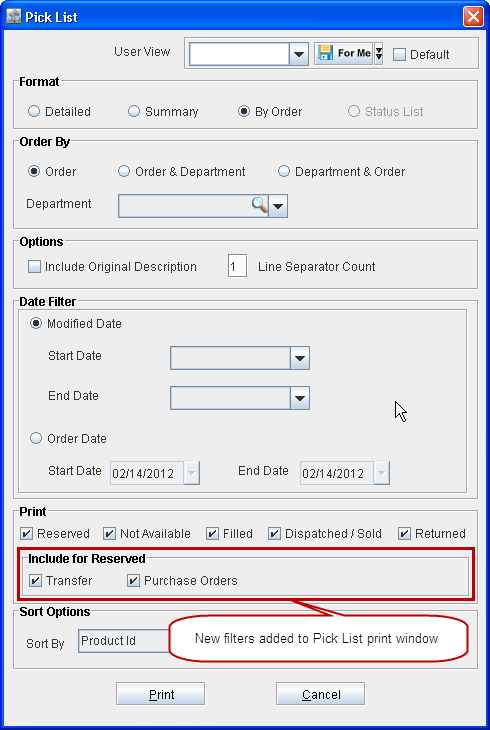
The print filters can be selected to include the item lines which satisfy the corresponding condition in the Pick List print generated. When no User View is selected, then all the check boxes within the Print section will be selected, by default, upon opening the Pick List print window.
Note: Earlier, if Reserved check box was selected in the Pick List print window, item lines with status as Reserved and also as Not Available used to get printed. From now on, only item lines with status as Reserved will get printed if Reserved check box is selected. To include item lines with status as Not Available select Not Available check box within the Print section.
The print filters can be used to select item lines with specific statuses and thus to include only those in the Pick List print, as described in table 1.0 given below.
Table 1.0 Item Lines Which Gets Included in Pick List Print Based On Selections within Print Section
|
Selected Print Filter |
Statuses (Item lines with following statuses will get included in the Pick List print) |
|
Reserved |
Reserved |
|
Include for Reserved |
This section gets enabled only if the Reserved check box is selected. |
|
Transfer, T-Reserved, T-Assign |
|
Purchase, P-Assign, S-Assign, S-Rent |
|
Not Available |
Not Available |
|
Filled |
Filled, S-Filled |
|
Dispatched/Sold |
Out, Sold, S-Out, Off-Rent, Overdue |
|
Returned |
Returned, S-Returned, Returned Core, Missing, Lost, Damaged |
Note: If multiple check boxes are selected within the Print Section then all the item lines with corresponding statuses will get included in the Pick List print.