
Reference: 22914
Table of Contents
Details
In CR2, you can use the User View feature to save the custom Filter Settings, Search Criteria and Sort By options which are used while performing Search Operations. The saved settings can be later accessed from the respective window using the User View list.
Components of User View feature

|
1 |
User View List field |
The User View list field is an editable drop down field, using which you can define the name for new User View profile or to select an existing User View profile.
Blank User View Profiles
In addition to the user view profiles which are created (by defining name and following selecting save level), system automatically updates user view profile with no name (blank user view profile), which was present in window when it was last exited. |
|
2 |
User View Save Level |
In CR2, you can create a User View profile as either Logged-in User level or as System level (available only for administrator users) . This can be done by defining the user view name and followed by selecting the respective save level. A User View profile can be saved as logged-in user level by selecting the For Me option or can be saved as System level by selecting the option For System. (Refer Illustration below). 
|
|
3 |
Default |
The default check box can be used to select a user view profile as the default profile. When you set a user view profile as default, then on opening the respective window , the default profile will be set as the current User View. Points to Note
|
Saving (Defining) User Views
The User Views can be saved in two levels as either Logged-In-User level or in System Level . When an user view is saved in Logged-In User level, the saved user views will be available only for the user who created the user view. If the User View is saved in System Level, the saved user view will be available for all the users. However, only employees who has Administrative rights can save the user views in System Level.
Saving User Views in Logged-In-User Level
-
Access the CR2 feature window in which User view profiles has to be created.
-
Set the status and values for the filters/search criteria, which has to be saved.
-
In the User View field, type in a Name in which the filters/search criteria need to be saved.
-
Select the option Default, if the created user view has to be set as default for the logged in User.
Note : The User View set as Default for user level will be displayed as the active user view, when same user (who has created the user default user view) access the respective window.
-
Click on the For Me button next to the User View field.

The User View will be saved with the given name and can be later used by the logged in employee.
Saving User Views for All Users (System Level)
Note : The option "System" will be visible and available for use only if the logged in user has Administrative rights.
-
Access the CR2 feature window in which User view profiles has to be created.
-
Set the status and values for the filters/search criteria, which has to be saved.
-
In the User View field, type in a Name in which the filters/search criteria need to be saved.
-
Select the option Default, if the created user view has to be set as default for all the users.
Note: The User View which is set as Default for system will be displayed as active User View field for the all the Users who does not have a default User View saved at User level.
-
Click on the drop down arrow next to the For Me button (as shown below) to display the option For System.

The User View will be saved with the given name and can be later used by all employees.
Using Saved User Views
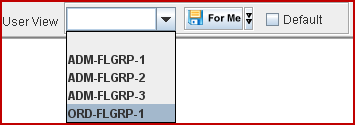
Once a user view profile has been created, you can access the created profile (or any other profile)from the User View list which can be accessed by clicking the drop down button present in the field. (Refer illustration below).
Illustration
Points To Note
-
When a user logs-in to the application, the User Views saved by the logged in user using For Me option as well as the User Views saved by the Admin using the For System options will be available for selection.
-
On selecting a saved User View and making changes to the filter and clicking on the For Me button or For System button with same user view selected, CR2 will update the saved view with the new filter options.
-
To Delete the a saved User View, select the view to be deleted and press the Delete key on the keyboard. On pressing delete key, system will prompt the message ’Do you want to delete this user view’. On clicking ”Yes”, the user view will be deleted.
-
On creating a system level user view, the created user view can be edited/deleted by only the employees who have Administrative rights.
Additional Notes
Currently in CR2, the User View feature is supported in the below listed locations
-
Search Orders ( In Accounts Module)
-
Advance Search Window.
-
Search Inventory
|
CR2 Window |
Supported Settings |
|
Search Orders (In Accounts Module) |
|
|
Advance Search Window |
|
|
Search Inventory |
|
The User Views document is updated. For more information on the same, click here.