Reference: 25457
(V 02.00.16-00)
Details
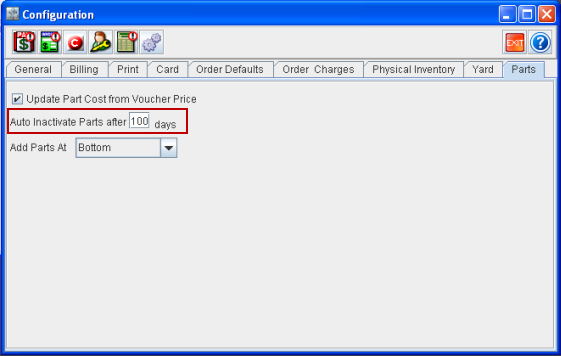
In CR2, you can inactivate the Part automatically, if the part is not used for the number of days as defined in the Configuration module > Parts tab > Auto Inactive Parts after (<Text field>) days field and only if the Parts stock is zero in all the branches.
Figure 1.0 Auto Inactive Parts after Field Under Parts Tab of the Configuration Module with the Sample Data
The Parts will be set as Inactive automatically if the Part is not used for the number of days as defined in the configuration and if the Parts stock is zero in all branches.
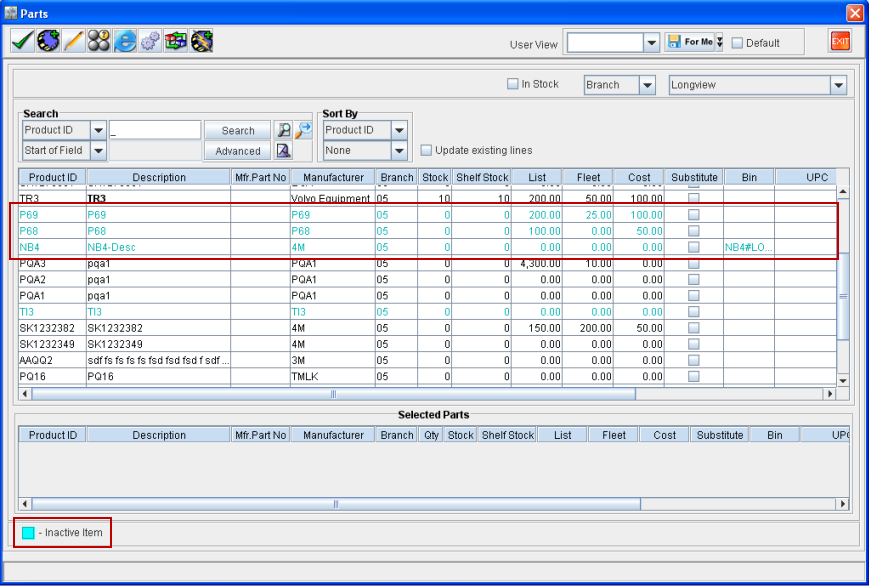
The inactive Part is searchable in the search lists and is highlighted in Aqua color as shown in Figure 1.1.
Figure 1.1 Sample Inactive Parts Highlighted in the Search Window
Inactive Parts
The system will provide the lists of inactivated parts when the parts transaction is not done for a number of days as defined in the Configuration. These service will be automatically generated by the system, using a program which is scheduled to be executed on every midnight.
The inactive parts can be changed to active by selecting the Active check box > OK in the Parts edit window, there by making the part available to be added on an Order.
Note: The inactive Parts cannot be added on an Order.
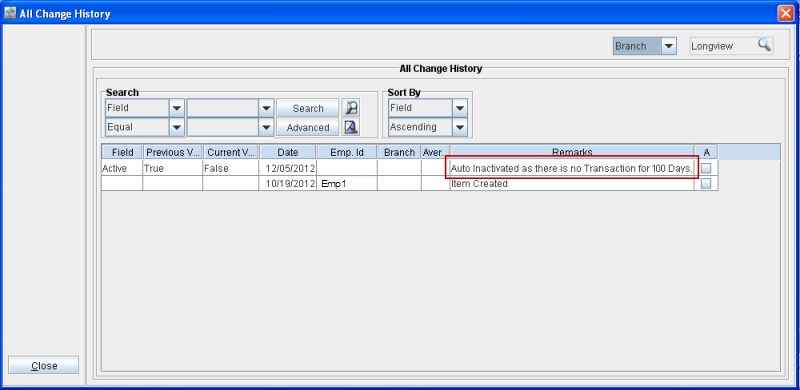
Figure 1.2 System Generated Message for the Sample Inactive Part in the All Change History Widow