
V 02.00.01-00)
Details
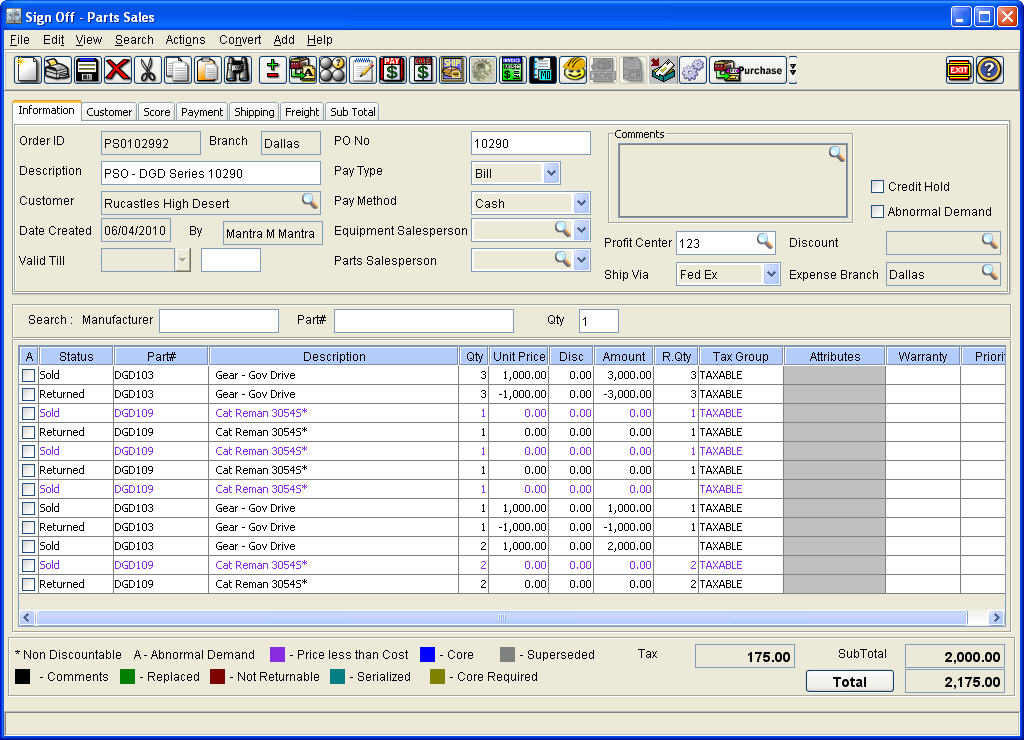
In Cr2, you can change the look and feel of the user interfaces by applying color themes. This can be done either by using the pre-defined themes or by manually configuring the color for each element of the user interface in Cr2colorschemes.ini. Cr2 provides you pre-defined themes (Cr2,Metal,Motif, Cr2XP, Windows), from which you can select a theme that has to be applied in the application.
Applying Color Themes using pre-defined Themes
To apply pre-defined color themes in Cr2, a new parameter 'DEFAULTTHEME' along with the code of the color theme has to be added the R2.ini file. For example, if you want to apply the color theme 'CR2',. in R2.ini you have to define color theme as 'DEFAULTTHEME=CR2'. On completing the updation of R2.ini with the DEFAULTTHEME parameter, restart the application to see its effect.
Illustration
Usage : DEFAULTTHEME=[ThemeName]
Example: DEFAULTTHEME=CR2
Color Theme Illustration
-
CR2
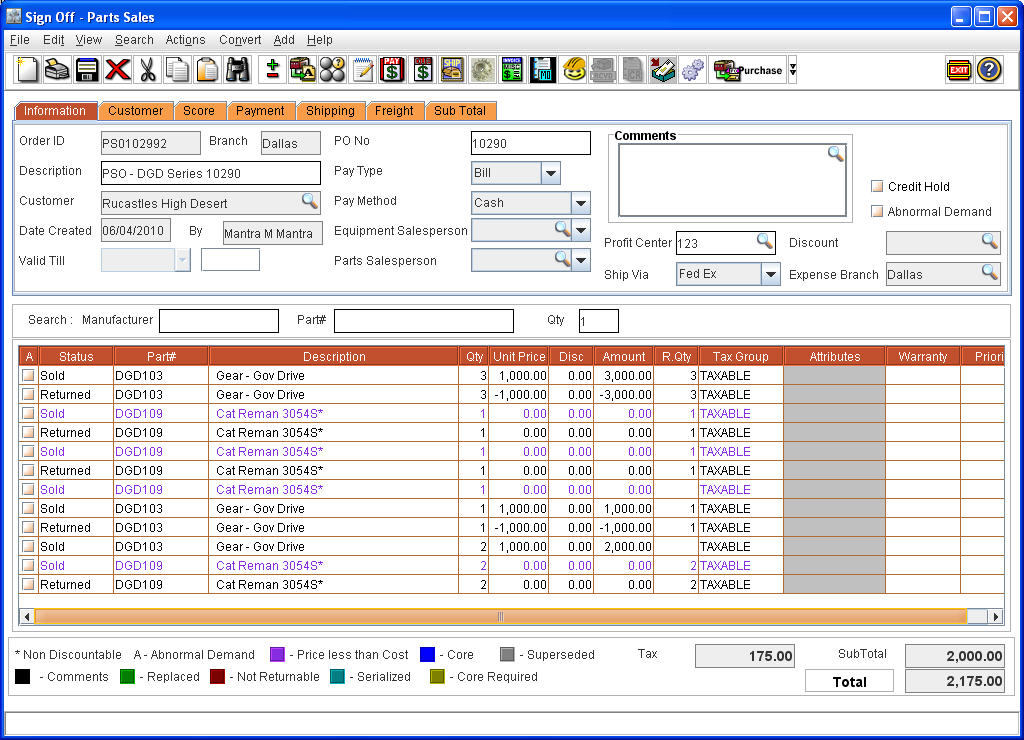
-
Metal
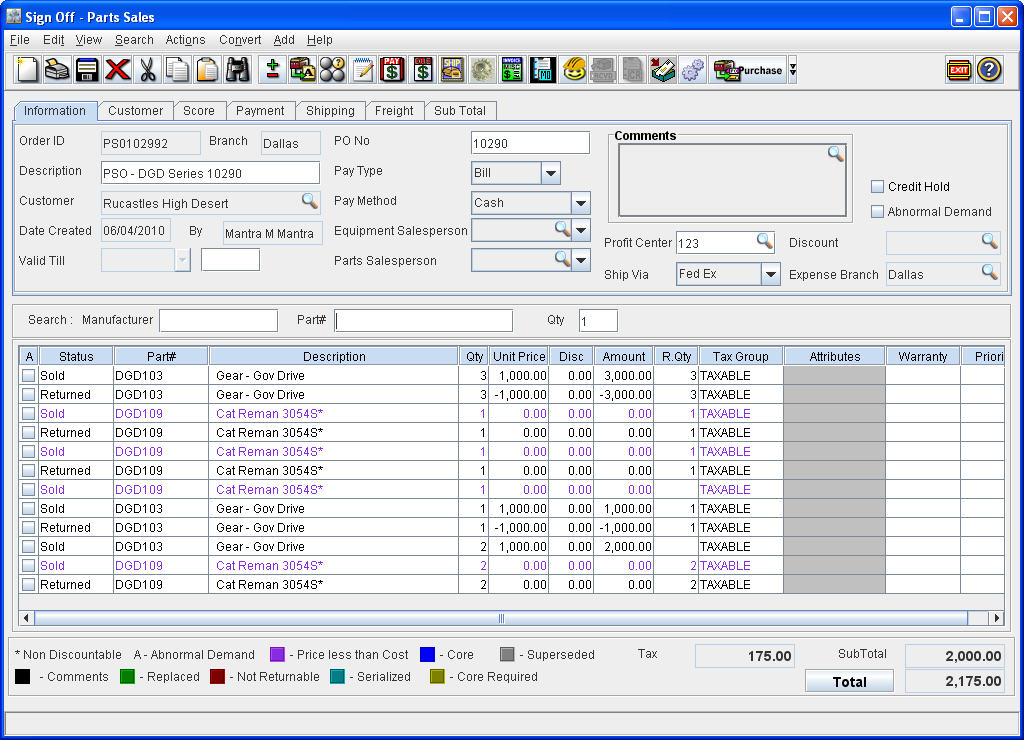
-
Motif
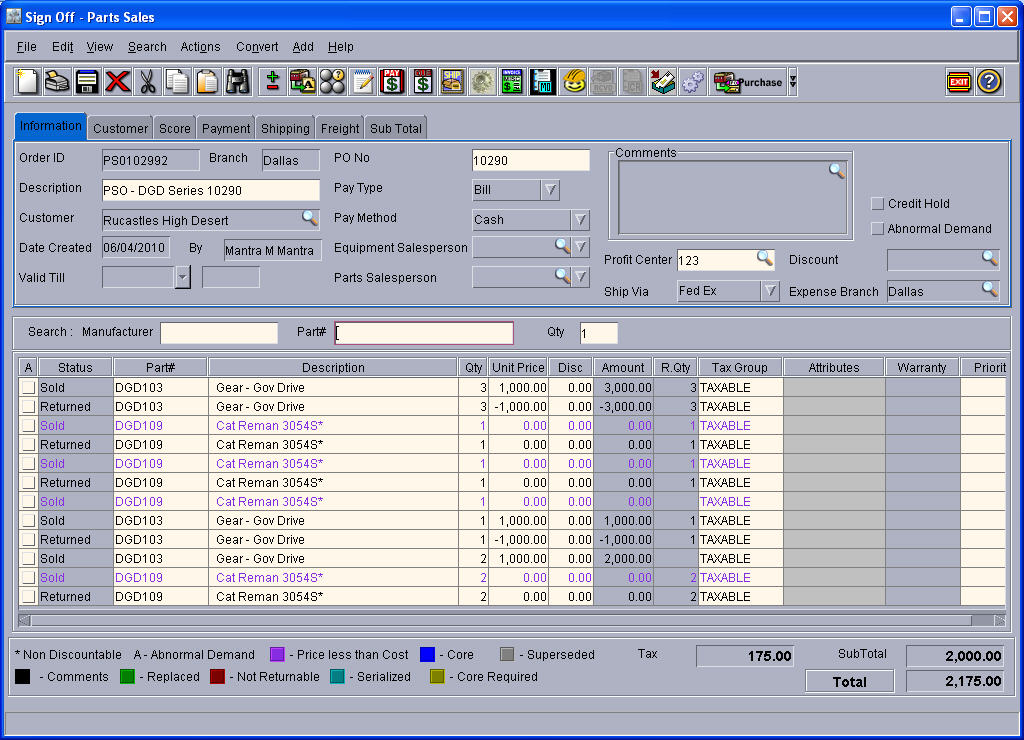
-
CR2XP
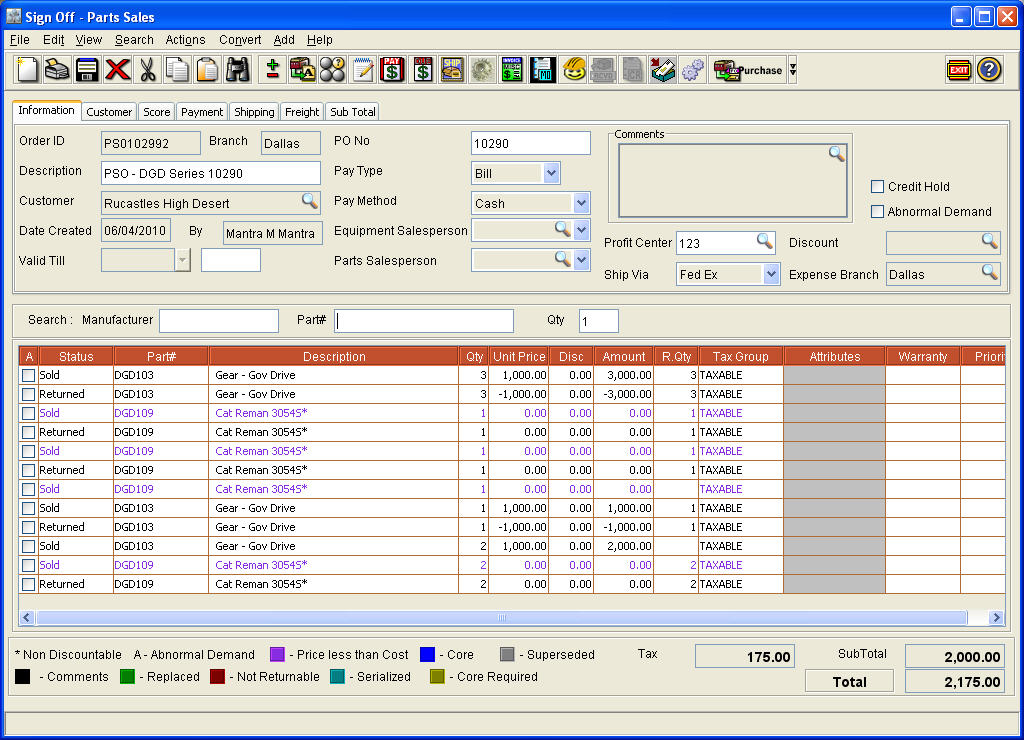
-
Windows
Applying Color Themes using CR2COLORSCHEMES.INI
In addition to the usage of pre-defined themes for applying color themes, you can also custom define color for each element present in an user interface. If the color theme is defined using Cr2colorscheme.ini, then system will ignore the DEFAULTTHEME parameter present in the R2.ini and will consider only the color configuration present in Cr2colorscheme.ini.
CR2 Color Conventions
CR2 uses the RGB color model to decide the color setting of the various windows in the application. This model combines the three primary colors, Red, Green and Blue in various ways to generate different colors.
You can set the value for each color using any integer between 0 and 255 which represents their color intensity, and reproduce a different color of their choice.
For example: If the RGB setting is configurated as follows:
BUTTON_BACKGROUND_COLOR=0, 0, 0, then the background of the buttons, in the application window will become black in color.
Steps to modify the colors in the window background
Given below are the parameters which decide which part of the window will be affected by modifying the RGB values.
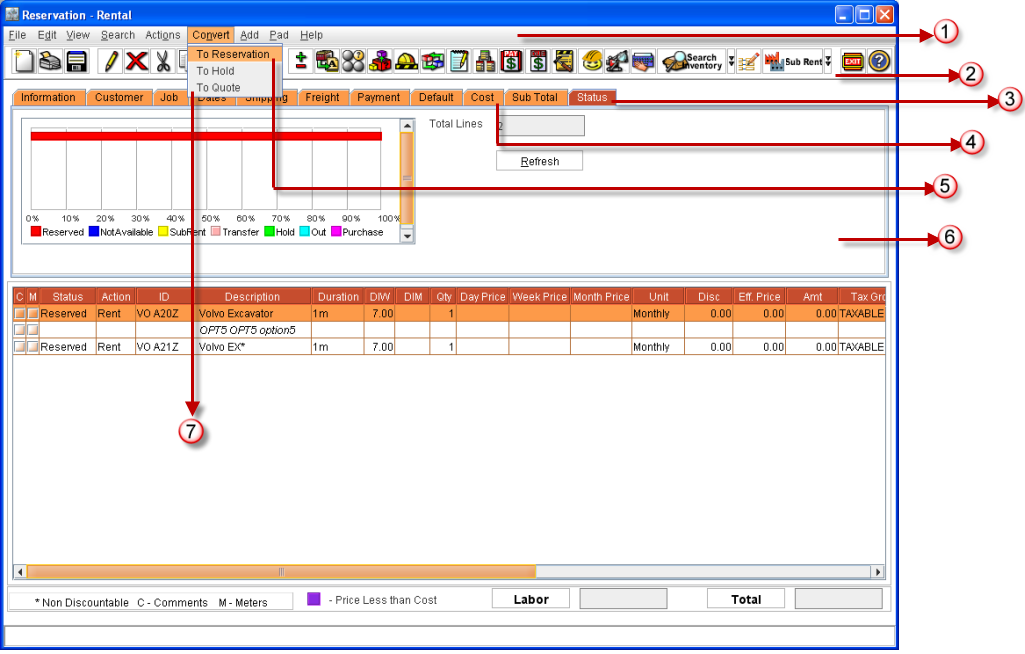
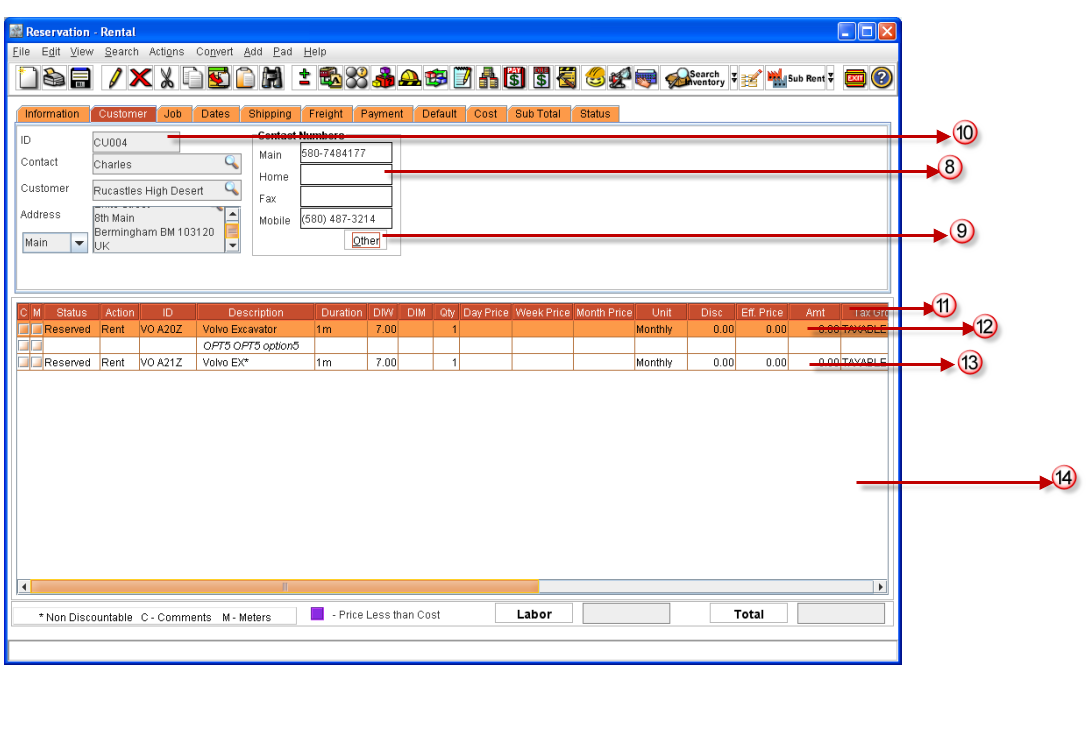
The numbers given in Figure 1 and Figure 2 indicate the areas in the window where the color is altered, when changes to the corresponding parameters are made.
Figure 1
|
|
Parameter |
Description |
|
1 |
MENUBAR_BACKGROUND_COLOR |
Sets the color of the menu bar background. |
|
2 |
TOOLBAR_BACKGROUND_COLOR |
Sets the color of the tool bar background. (This feature is currently not active in CR2) |
|
3 |
ACTIVE_TAB_BACKGROUND_COLOR |
Sets the color of an active tab |
|
4 |
INACTIVE_TAB_BACKGROUND_COLOR |
Sets the color of an inactive tab |
|
5 |
MENU_SELECTION_BACKGROUND_COLOR |
Sets the color of the drop down menu background when an action on the menu bar is selected |
|
6 |
APPLICATION_BACKGROUND_COLOR |
Sets the color of the application background |
|
7 |
MENU_BACKGROUND_COLOR |
Sets the color of the menu background |
Figure 2
|
|
Parameter |
Description |
|
8 |
ENABLED_DATA_FIELD_BACKGROUND_COLOR |
Sets the color of an enabled field |
|
9 |
BUTTON_BACKGROUND_COLOR |
Sets the color of a button background |
|
10 |
DISABLED_DATA_FIELD_BACKGROUND_COLOR |
Sets the color of a disabled field |
|
11 |
GRID_HEADER_BACKGROUND_COLOR |
Sets the color of a grid header background |
|
12 |
GRID_SELECTION_BACKGROUND_COLOR |
Sets the color when a line in the grid is selected |
|
13 |
GRID_DATA_BACKGROUND_COLOR |
Sets the color of a grid data header background |
|
14 |
GRID_BACKGROUND_COLOR |
Sets the color of the grid background |
To modify the appearance of the window foreground
The color settings of the foreground of the application can be modified by making changes to the following parameters.
|
|
Parameter |
Description |
|
1 |
MENUBAR_FOREGROUND_COLOR |
Sets the color of the menu bar foreground |
|
2 |
TOOLBAR_FOREGROUND _COLOR |
Sets the color of the toolbar foreground |
|
3 |
ACTIVE_TAB_FOREGROUND_COLOR |
Sets the color of an active tab |
|
4 |
INACTIVE_TAB_FOREGROUND_COLOR |
Sets the color of an inactive tab |
|
5 |
MENU_SELECTION_FOREGROUND_COLOR |
Sets the color of the dropdown menu foreground when an action on the menu bar is selected |
|
6 |
APPLICATION_FOREGROUND_COLOR |
Sets the color of the application foreground |
|
7 |
MENU_FOREGROUND_COLOR |
Sets the color of the dropdown menu foreground |
|
8 |
ENABLED_DATA_FIELD_BACKGROUND_COLOR |
Sets the color of an enabled field |
|
9 |
BUTTON_FOREGROUND_COLOR |
Sets the color of a button foreground |
|
10 |
DISABLED_DATA_FIELD_FOREGROUND_COLOR |
Sets the color of a disabled field |
|
11 |
GRID_HEADER_FOREGROUND_COLOR |
Sets the color of a grid header foreground |
|
12 |
GRID_SELECTION_FOREGROUND_COLOR |
Sets the color when a line in the grid is selected |
|
13 |
GRID_DATA_FOREGROUND_COLOR |
Sets the color of a grid data header foreground |