
Reference No:18812
(V 01.00.87-00)
Table of Contents
Details
Executive Inventory Ageing Report is used to view all the ageing details of parts in the inventory.
Filtering the Report
The report can be filtered by:
-
Site
-
Date
To generate 'Executive Inventory Ageing' Report
-
Access Report module in CR2 Launch Pad.
-
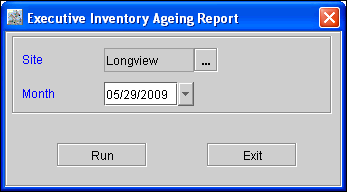
Select Sales > Executive Inventory Ageing to display Executive Inventory Ageing Report options dialog box where you can define the required options to generate the report, as shown in Figure 1.0.
Figure 1.0
-
Select the filtering options.
-
Click Run to generate the Report.
Sample Report
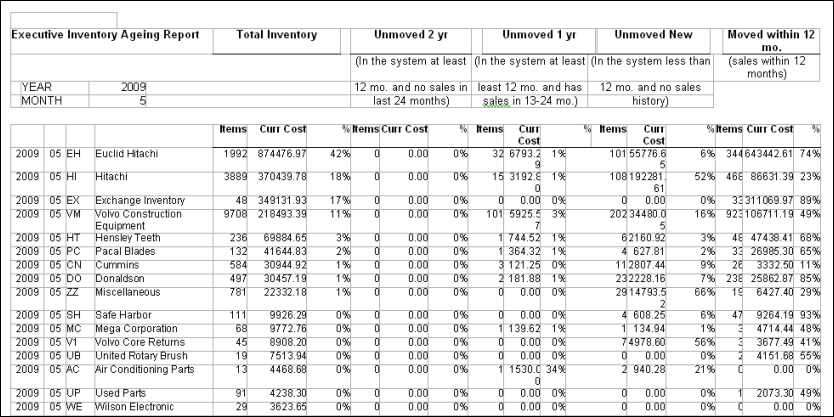
Executive Inventory Ageing Report Field Information
|
Fields |
Descriptions |
|
Year |
The year for which the report is generated. |
|
Branch ID |
Unique identification number of the Branch for which the report is generated. |
|
Manufacturer ID |
Unique identification number of the Manufacturer. |
|
Manufacturer Name |
Name of the Manufacturer. |
|
Total Inventory |
Total Stock in the Inventory.
|
|
Unmoved 2 year |
In the system,at least 12 months (If there was any tier with any unsold quantity before 1 year) and no sales in the last 24 months.
|
|
Unmoved 1 year |
In the system,at least 12 months ( if there was any tier with any unsold quantity before 1 year) and has sales within 13 to 24 months.
|
|
Unmoved New |
In the system,less than 12 months (if there is any tier with any unsold quantity within the last 1 year) and no sales history.
|
|
Moved within 12 months |
If there is sales within 12 months.
|
|
Total |
Total of all the columns. |
Also read Additional Changes in Executive Inventory Aging Report and Changes in Executive Inventory Aging Report