Reference No: 19577
(V 01.00.91-00)
Functionality Before Change
Receive scanning
Tagging PO’s
To begin with Receive scanning, the user has to tag a list of Purchase Orders on which parts are to be received and before scanning a part the user has to select a PO from the list of PO’s initially tagged. The user can also receive parts without selecting any PO but those parts are received without any PO reference and can later be assigned a PO.
Ordering of scanned parts receive records
System displays the most recent part received record at the end of the window.
Exceptions
There are various scenarios with the current design because of which the users have to stop the scanning process and provide some input to the system to further scan parts.
Currently all exceptions interrupt the scanning process and are available for viewing only until the user is in the receive batch. These exceptions can only be printed and once the user exits the batch, these exceptions are lost.
Quantity Field in the scan dialog
The Quantity field retains the previously scanned quantity.
Replaced Parts
If a Superseding part has to be received on a PO, the user has to first manually replace the ’Replaced’ part on the PO with the ’Superseding’ part and then receive the part.
-
Purchasing replaced parts - Currently there is no restriction on ordering replaced parts.
-
Replaced parts indicator on orders - The replaced part color coded box indicator on orders is not enough for the user to be easily notice that the part being added has been replaced.
Functionality After Change
Receive Scanning
Before starting the scanning process, the users need to tag a list of PO’s on which parts are being received. This can be done using the PO Search window, which will be displayed on selecting Scan PO Items Icon from the Batch Edit window.
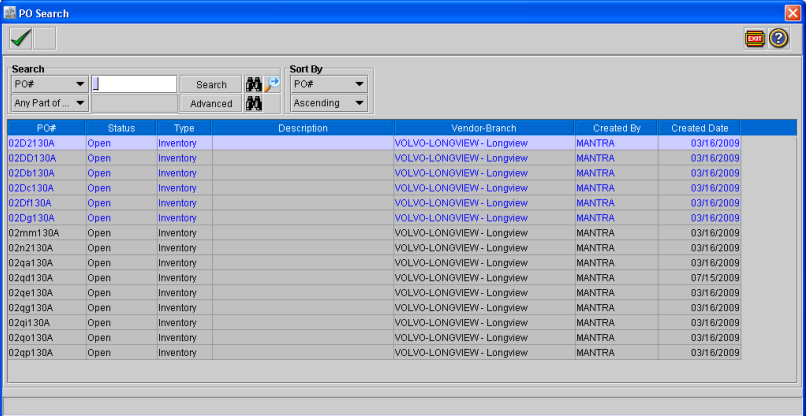
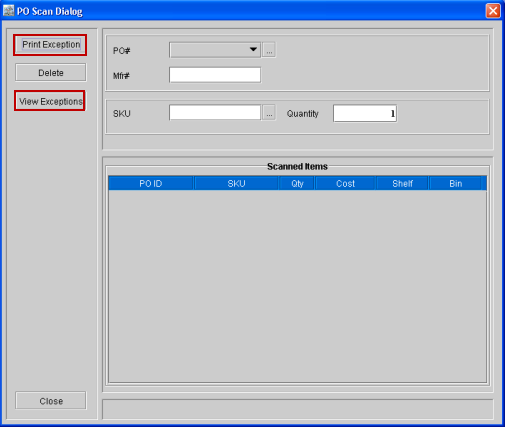
On selecting the OK icon to confirm the selection of PO's from within the PO Search dialog (as shown above) , system will display the PO Scan dialog (as shown below)
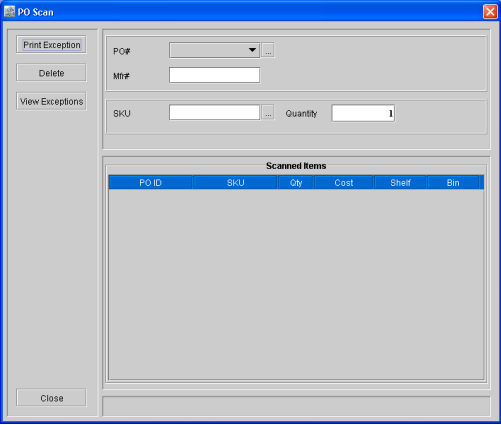
Figure - 1
You can access the tagged Purchase Order(s) from the PO# field drop down field, which when clicked will list the ID of the selected purchase order ( as shown below).
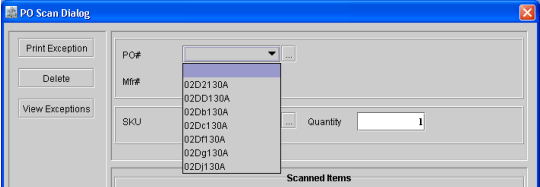
Figure - 1.1
-
If a Purchase Order is selected in the PO# list, then system will consider only the selected Purchase Order for receiving.
-
If the option in the PO# list is selected as blank (as shown in Figure 1), then system will then consider the Purchase Order(s) to receive from within the list of tagged PO’s.
-
If the user scans with a Purchase Order ID selected in PO# field and the part is not found on that Purchase Order, then system will log the action as exception and the user can later either add the part to the selected Purchase Order or any other Purchase Order.
-
The Purchase Order ID’s tagged initially or any changes made to the list later will be stored with the batch and can be viewed anytime through the batch.
Note: System will not store any history for this action and only the latest list of tagged PO’s will be stored.
Exceptions
Currently all exceptions interrupt the scanning process and are available for viewing (and printing) only until the user is in the receive batch. These exceptions can only be printed and once the user exits the batch, these exceptions are lost.
As per the new support, all exceptions will be stored and be available for resolving any time later. An exception will not interrupt the scanning process.
Following are the some of the exceptions that currently require user input to proceed or reject the scanned part.
-
Invalid part number scanned
-
Multiple matches found with the scanned part#
-
Part not on the selected PO or all tagged PO’s
-
Excess quantity scanned
-
PO opened by another user
-
Part present on an ’In process’ Physical inventory batch
-
Any database record that needs to be updated is locked in another session of CR2
Scanning Process - With or Without the selection of Purchase Order(s)
When a part is scanned (with 1 or more quantities)
-
While scanning, If no PO is selected, then system will verify if the scanned SKU is there in any of the tagged PO's. If there is any PO with the scanned SKU, then it will be received based on the quantity being scanned. If there is no PO with Scanned SKU, then system will verify if any of the PO's SKU or Vendor SKU as a sub string of scanned SKU. If system finds any of the PO's with sub string matching of SKU or Vendor SKU, then those PO's will be considered for receive.
-
System will first check whether the scanned part or any of the parts it has replaced are present on any of the tagged PO’s. If not, it will be added as an ’Invalid part number’ exception, which can later be resolved by the user. The system will show the error in the status bar (along with making a critical error beep) but will not expect the user to take action at that time - the user can continue receiving other parts.
-
If any Purchase Order was selected from the tagged list before scanning the part, then system will try receiving the part only on the selected PO and if the part is not found, this will be added as an exception and the user can later decide what action needs to be taken.
-
If the system is unable to identify any PO having the scanned part, then will check if the scanned part is a superseding part or a replaced part.
-
If the scanned part is a replaced part, the same will be added as a Replaced Part exception.
-
If the scanned part supersedes some other part in the system, a ’Superseding part' exception will be added. The exception line will show the PO ID and the part number which the scanned part supersedes. If no PO is found within the tagged PO’s that has the replaced part, one line of exception will be added with the entire scanned quantity.
-
If the PO identified for receiving is kept open in another session of CR2, this will be logged as a ’Locked PO’ exception. Later the user can retry receiving from the exceptions window.
-
If the scan failure is caused due to any other record (e.g. part record) being locked, a ’Locked record failure’ exception will be logged and the user can later retry receiving through the exception window.
-
If a scanned part is present on an ’In Process’ Physical inventory batch, currently the receiving process for that part will fail. With the new support, system will log this as a ’Physical Count in process’ exception and later the user can retry receiving from the exception window.
Viewing and Printing Exceptions
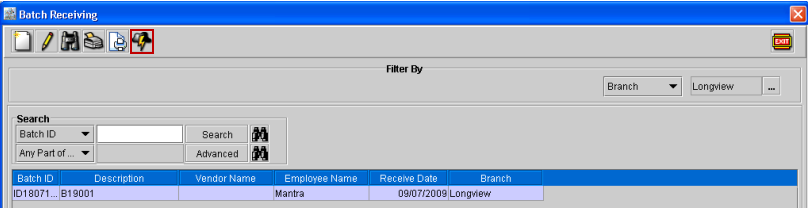
You can view and print the exceptions from within the following locations :
PO Scan Dialog
Receive Inventory Window

Batch Search Window
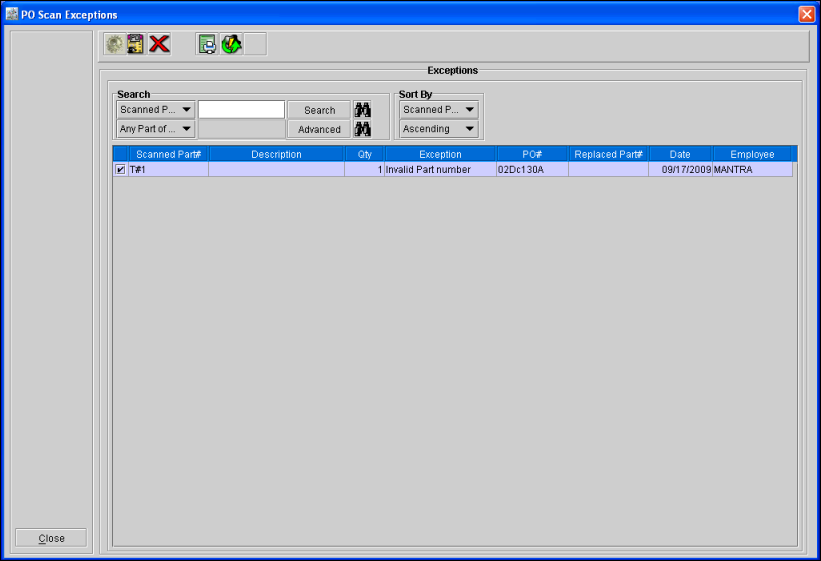
PO Scan Exception Window
The PO Scan exception window will be displayed on selecting the View Exception button from any of the above listed locations.
Resolving Exceptions
To resolve exceptions, the user has to select the line check box (for single or for multiple lines) and click the ’Resolve’ button. On clicking the 'Resolve' button, based on the type of exception, system will take the action.
Exceptions: Types and Resolution
Based on the type of exception the user is trying to resolve, the system will take action
Invalid Part number
For ”Invalid Part number ’ exception lines, the system will check if the part record exists in the database. If the part # doesn’t exist in the database, the user has to manually add the part or change the part number by tagging a part record and try resolving the exception. If the part supersedes another part, the user also has to enter the superseding part information on the replaced part record.
Once the part record has been located and the user tries resolving the exception again, the system will try receiving the part on the tagged PO’s - the same way it does while scanning (Process mentioned above)
Part not found on any PO
Parts that weren’t found on any of the tagged PO’s will appear with an exception of type ’Part not found on any PO’. On resolving these exceptions, the system will first try receiving again on the tagged PO’s (unless a PO has been selected for the scanned line). If the part is not found, the system will check if the scanned part supersedes any part on the PO (s).
The users can also receive the part without any PO reference.
Replaced part
Parts that have been replaced and not found on any open PO will be listed with ’Replaced part’ exception. Since the system will not allow receiving replaced parts not found on Open PO’s, these exceptions will have to be deleted by the user.
Superseding part
Parts that have superseding other parts in the system will be shown with a ’Superseding part’ exception. The exception line for these parts will have the ID of the PO which has the replaced part and the part# that the scanned part replaced. There can be multiple lines with different PO’s/Parts depending on the quantity scanned and the number of replaced parts on the PO’s.
Locked record exception or Physical inventory count in process
Parts that couldn't be received due to some record being in use or due to the part record being present on an ’In Process’ Physical Inventory batch will be listed with either ’Locked record’ or ’Physical inventory in process’ exception. On clicking the resolve button the system will again try receiving the parts.
Cost considered while resolving exceptions
Newly added lines
The cost for these parts will be defaulted from the ’Cost’ field of the part record which can later be overwritten in the receive dialog before receiving. The same price will be set on the PO line being inserted.
Superseding parts
The cost of superseding parts will be the same as the cost of the ’Replaced part’ lines on PO’s. This will work like the current ’Replace part’ process.
Ordering of receive records in the scan dialog grid
The ordering of receive records in the scan dialog will be changed so that the latest received part appears at the top instead of being shown at the end.
Quantity in the receive scan dialog
The quantity field in the scan receive dialog will get defaulted to ’1’ after each scan. Currently the quantity field retains the quantity entered with the previous scan.
Icon Information of PO Scan Exception window


The Exceptions will be resolved based on the following criteria:
-
If the selected PO has the PO number then system will receive that Item on the selected Purchase Order or if there is no PO selected, then all the PO’s in the drop-down list will be considered for receiving. After this operation, if there is still some quantities left to be received, then system will follow the following step 2.
-
For the remaining quantities (or the full quantity), system will verify if the part is replaced, if it is replaced then for that quantity, replaced quantity exception will be logged and the resolving will be completed. If the part is not replaced, then system will follow the following step 3.
-
If the part is superseded, then system will verify if that part supersedes any part in the selected PO (or all POs if no PO is selected). If it supersedes, then the superseding exception will be logged for each PO based on replaced quantity and part number by splitting the exception line. (System will consider the existing exception having replaced quantity and Part for PO). If still some (or all) quantity is left after verifying, then that line will be added as superseding exception without any PO details.
-
In this process of splitting the exception line for superseded parts, system will immediately prompt for replacing the Part on the PO one by one for each split line. Replacing on PO will be done, only if there is no received/Vouchered/Approved quantity and the quantity on the PO line should be greater than or equal to exception line quantity. Otherwise error will be displayed and will continue resolving next exception.
-
At the end of step3, if there is still some quantity left which does not supersedes or which supersedes some parts but not on selected PO or any of the PO (if no Po selected) in drop-down list, then system will follow the following step 4
-
-
If the part is not there on selected or any of the PO, not replaced, not superseded or supersedes any of the part in the PO list, system will prompt the user for adding and receiving that part on the selected PO. If no PO is selected, then system will prompt the user for receiving without any PO. Based on the selection of the user, the part will be received. When we are adding and receiving with or without PO, system will prompt for receive Cost and by default it will be replacement cost and user can the cost. and with the defined cost the parts will be received with or without PO.
-
While logging a Superseded exception, system will consider the sub-string check of the SKU and Part Number of the SKU scanned.
-
At the time of Resolving, if the selected exception is a superseding exception without having any PO ID and Replaced Part or if the Part is superseded to any of the tagged Purchase Order, then system will display a Superseding Exception dialog, wherein the superseding details of the Part in each Purchase Order will be displayed. Selecting each scanned Part line the user will be able to resolve the exception. On clicking Replace, all lines having Quantity greater than 0 will be considered for Replacement and Receiving.
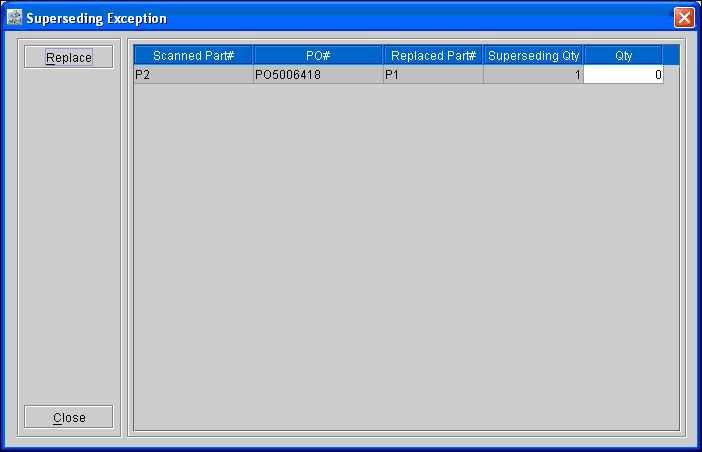
If any unresolved Quantity is present when closing the Superseding Exception dialog, it will be updated to the selected exception, if nothing is left unresolved, then exception will be removed.
-
For exception type Invalid part Number, if the part is still invalid, on selecting the Resolve exception icon , system will display the Invalid SKU dialog for adding or searching for the part. Based on user’s selection system will display either Part Edit window or Part Search window. System will then replace the part on the exception and Exception Type will change to 'Part not found on any PO' and will continue to resolve starting from step 1 mentioned above.
-
For Exception type Multiple Matches found, on selecting the Resolve exception icon , system will display the Part Search window with all the matching parts which has the scanned SKU as UPC or Part Number. Here the user will be able to tag the part, and then system will replace the exception SKU with tagged part number and Exception type will changes to 'PO not assigned'. System will then continue resolving from Step 1 mentioned above.
-
Once the exception is resolved, the resolved lines will disappear from the grid.
-
After resolving, if the part is received, then system will display it in the scan dialog grid and receive batch.
-
Received batch having unresolved exceptions will be displayed in red.
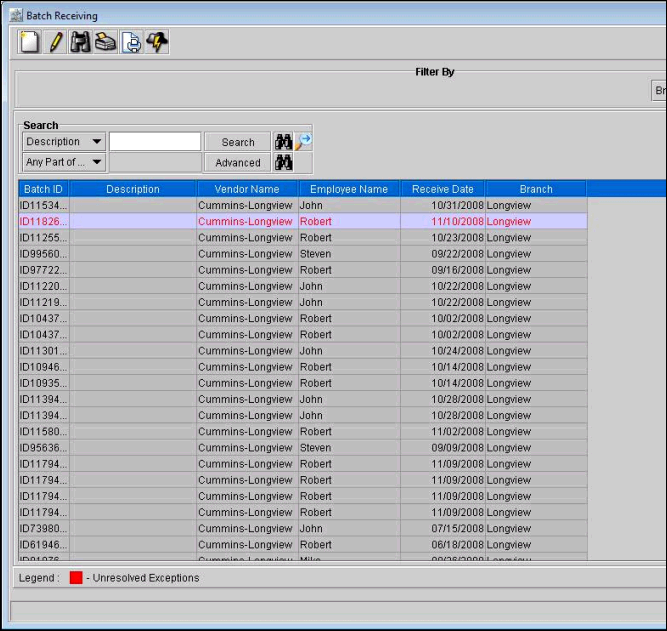
Points to Note:
-
In the PO Scan Exception window, Qty field will be disabled.
-
The Exception window will have only 'Close' button and no operation will be committed until the user saves the main receive batch.
-
The Scanned Part # field will be editable and the user will be able to key in the SKU and if the SKU exists in the system then system will change the exception type to Part not found on any PO.
-
To resolve multiple exceptions, user will have to select the check box (first field) of the lines, which has to be resolve.
-
In the PO# column, the drop-down list will display all the PO’s selected for batch scanning. User will not be allowed to un-tag the tagged POs in the PO Search window, if there is an unresolved exception exits for it.
-
If the user selects any other PO in the drop down, system will clear the replaced part.
Note: While logging the exceptions for the superseded parts and quantities on PO, system will consider the quantity of already logged superseded exception for the same PO and superseded part.
Notification for Replaced Parts
Note : The below mentioned validations are done if and only if the option " Allow Purchase Superceded Part" is set as false in configuration
-
System will not allow the user to add the superceded item on a purchase order or to Purchase Assign a superceded part which is added in an order (The option Purchase will be disabled in the right-click assign options [as shown below])
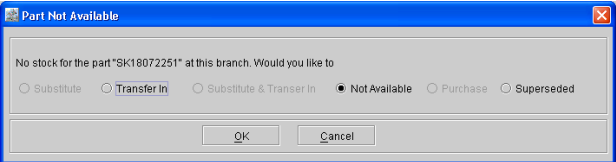
-
If the user receives a superceded part (except PO Receive) , then system will prompt the user as "The Part is Superceded , Do you want to continue " . If the option "Yes" is selected , then system will continue to receive the part.
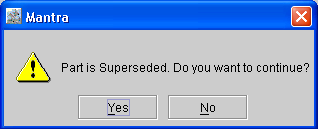
-
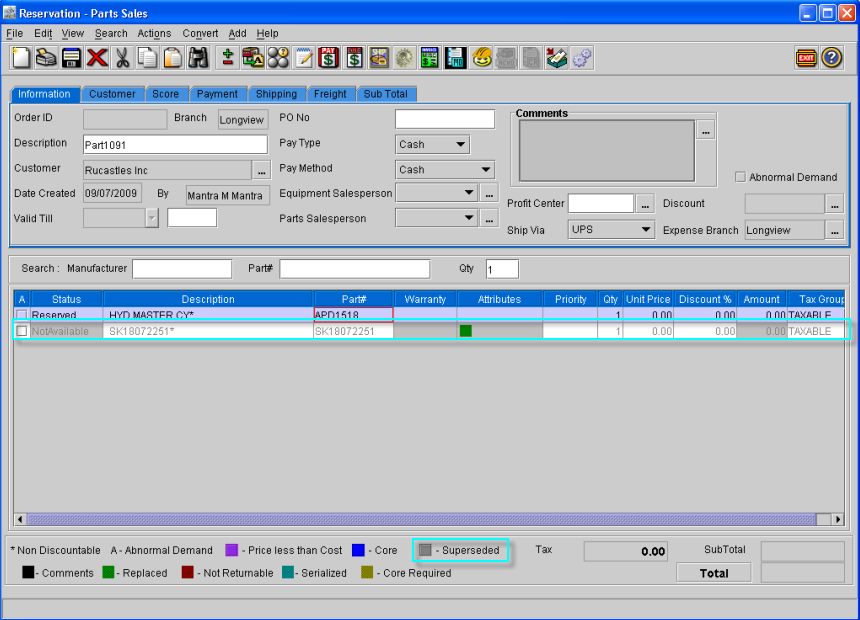
In the Order, the superceded part will be displayed in Gray color. A new legend also have been added for further identification for the superceded parts.