
Tool Bar Icons
Table 1.0 Tool Bar Icons
|
Icon Image |
Icon Name |
Functionality |

|
|
Prints the Return to Vendor Order. |

|
Find |
Finds and filters the items/assets/parts displayed within the Return PO section as per criteria provided. |

|
Save |
Saves the Return to Vendor Order. |

|
Void |
Makes the Return to Vendor Order void. |

|
Comments |
Adds comments and/or attachments to the Return to Vendor Order. |

|
Done |
Vouchers the Return to Vendor Order. |

|
Availability |
Displays the availability of an item/part selected within the Return PO section. If asset is selected then it displays the availability of its parent item. |

|
History |
Displays the change history of an item/asset/part selected within the Return PO section. |
Tabs
Information Tab
The Information tab, within the Return to Vendor Order window, is as shown in Figure 1.3.1.
Figure 1.3.1 Information Tab
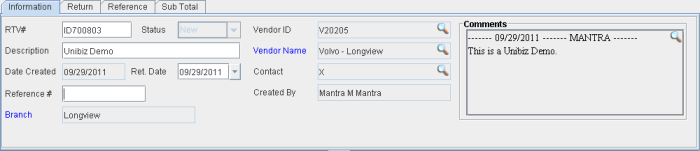
Table 1.1 Fields within Information Tab
|
Field Name |
Description |
|
RTV# |
The ID for the Return to Vendor Order.
|
|
Status |
Displays the status of the Return to Vendor Order. The value of this field will be:
|
|
Description |
A description of the Return to Vendor Order can be provided using this field. |
|
Date Created |
The date on which the Return to Vendor Order is created. |
|
Ret. Date |
Displays the Return Date for the Return to Vendor Order. The Warehouse task for returning gets created based on this date. |
|
Reference # |
A user assigned reference number for the Return to Vendor Order. |
|
Branch |
Branch from where the Return to Vendor Order is created. |
|
Vendor ID |
ID of the Vendor to whom the items/parts are being returned using the Return to Vendor Order. |
|
Vendor Name |
Name of the Vendor to whom the items/parts are being returned using the Return to Vendor Order. |
|
Contact |
Contact person for the vendor to whom the items/parts are being returned. |
|
Created By |
The employee who created the Return to Vendor Order. |
|
Comments |
Comments can be provided for the Return to Vendor Order using this field. |
Return Tab
The Return tab, within the Return to Vendor Order window, is as shown in Figure 1.3.2.
Figure 1.3.2 Return Tab
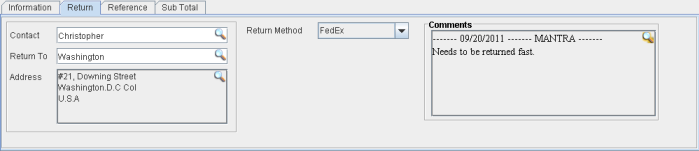
Table 1.2 Fields within Return Tab
|
Field Name |
Description |
|
Contact |
The contact person from the Vendor company can be tagged using this field. |
|
Return To |
The location to which the order needs to be shipped can be tagged using this field. |
|
Address |
The address to which the order needs to be shipped (the Vendor's address) can be tagged using this field. |
|
Return Method |
The way in which the order gets shipped can be tagged using this field. |
|
Comments |
Comments regarding shipping of the order can be added using this field. |
Reference Tab
The Reference tab, within the Return to Vendor Order window, is as shown in Figure 1.3.3. This tab displays the Purchase Orders from where the items are returned using the Return to Vendor Order.
Figure 1.3.3 Reference Tab
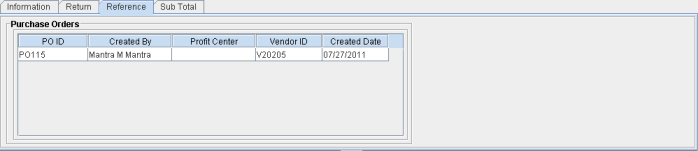
Table 1.3 Columns within Purchase Orders section of Reference Tab
|
Column Name |
Description |
|
PO ID |
Displays the ID(s) of the Purchase Order(s) using which the item(s)/part(s), which is now being returned, was bought. |
|
Created By |
Employee who created the Purchase Order. |
|
Profit Center |
Profit Center tagged to the Purchase Order. |
|
Vendor ID |
ID of the Vendor tagged to the Purchase Order. |
|
Created Date |
Date on which the Purchase Order was created. |
Sub Total Tab
The Sub Total tab, within the Return to Vendor Order window, is as shown in Figure 1.3.4.
Figure 1.3.4 Sub Total Tab
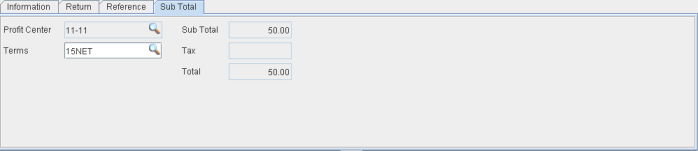
Table 1.4 Fields within Sub Total Tab
|
Field Name |
Description |
|
Profit Center |
Profit center can be tagged to the Return to Vendor Order using this field. |
|
Terms |
The Billing Terms can be defined for the Return to Vendor Order using this field. |
|
Sub Total |
Sub-total of all the items/assets/parts that are about to be returned using the Return to Vendor Order. |
|
Tax |
Displays the tax as was applied on the Purchase Order whose items/parts are returned using this order. |
|
Total |
Sum of the sub-total and tax for the Return to Vendor Order. |