
COGS Adjustment Dialog Box for Trade-In Items
Reference No: 25601 CBH9194745
(V 02.00.17-00)
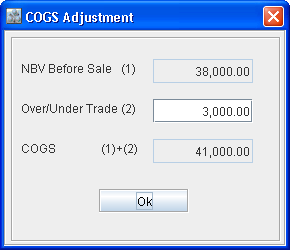
The functioning of the COGS Adjustment dialog box (shown in Figure 2.0) is as explained below.
NBV Before Sale (1) field - This will always show the NBV of the Asset before adding to the order. This will not get changed in any scenario like - the Order gets Invoiced, the Invoice is Posted, the Invoice is Cancelled, or if the Order is Re-invoiced and Posted.
Over/Under Trade (2) field - This will display the adjustment for that Asset entered by the user inside the Sale Order.
COGS (1)+(2) field - This is the value that will get posted to the accounting software.
Figure 2.0 COGS Adjustment Dialog Box (New)
Note:

The cost of the Asset (on which COGS Adjustment is done) as displayed in the Asset edit window > Cost field won't be changed and will display the Received Cost.