
Part Added on the Order Defaulted from Configuration
Reference No: 25337
(V 02.00.16-00)
Details
In CR2, the sequence in which the Parts have to be added on a Part Sale Order and a Work Order, can be defined in the Configuration module > Parts > Add Parts At. Three options are available in the drop-down list of Add Parts At field, as shown in Figure 1.0.
Figure 1.0 Setting Add Parts At Option in the Configuration Module
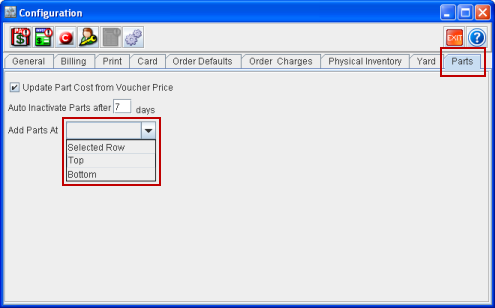
Note: All the configuration settings relating to Parts has been moved to the Parts tab in the Configuration module.
Options in Add Parts At
The options available in Add Parts At are as given below:
Selected Row
Top
Bottom
Selected Row
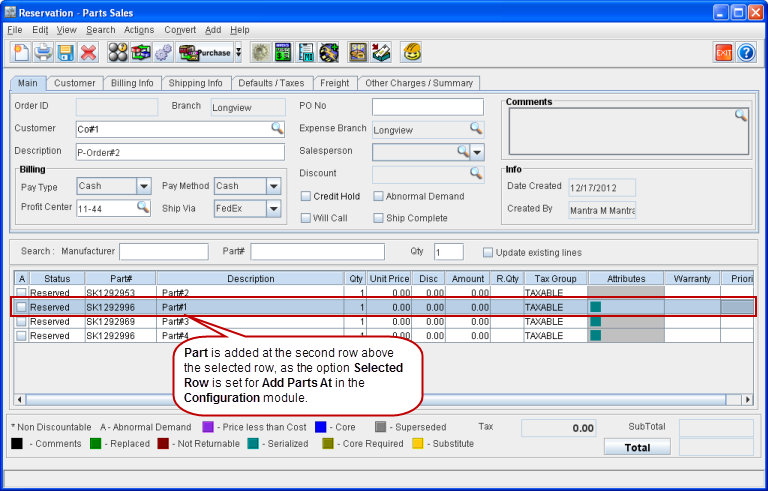
If the Add Parts At is set as Selected Row in the Configuration module, the Part on the Order will always get added above the selected line of the order, as shown in Figure 1.1.
Figure 1.1 Part Added with the Add Parts At option set as Selected Row in the Configuration Module
Top
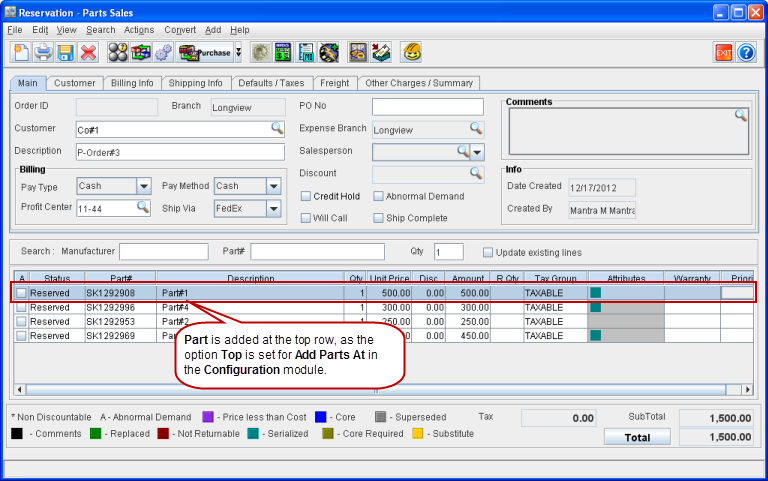
If the Add Parts At is set as Top in the Configuration module, the Part on the Order will always get added at the top line of the order, as shown in Figure 1.2.
Figure 1.2 Part Added with the Add Parts At option set as Top in the Configuration Module
Bottom
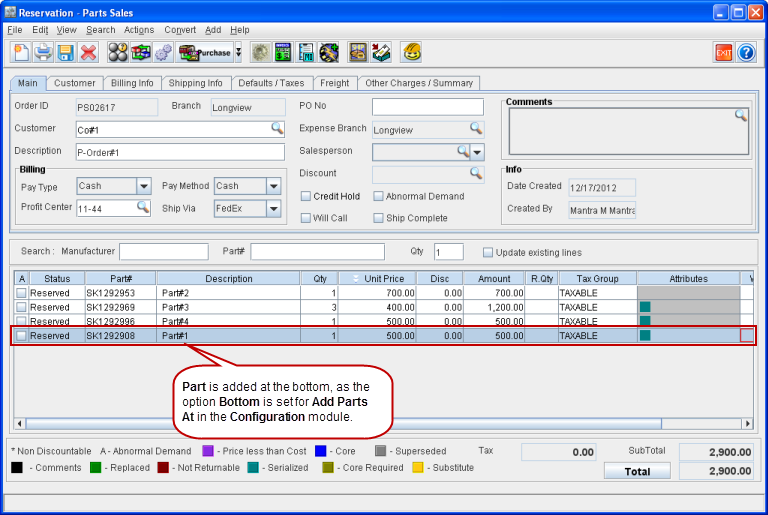
If the Add Parts At is set as Bottom in the Configuration module, the Part on the Order will always get added at the bottom line of the order, as shown in Figure 1.3.
Figure 1.3 Part Added with the Add Parts At option set as Bottom in the Configuration Module
Points to Note:
The sequence of Parts added on the Order as defined in the Configuration module is applicable only for Part Sale Order and Work Order.
This feature is applicable in a Part Sale Order and Work Order to add Parts, Misc Charges, Services and Labor. However Labor can be added only in a Work order.
This feature is applicable even when Parts are added in different ways such as, from Search > Parts, from Add Parts Quick;y icon and from the Speed bar.