
Internal Customer Feature
Reference No: 24997
(V 02.00.14-00)
Table of Contents
Internal Customer in Work Orders and Quick Book Extracts
Details
In CR2, few changes are made to the way the Internal Customer feature works, as described below.
New Internal Check Box Provided in the Customer Edit Window
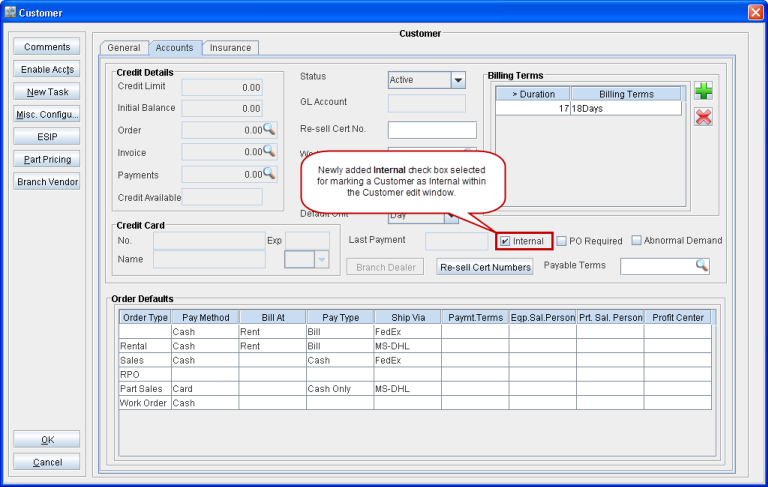
A new check box named as Internal is provided within the Customer edit window, as shown in Figure 1.0. This check box should be selected for marking a Customer defined in CR2 as an Internal Customer.
Figure 1.0 Internal Check Box in the Customer Edit Window
Tagging an Internal Customer to a Work Order
When an Internal Customer is tagged to a Work Order in the Customer field then, the value of the Charge To field gets automatically set as Internal, as shown in Figure 1.1. Later if a normal Customer is tagged to the Work Order then the value of Charge To field reverts to the value Customer.
Figure 1.1 Internal Customer Tagged in a Work Order
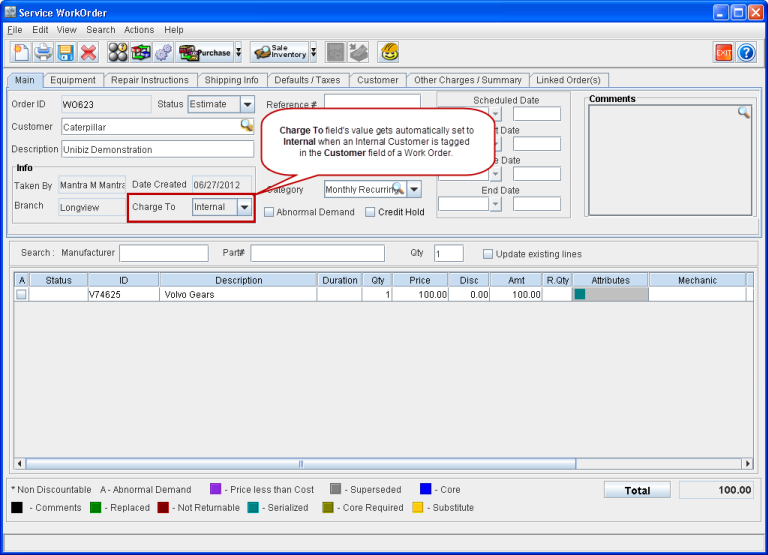
You won't be able to change the value of the Charge To field in a Work Order tagged with an Internal Customer.
You won't also be able to manually select the Charge To value of a Work Order (which has a normal Customer tagged to its Customer field) as Internal.
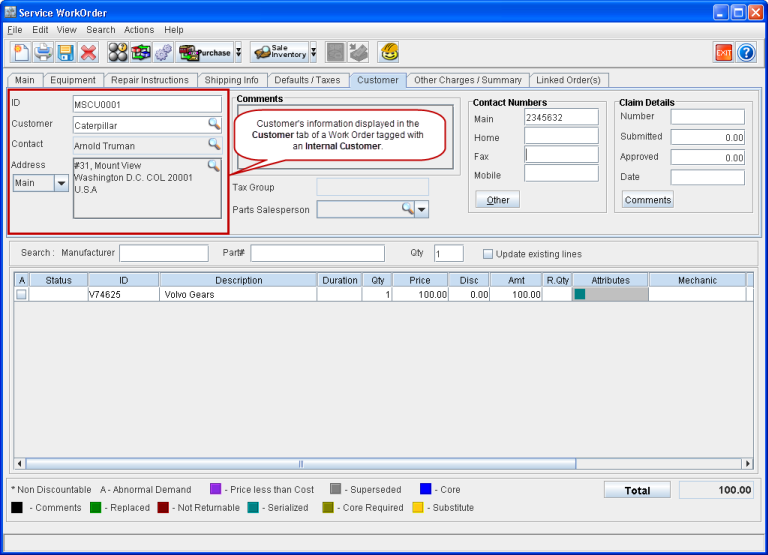
The Customer related information will get displayed in a Work Order's Main as well as Customer tabs if it is tagged with an Internal Customer, as shown in Figure 1.1 and Figure 1.2.
Figure 1.2 Customer Tab of a Work Order Tagged with an Internal Customer
Changes on Posting an Internal Customer Tagged Work Order's Invoice in the Quick Books Format
The changes that happen to the Quick Books export files when a Work Order with an Internal Customer tagged to it is invoiced and posted is as described in Table 1.0.
Table 1.0 Change in Quick Books Export Files on Posting an Internal Customer Tagged Work Order's Invoice
Quick Books Export File Name | Normal Customer | Internal Customer |
Sales.csv | No change. GL Code from Customer edit will be entered in the 19th column. Sales GL Code will be entered in the 26th column. | No entries in the Sales.csv file. |
General.csv | No change. COGS GL Code from Item/Part edit will be entered as a positive value. Inventory GL Code from Item/Part edit will be entered as a negative value. | Expense GL Code from Customer edit will be entered as a positive value. Inventory GL Code from Item/Part edit will be entered as a negative value. |
Customer.csv | No change. | No change. |
Note: There are no changes in the way the system works when an Internal Customer tagged Work Order's Invoice is posted in any of the other accounting formats like Great Plains, Peachtree and so on.