
Marking Work Order Service Type and Category as Active / Inactive
Reference : 23826
(V 02.00.06-00)
Details
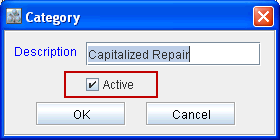
In Cr2, while defining or editing a Work Order Service Type and Category definition, you can set the respective definition as either Active / Inactive. This can be done by selecting or de-selecting the option "Active" present in the Service Type and Category Edit window, as shown in Figure 1.0 and Figure 1.1.
On creating a new Service / Category definition, system will display the Active option as selected by default.
On setting a Service / Category definition as inactive (by de-selecting the Active check box), system will not allow to tag the inactive definition in the work order.
Figure 1.0 Service Type Definition window
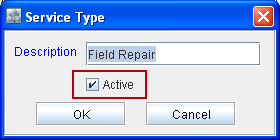
Figure 1.1 Category Definition window
Searching Active and Inactive Service Type / Category
While performing search for Service Type / Category definitions, system will display the Service Type and Category definitions based on the status of Active filter option present (Refer Figure 2.0 and 2.1).
Figure 2.0 Service Type Search window
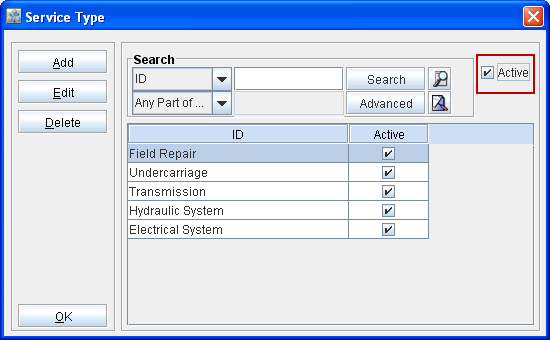
Figure 2.1 Category Search window
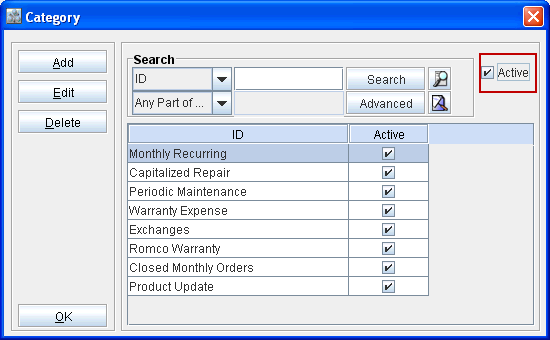
On performing search for Service Type and Category definitions with the filter option 'Active' selected, system will display only the definitions which are marked as active.
On performing search for Service Type and Category definitions with the filter option 'Active' de-selected,system will display both the active and inactive definitions.