
Additional Features in Search Inventory Window
Reference: 23001
Details
Additional features has been provided in the Search Inventory window (refer figure 1.0), using which you can simultaneously manage multiple orders in a single instance.
Figure 1.0 Search Inventory Window
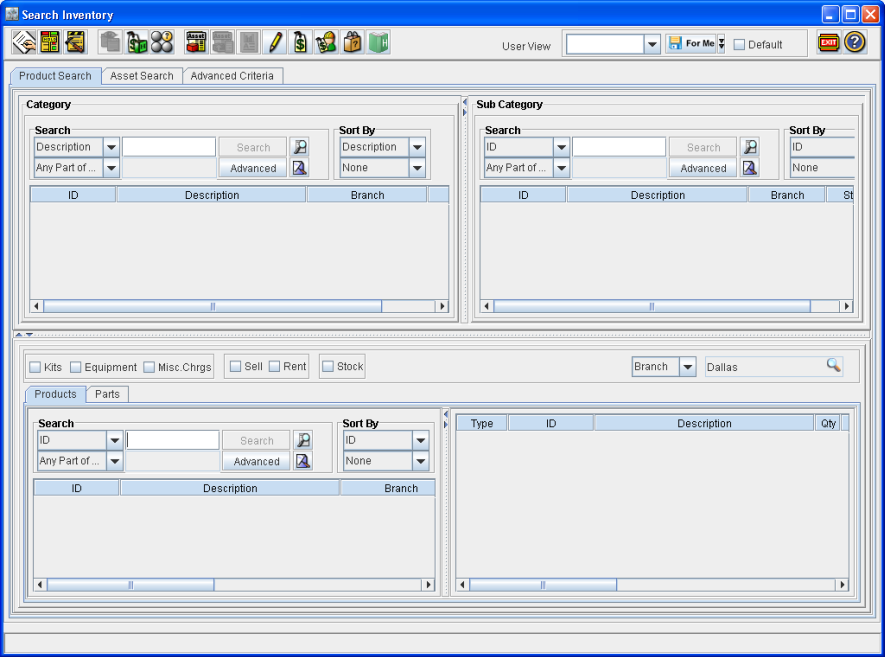
Additional Features
The additional features that are added to the Search Inventory window are described below.
Products Tab - New section
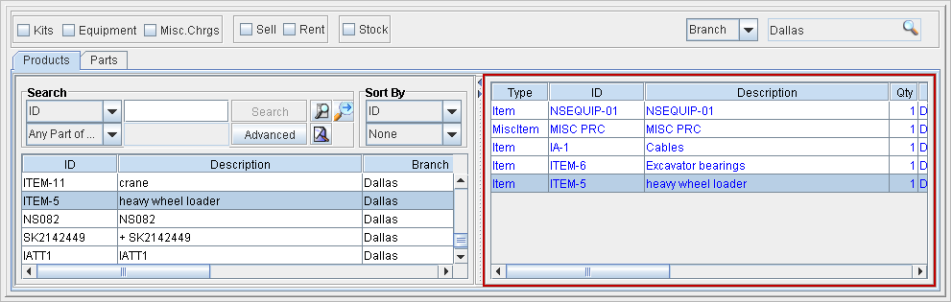
A new section is added in the Products tab, which will display the list of equipment and parts which are selected (from within respective tabs)as shown in Figure 1.1.
Figure 1.1 Products Tab in Search Inventory Window
New Tab - Parts
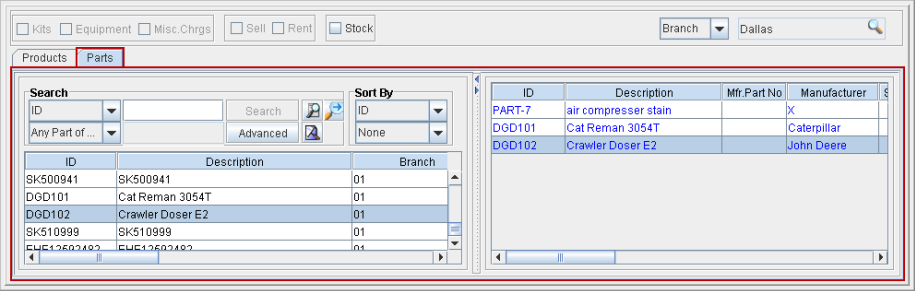
A new tab named Parts is added, using which you can select the Parts in Search Inventory window as shown in Figure 1.2.
Figure 1.2 Parts Tab in Search Inventory Window
New Filter Options - Kits and Misc. Charges
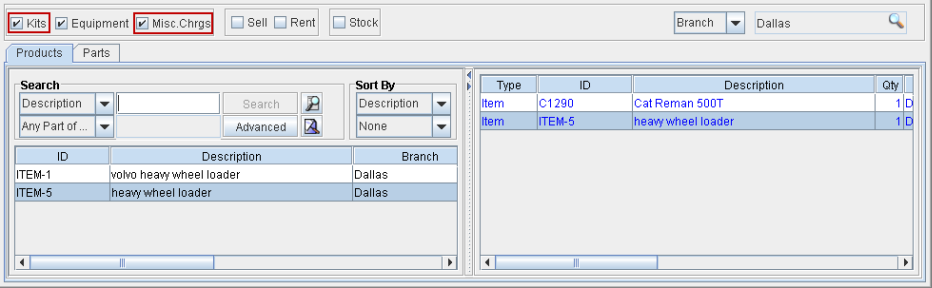
New filter options ”Kits”, ”Misc. Charges” has been provided in the Product selection section as shown below, by you can filter the search results to display only the Kits and Misc. Charges. The filter options will be available for equipment search section (Products Tab) as shown in Figure 1.3.
Figure 1.3 Filter Options ”Kits”, ”Misc. Charges”
Re-sizable Frames
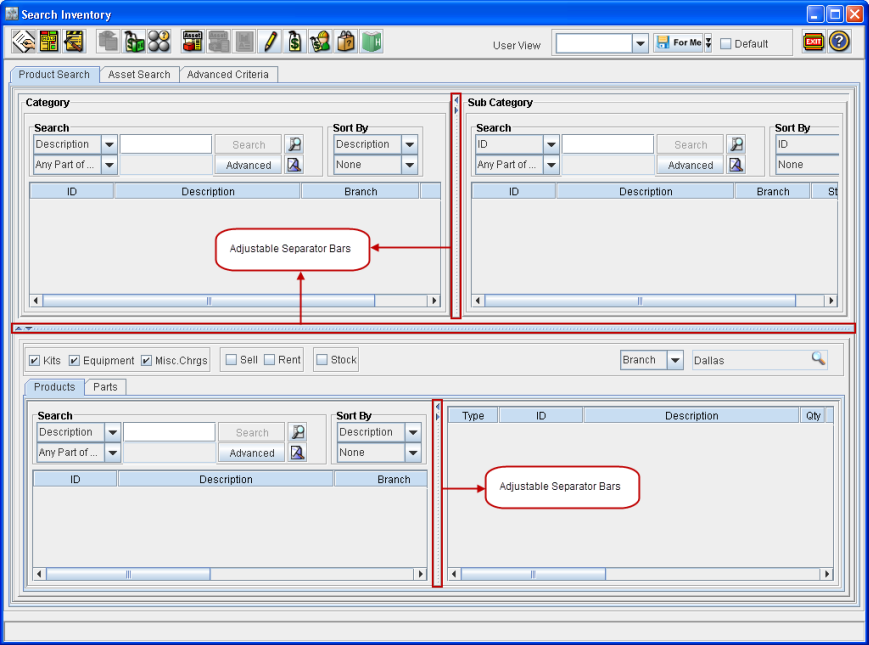
In the Search Inventory window, you can adjust the display area of each section present in the Search inventory window. This can be done by clicking and dragging the Separator bars present in each section as shown in Figure 1.4.
Figure 1.4 Adjust Display Area Sections in the Search Inventory Window
On adjusting the display of each section, system will save the settings and will be displayed when Search Inventory window is accessed again.