
Merge Order Lines
(V 02.00.04-00)
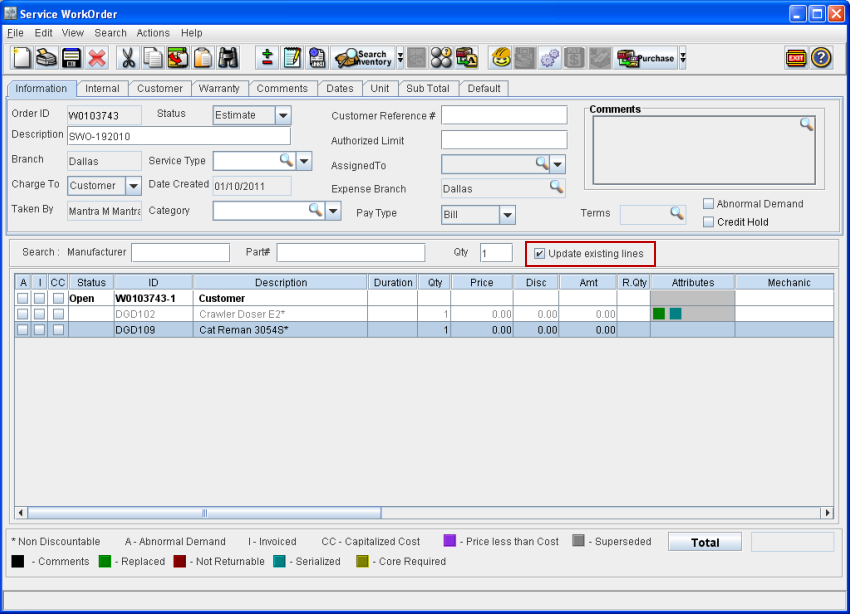
In Cr2, while selecting an Item/Part to an Order which is already present in the order, you can decide whether the selected line has to be added as a new line or to has to be merged (adding the quantity for the selected quantity to already present lines). This can be done by selecting the option "Update existing lines" as shown in below Figures.
Figure 1.0 Search windows (used for searching Item and Parts that has to be added to the order)
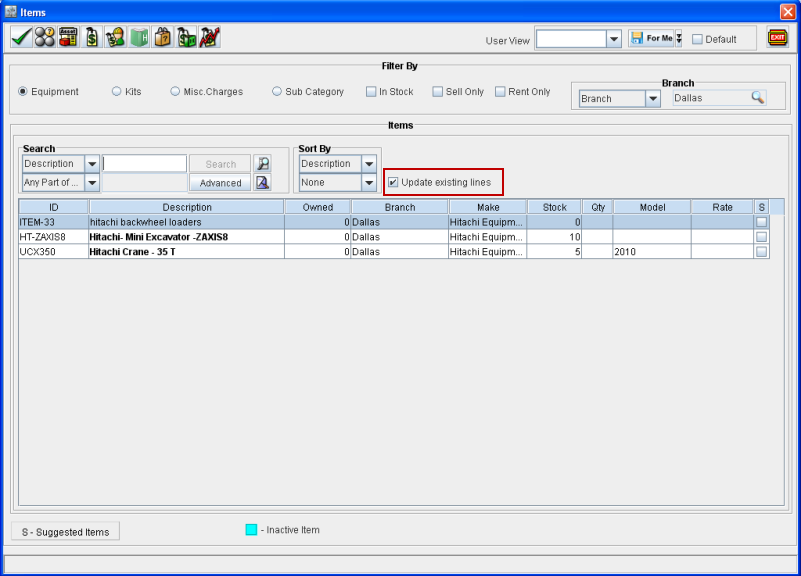
Figure 1.1 Enter ID's dialog (accessed from within Rental Order window, by clicking Enter Items icon)
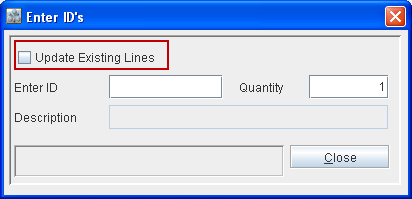
Figure 1.2 Speed Bar (present in the Part Sale Order, Equipment Sale Order and Service Work Order windows)
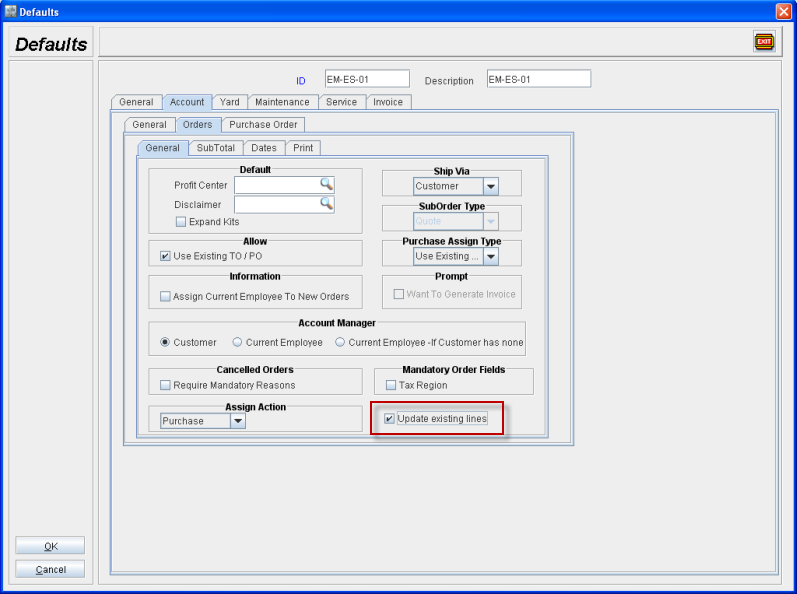
You can also set the default selection status of the option Update existing lines, from within the Defaults module by selecting the option Update existing lines as shown in Figure 1.3.
Figure 1.3
Functionality
While adding an Item/Part in an Order, with the option ’r;Update existing lines’ selected in the feature used for selecting Item/Part, system will search for the selected item/part within the order and if found, will merge the newly selected item line with the existing line (will add the selected quantity of the item with the existing item line quantity).
While adding when item / parts are added to the order with the option ’r;Update existing lines’ selected , system the merge the order lines only if the below mentioned conditions are satisfied.
Item / Part Line should be reserved.
Item / Part is Not Posted.
Item / Part is not linked to any PO/TO.
Item / Part is not present as a child item of a Kit, package or service group.
Item is non serial / serial Items which are added using Product ID.
While adding an Item/Part in an Order, with the option ’r;Update existing lines’ selected in the feature used for selecting Item/Part, if the quantity defined for the selected Item/Part is not available, then system will search for the selected item having Not Available status in the order.
If any item is found, then the quantity defined for the selected line will be added to the quantity present for the not available line in the order.
If no items (selected items for which quantity is not available) is found, then system will create a new line for the not available quantity.
While adding Parts in a Work Order with the option ’r;Update existing lines’ selected in the feature used for selecting Parts, system will first search for the selected Part in the active / Work Order segment which is focus. If the selected item is found in the active/ Work Order segment which is in focus, system will merge the selected part with the existing Part line (will add the selected quantity of the item with the existing item line quantity).
While adding an Parts in a Work Order with the option 'Update existing lines’ selected in the feature used for selecting Parts, if no Work Order segment is set as active / in focus, system will create a new segment with the selected part added as a new line under the created segment.