
Set as Inactive
Reference: 22679
(V 02.00.03-00)
Table of Contents
Set Item, Part, Labor and Misc. Charges as Inactive
Details
In Cr2, you can set an Item(s), Part(s), Misc. Charges and Labor as Active or Inactive, by which you apply restrictions for the Items(s)/ Part(s)/ Misc. Charges and Labor while being added to an order or when displayed in the search windows.
Steps to mark an Item/Part/ Misc. Charges and Labor as Active/ Inactive
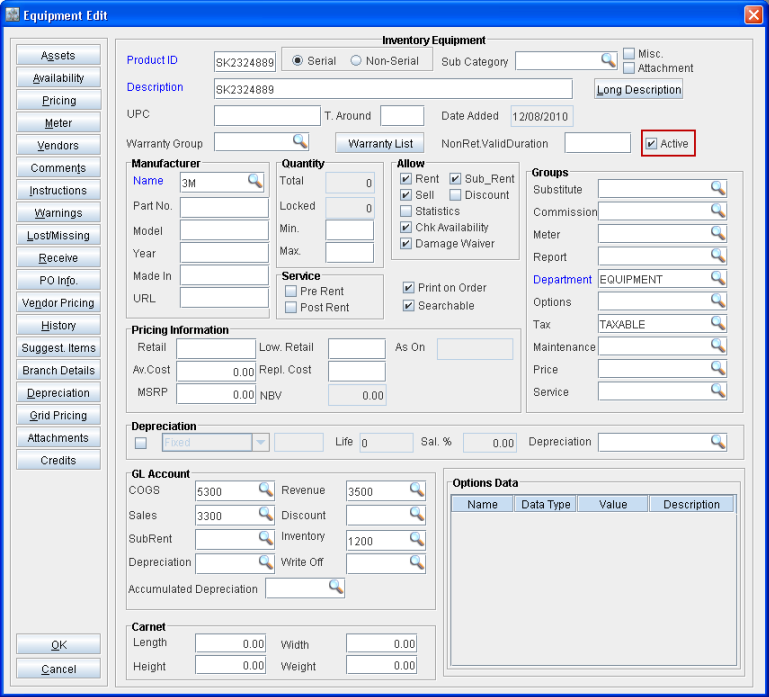
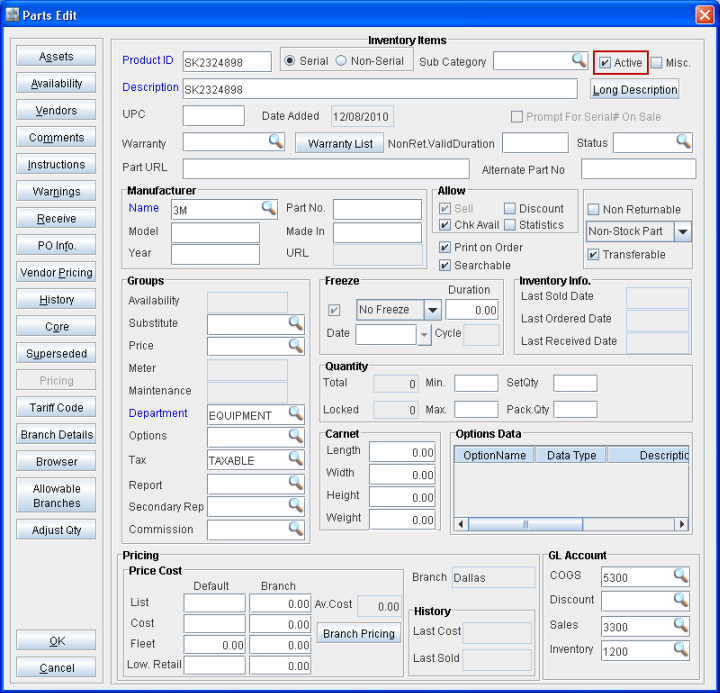
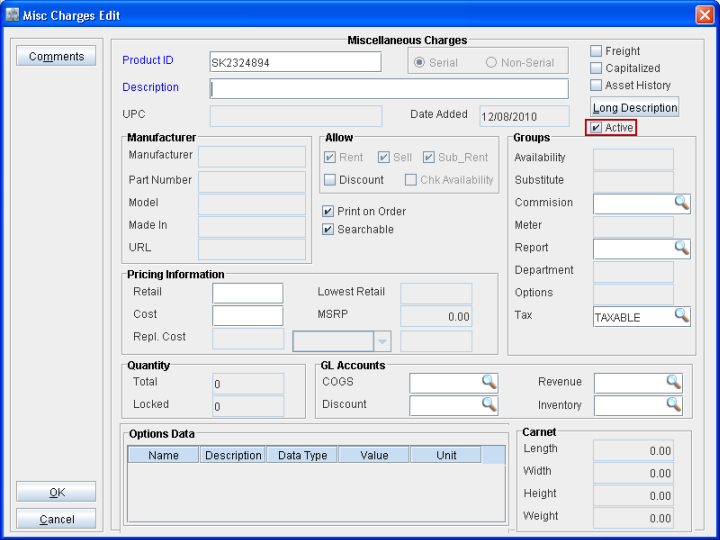
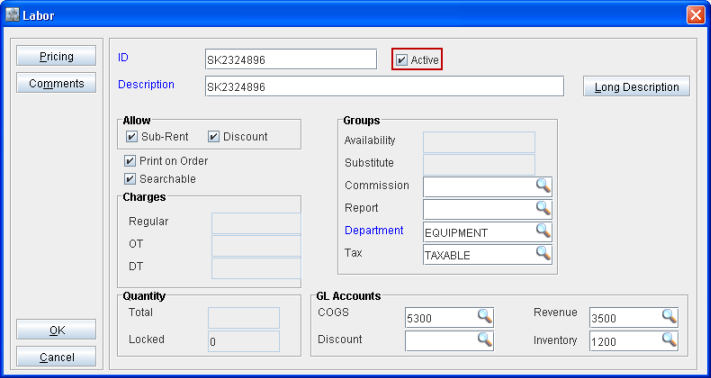
You can set an Item/Part/ Misc. Charges and Labor as Active/ Inactive by using the option Active present in the respective edit windows (Refer below Illustration for more details). You can set an Item/Part/ Misc. Charges and Labor as Active by selecting the option Active and set as the Item/Part/ Misc. Charges and Labor as Inactive by deselecting the Active option.
Illustration
Item
Part
Misc. Charges
Labor
Functionality
On setting an Item(s), Part(s), Misc. Charges and Labor as Active, system will not apply any restriction for the Items, Part(s), Misc. Charges and Labor, when added to the order or when the search is performed for the same.
On setting an Item(s), Part(s), Misc. Charges and Labor as Inactive, system will not display the Inactive Item(s), Part(s), Misc. Charges and Labor in any of the Search windows accessed from within Accounts Module and from Yard Module. In addition, system will also not allow adding the Inactive an Item(s), Part(s), Misc. Charges and Labor to any order.
On setting an Item(s), Part(s), Misc. Charges and Labor as Inactive, system will display the Inactive Item(s), Part(s), Misc. Charges and Labor in Physical Inventory Module as well as Maintenance Module.