
Saving Tab Order
Reference : 22279
(V 02.00.03-00)
Details
In Cr2, you can customize the grid columns which are present in a window by re-sizing column width and also by re-positioning the columns. The customized column layout can be then saved, by which you can set the customized layout applied whenever the respective window is opened.
You can save the customized settings for the grid columns using the right-click option Save Tab Order present in a window after customizing the column layout (re-sizing / re-positioning). Once a customized layout is applied to a window, you can also reset the grid column layout to the default setting using the Right-click option Reset Tab Order.
Points To Note
The option Save Tab Order will be visible in the right-click menu, only if any customization (re-sizing / re-positioning) is done to the grid columns in the Active window. Similarly, the option Reset Tab Order will be visible only if the grid columns does have any saved customized setting present.
While customizing grid columns you an either re-size /re-position the columns or by perform both as per requirement.
Steps To Save Tab Order (customized column layout)
Note : The below illustration is based on Master Labor Entry window. You can use the same method to use the Save Tab Order feature for the grid columns present in windows throughout Cr2.
Access the window for which grid columns has to be customized.
Illustration
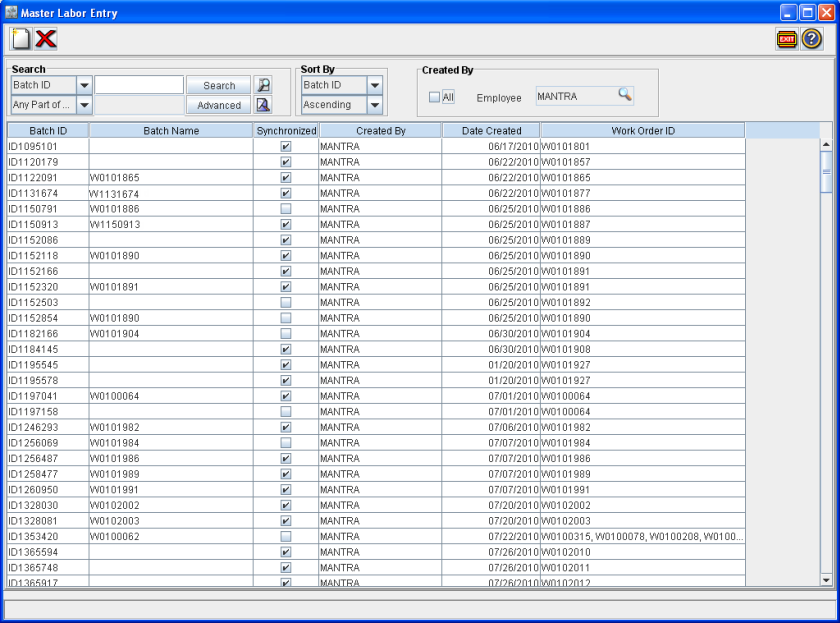
Customize the columns by re-sizing / re-positioning or by performing both.
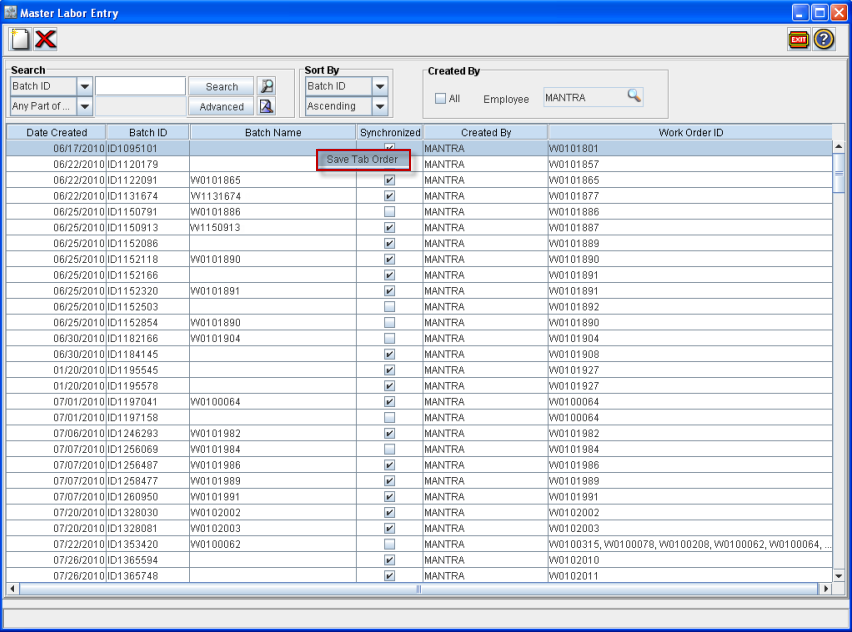
Invoke the Right-click menu and select the option Save Tab Order.
Illustration
Note : In the below illustration, the column Date Created has been repositioned as the first column and space for the column Work Order ID is also increased.
System displays the confirmation message for saving the changes as below :
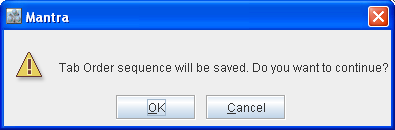
Select OK to save the changes. On selecting OK, the customized settings will be saved in the active window and the same will be applied whenever the same window is accessed.
Steps To Reset Tab Order to Default Settings
Access the window for which customized settings is present for grid columns.
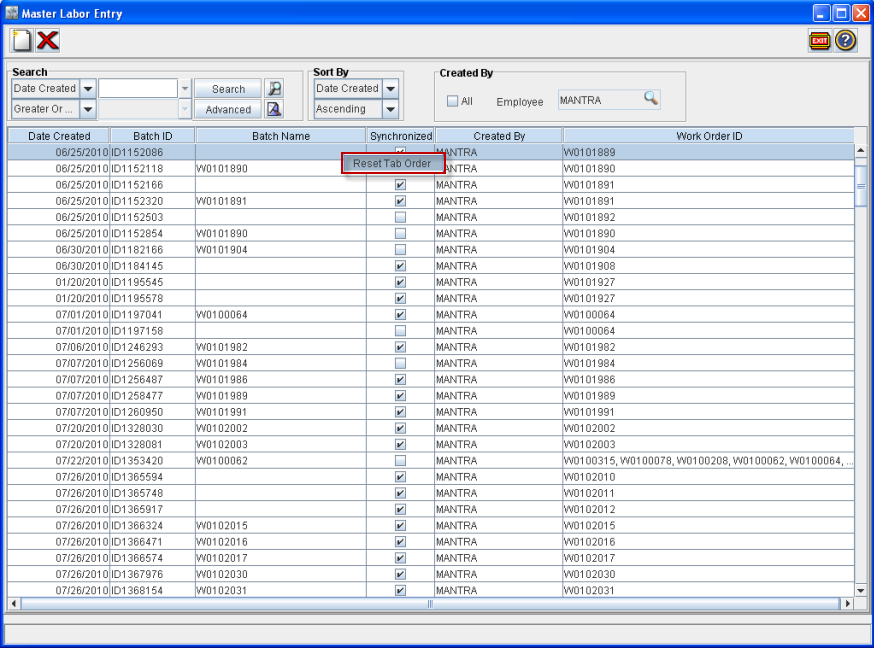
Select the option Reset Tab order from the Right-click menu.
Illustration
Exit the window and re-access the same window (in which settings has been set to default).
System displays the window with the default column position width and size.
Illustration